User Interface
A User Interface is a configuration that groups settings for a specific Layout Intent. Instead of configuring individual settings separately, you can define a single User Interface to apply them together.
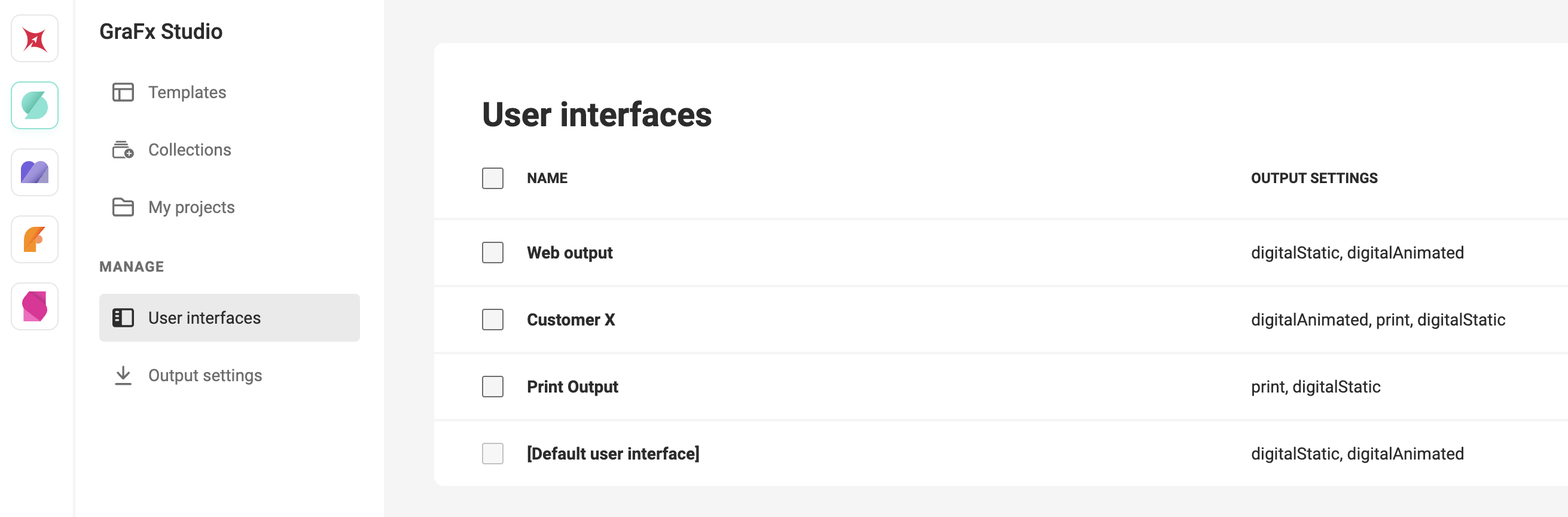
User Interfaces can be created for specific customers (e.g. to match output requirements) or for targeted use cases.
Output settings
For each Layout Intent, you can add one or more Output Settings.
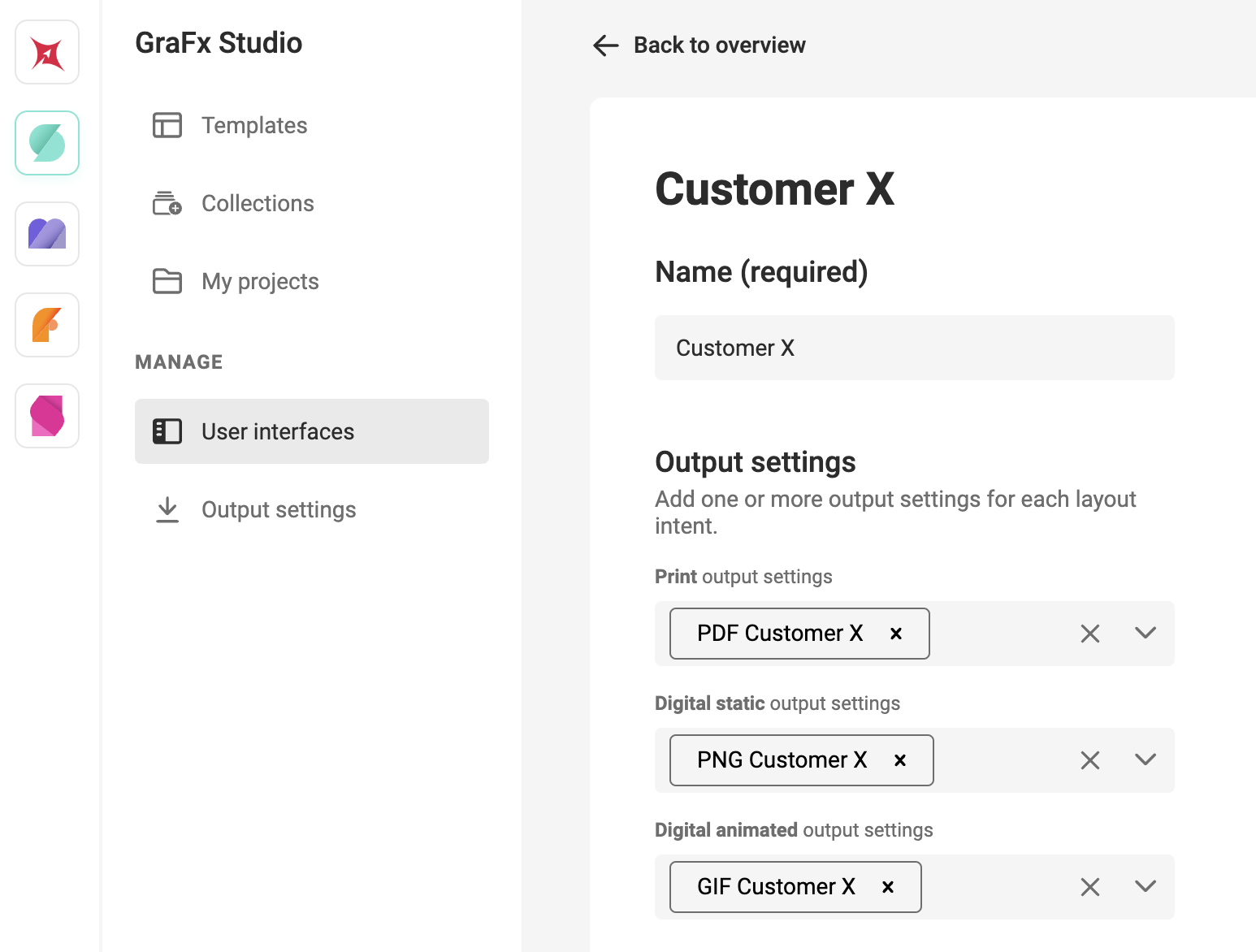
Before assigning them in the User Interface, make sure you’ve defined your Output Settings.
Default User Interface
A default User Interface is always available. It is recognizable by square brackets and cannot be deleted.
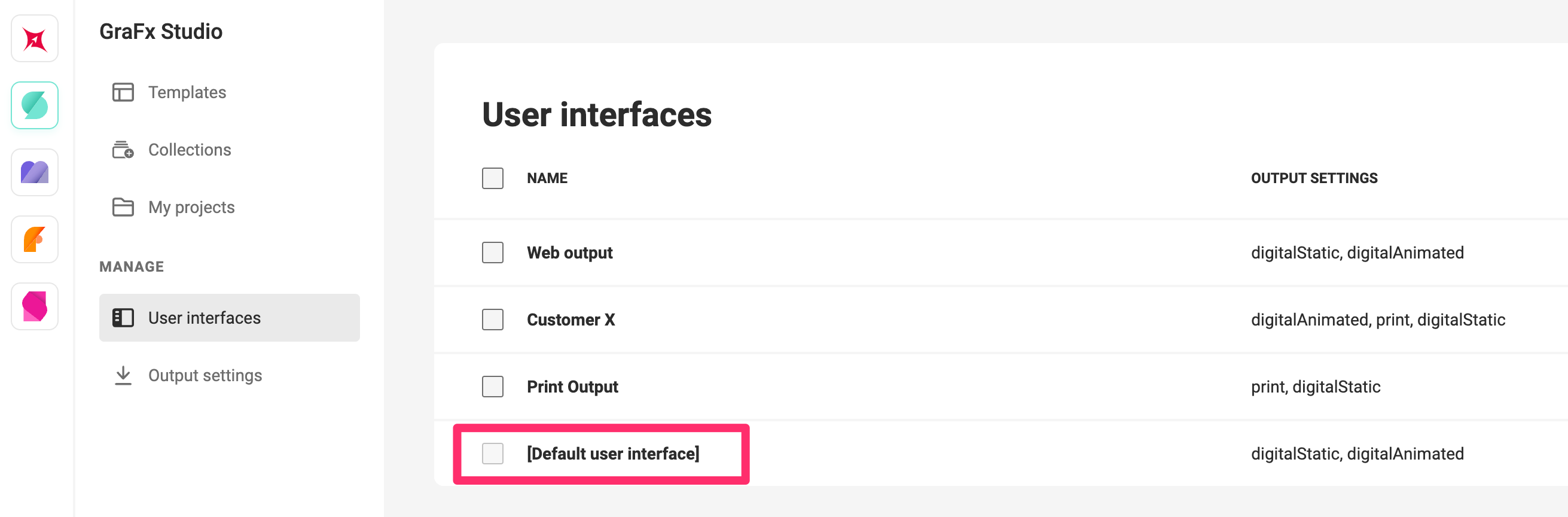
You can still modify its settings.
Form builder
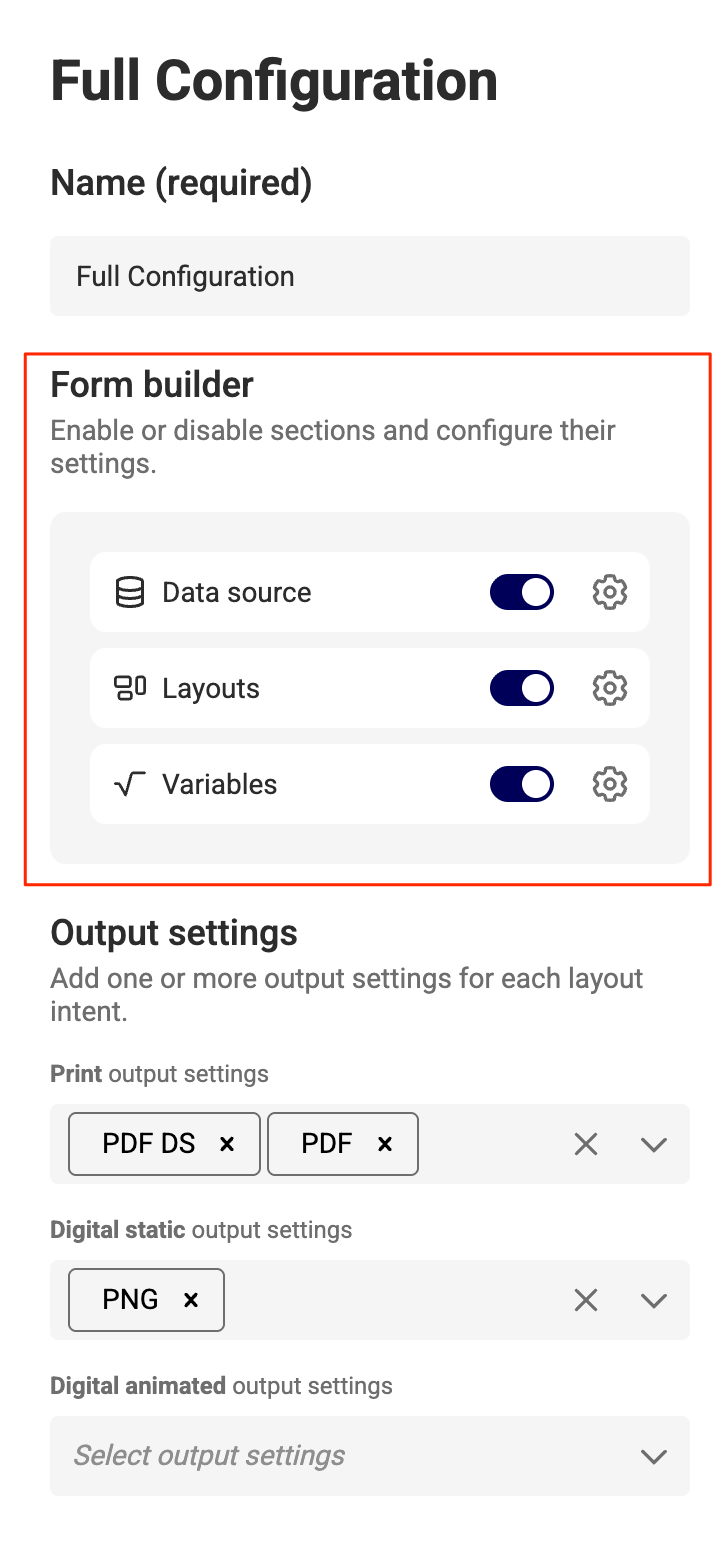
User Interfaces also control the visibility and labeling of the form shown in the My Projects area of GraFx Studio. This is where end users create variations of Smart Templates stored in Collections.
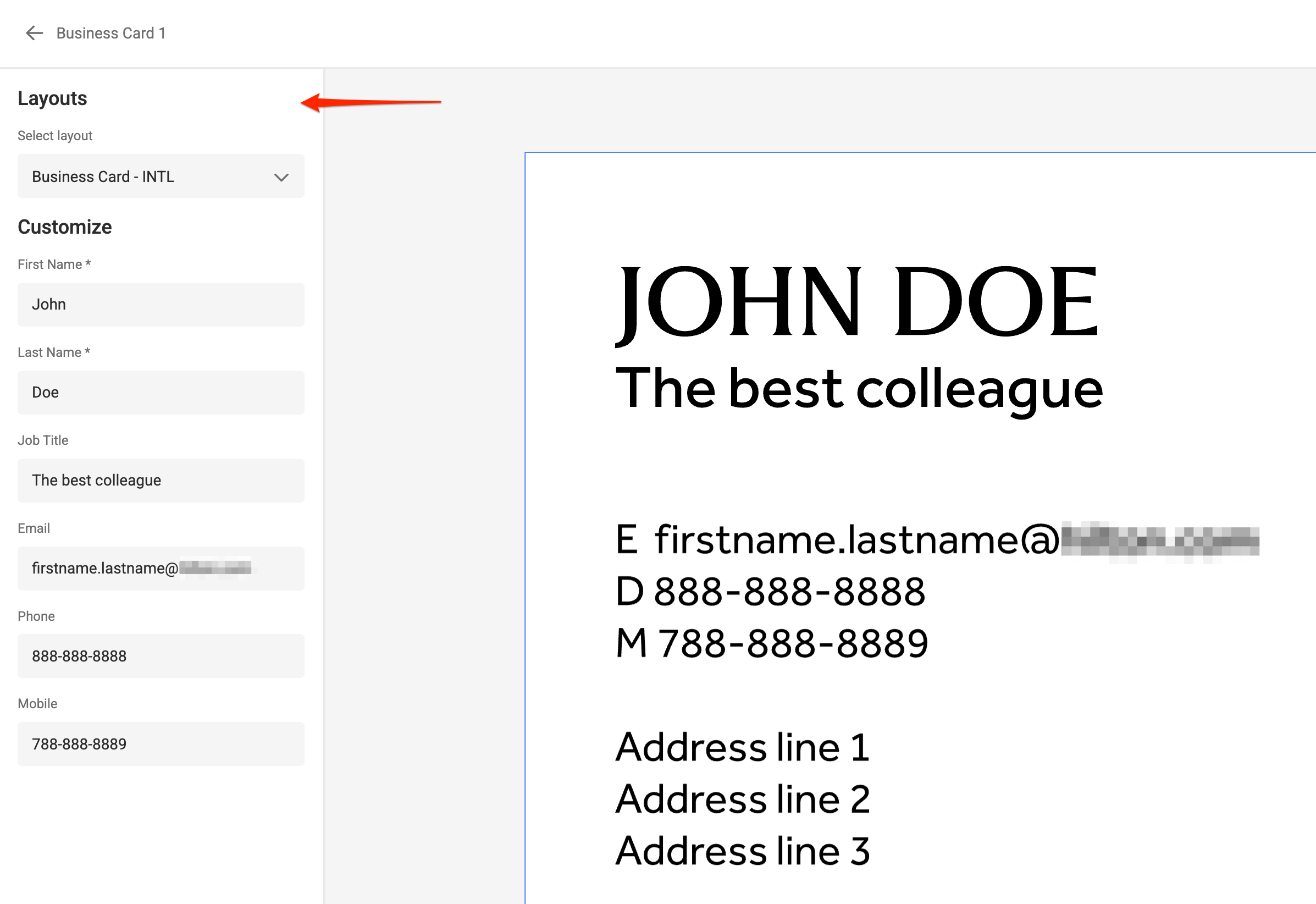
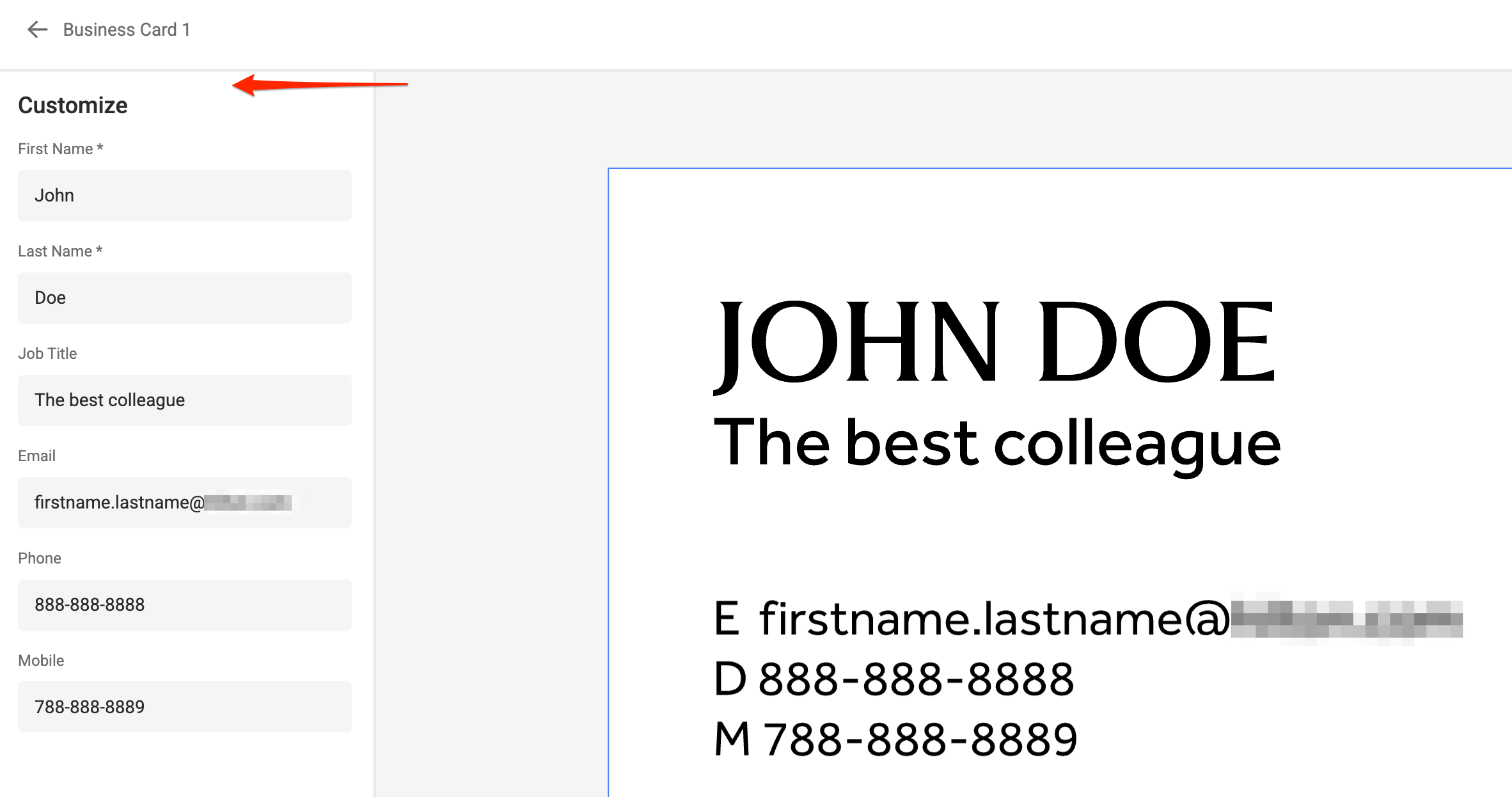
Depending on the User Interface configuration, end users will see more or fewer options when creating a project.
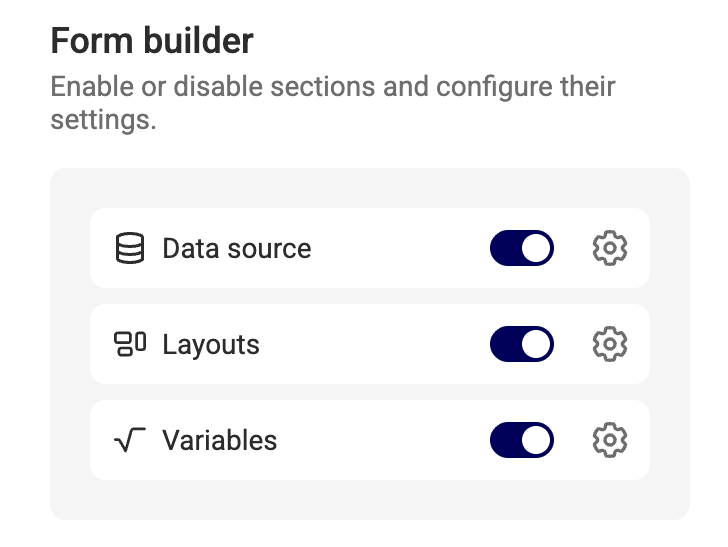
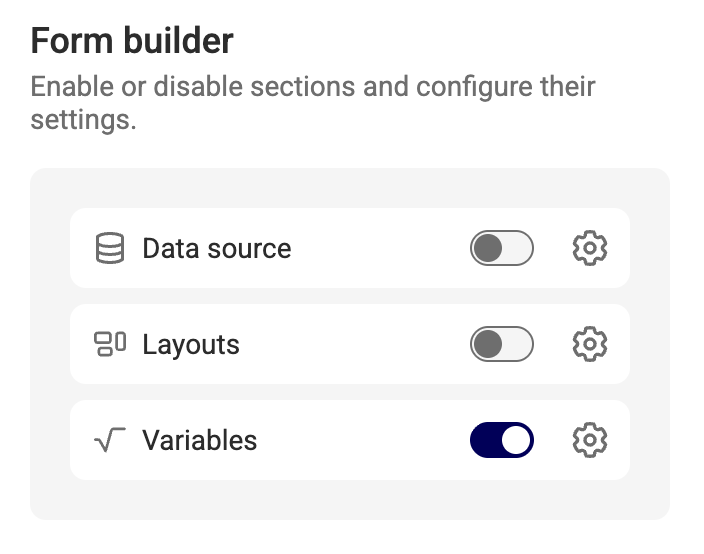
Template designers can toggle the visibility of the following form sections:
- Data Sources — show or hide the data source selector
- Layouts — show or hide the layout selector and configure related options
- Variables — show or hide the variables input panel
 |
 |
|---|---|
| All sections visible | Only Variables visible |
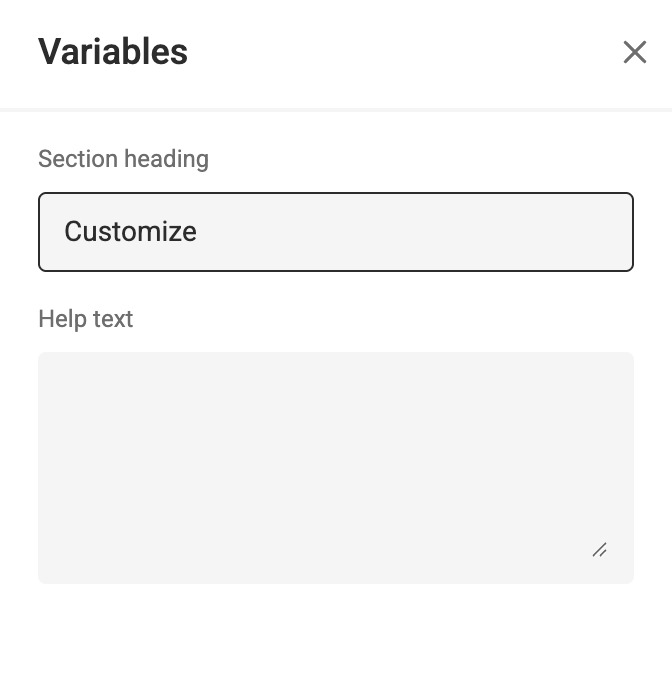
For each section, you can:
- Set a Section heading
- Add optional help text
Layout-specific options
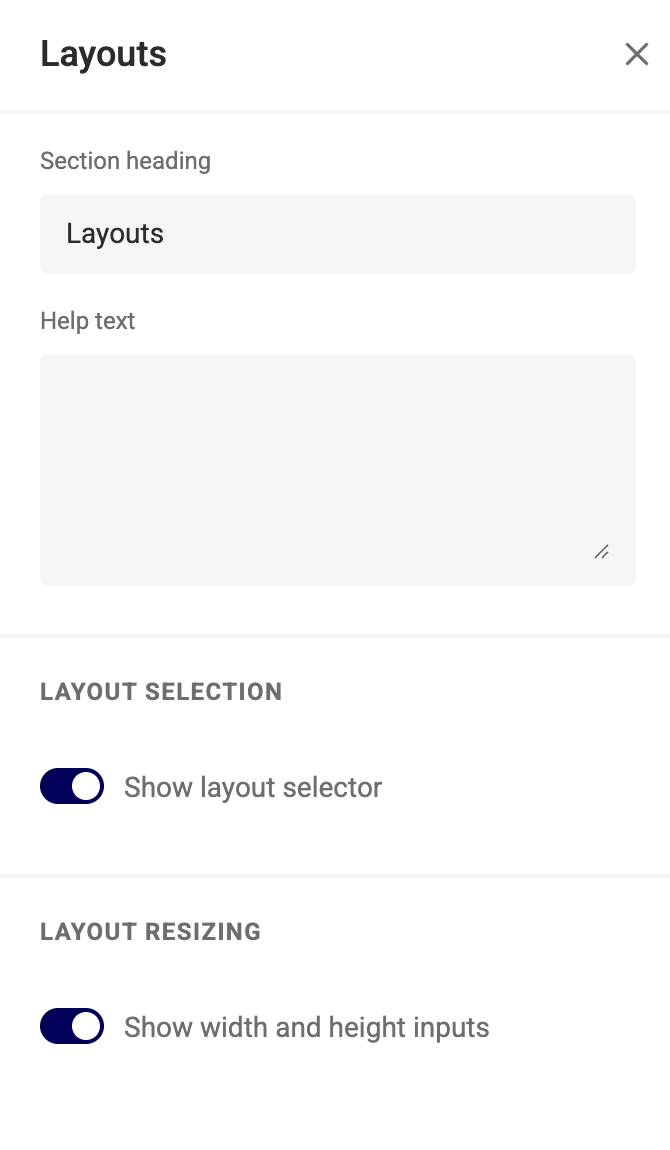
If the Layouts section is enabled, you can configure two additional options:
- Layout selector — toggles whether the layout dropdown appears
- Layout resizing — toggles whether the layout resizing option is available
Info
For layouts to appear in the selector, they must be marked as available in the Smart Template.
Similarly, layout resizing must be enabled in the template before it can be used.
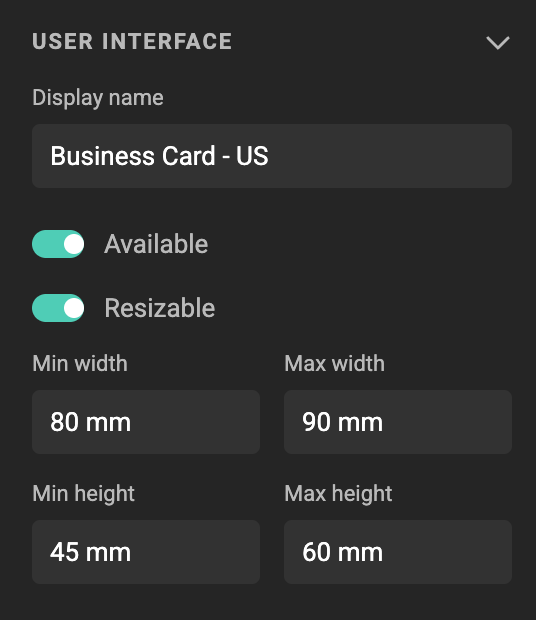
The result: the User Interface settings determine what is shown in My Projects, as long as the Smart Template supports those features.
Variable-specific options
If the Variables section is enabled, one additional option is available:
- Show variable groups — toggles whether variables are displayed in their defined groups or as a flat list
Click the settings icon next to Variables to open the variables panel.
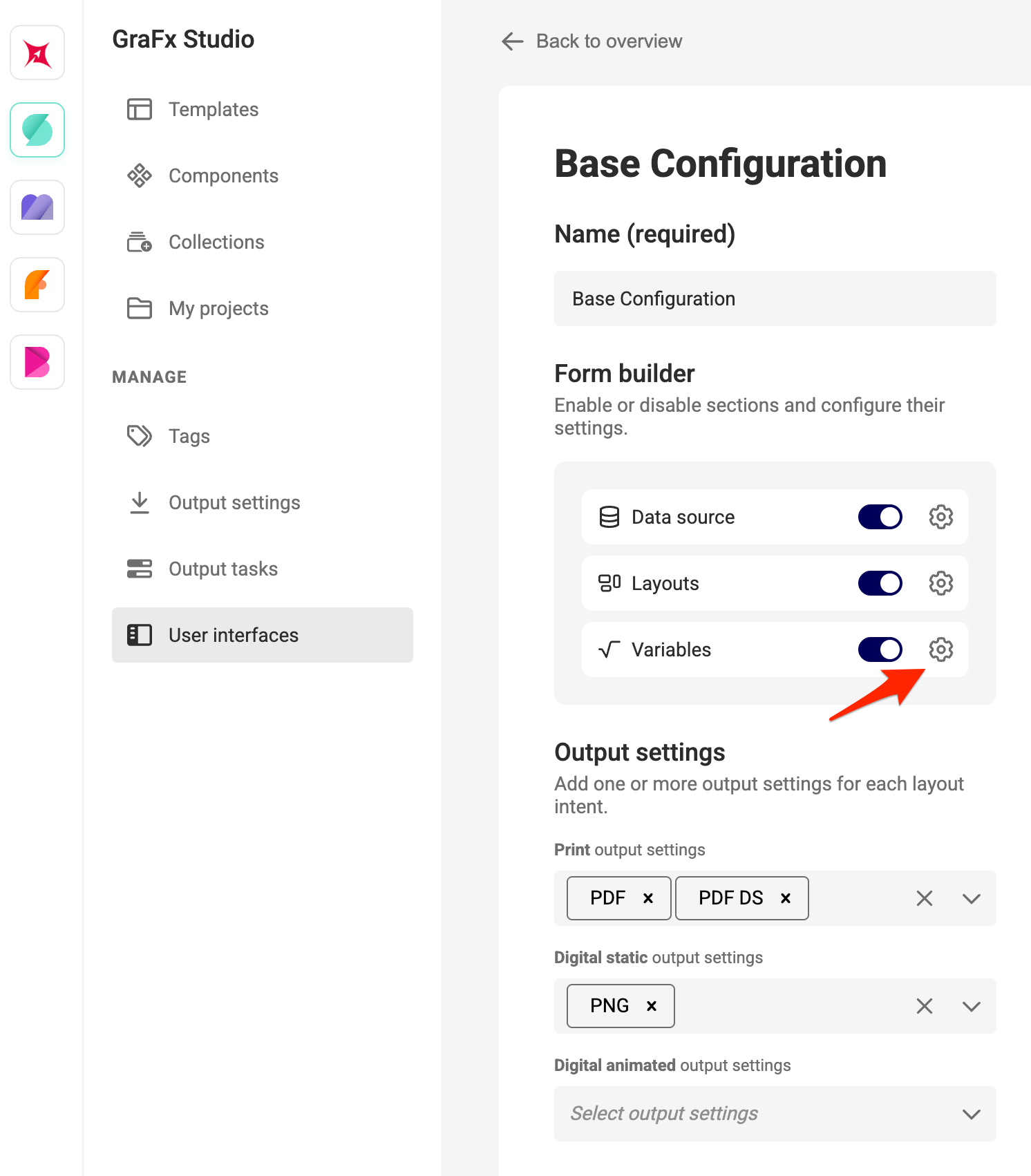
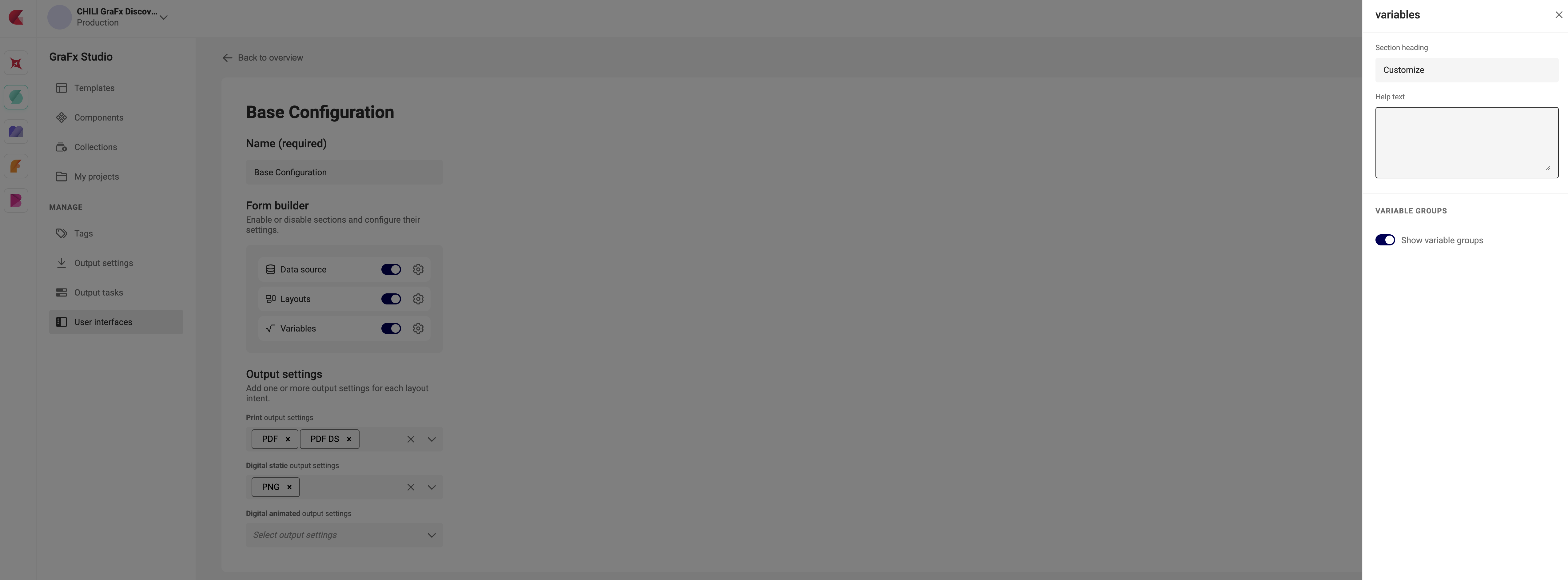
When enabled, end users see variables organized by the groups defined in the Smart Template. When disabled, all variables appear as a single flat list, regardless of how they are grouped in the template.
Info
Variable groups are defined in the Variables panel of the Template Designer Workspace. If no groups are defined in the template, this setting has no visible effect.
Preview in Run Mode
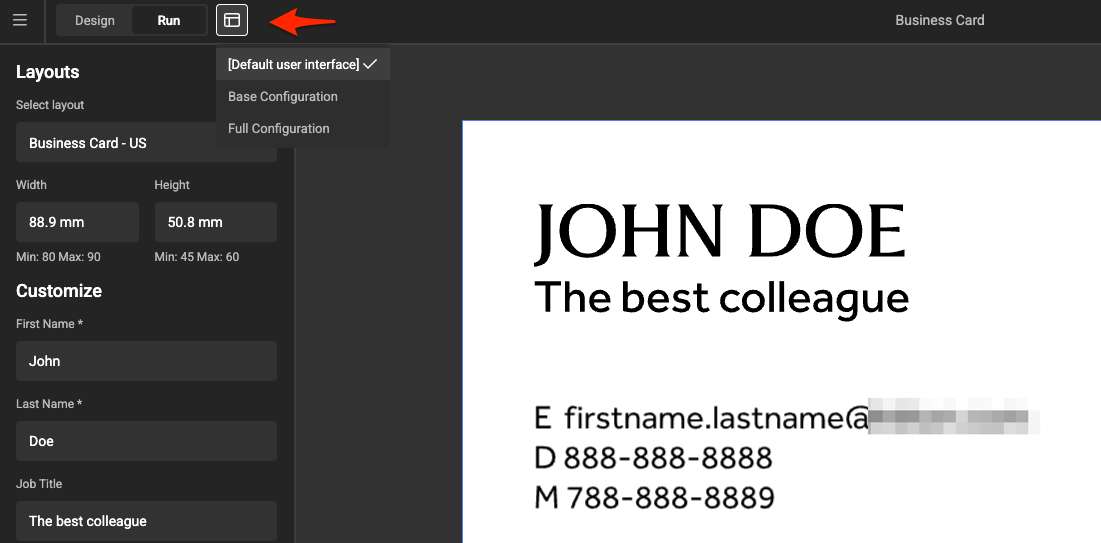
You preview the behavior in Run Mode and test the different User Interfaces.
Access
User Interfaces are only accessible to users with one of these roles:
- Subscription admins
- Environment admins
- Template designers
See also Roles