User interfaces
See also what is a User Interface
Create
In your environment, go to GraFx Studio > Manage > User Interfaces
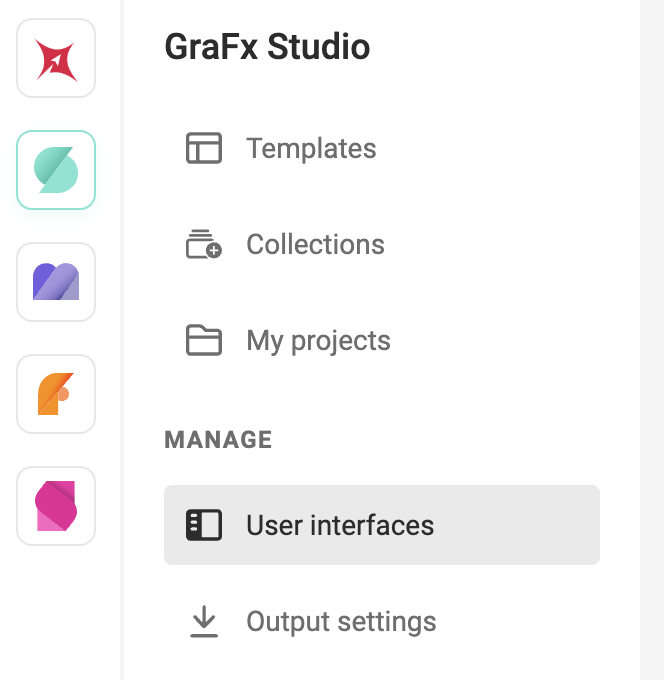
Click "Create"...
... and provide a Unique name.
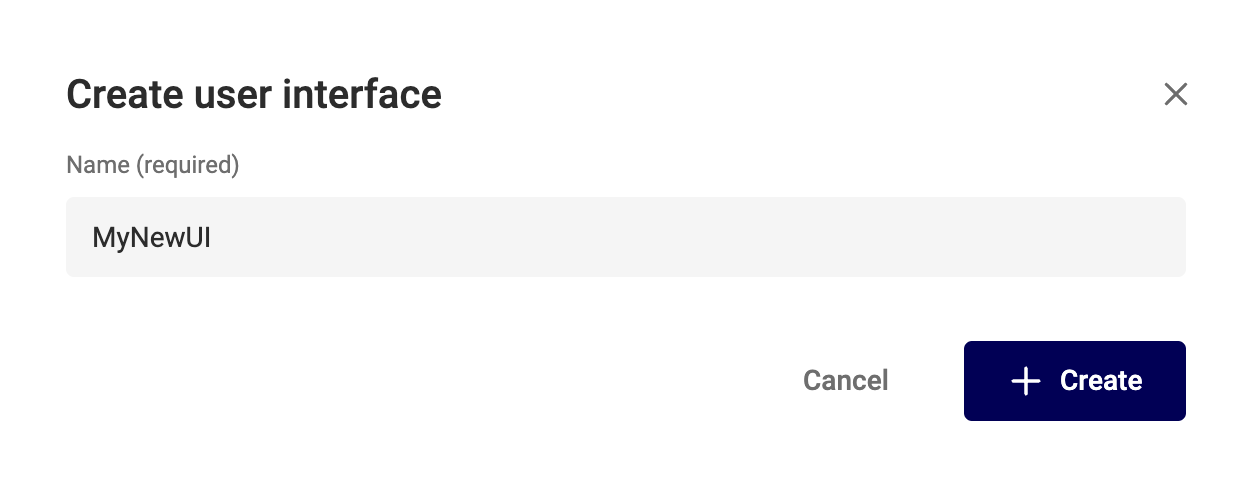
You can now edit the settings for this User Interface
Edit

Click a settings or choose "Edit user interface" in the "..." menu.
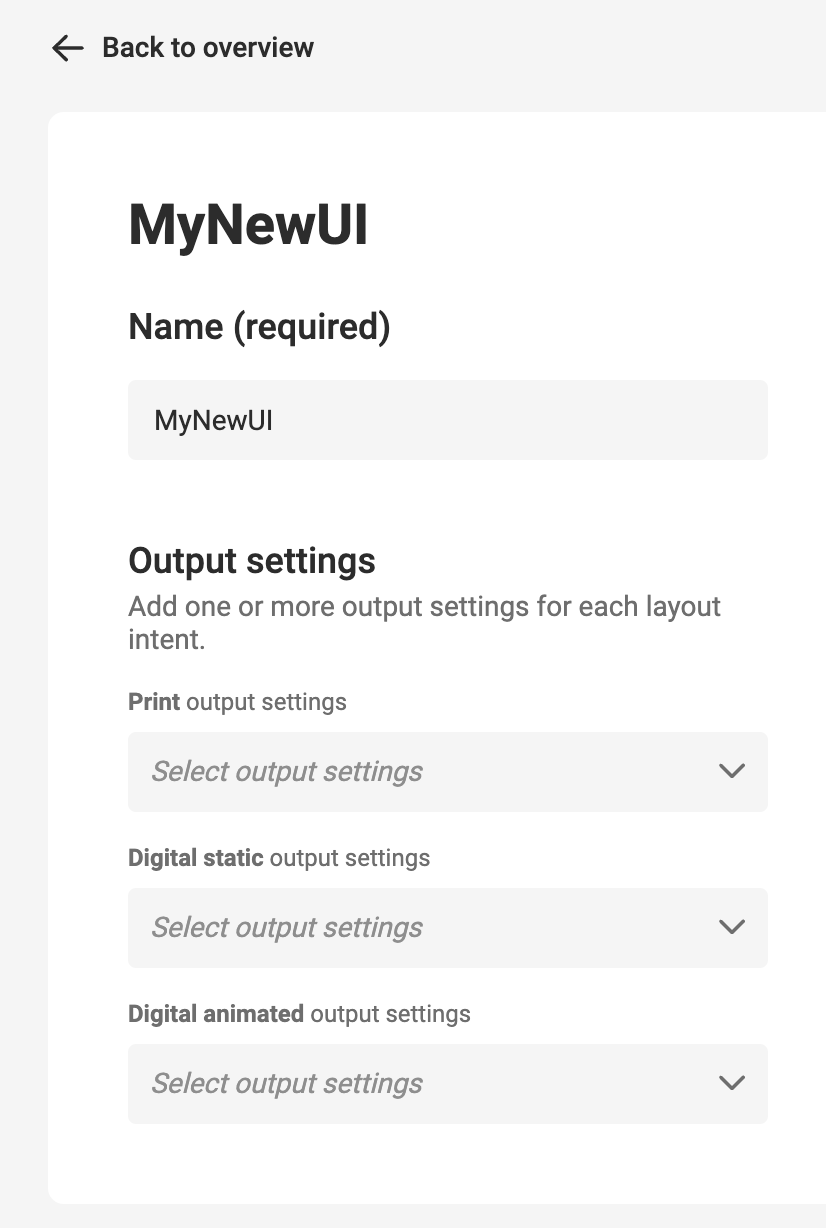
Update the name (should still be unique)
Add or update output settings.
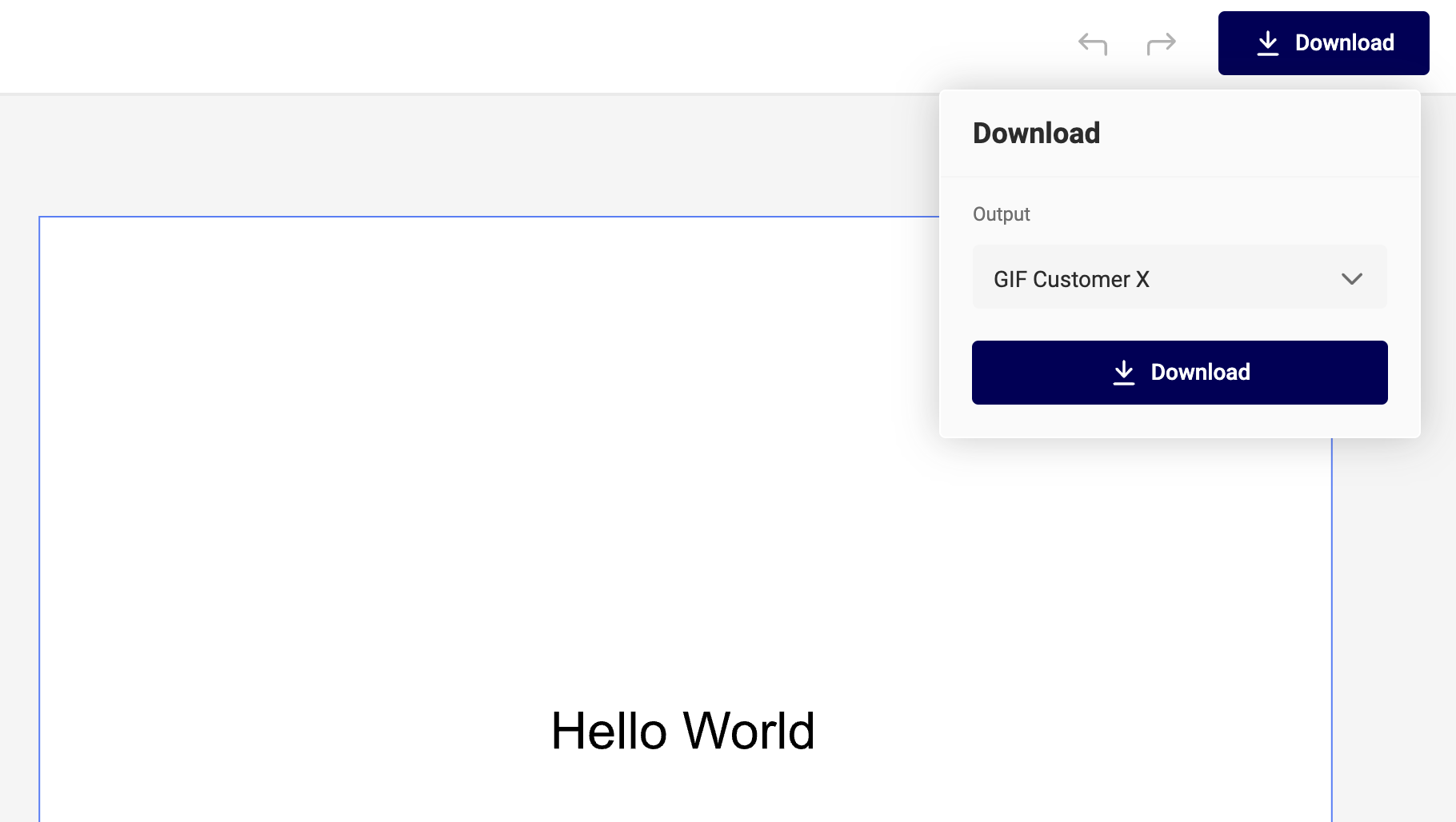
For each of the 3 Layout Intents, you can add Output Settings. This way, only these settings are available for output, with the chosen User Interface.
Delete
Choose "Delete" in the "..." menu.
Layout Intents
See Layout Intent.
For each of the Layout Intents, your can set 0, 1 or more output settings. These settings will be available, when choosing this User Interface.
Default settings
Default settings are always available.
You can edit the settings, but not change the name nor delete them.
Where to use: Collections
In collections, go to Collection Settings.
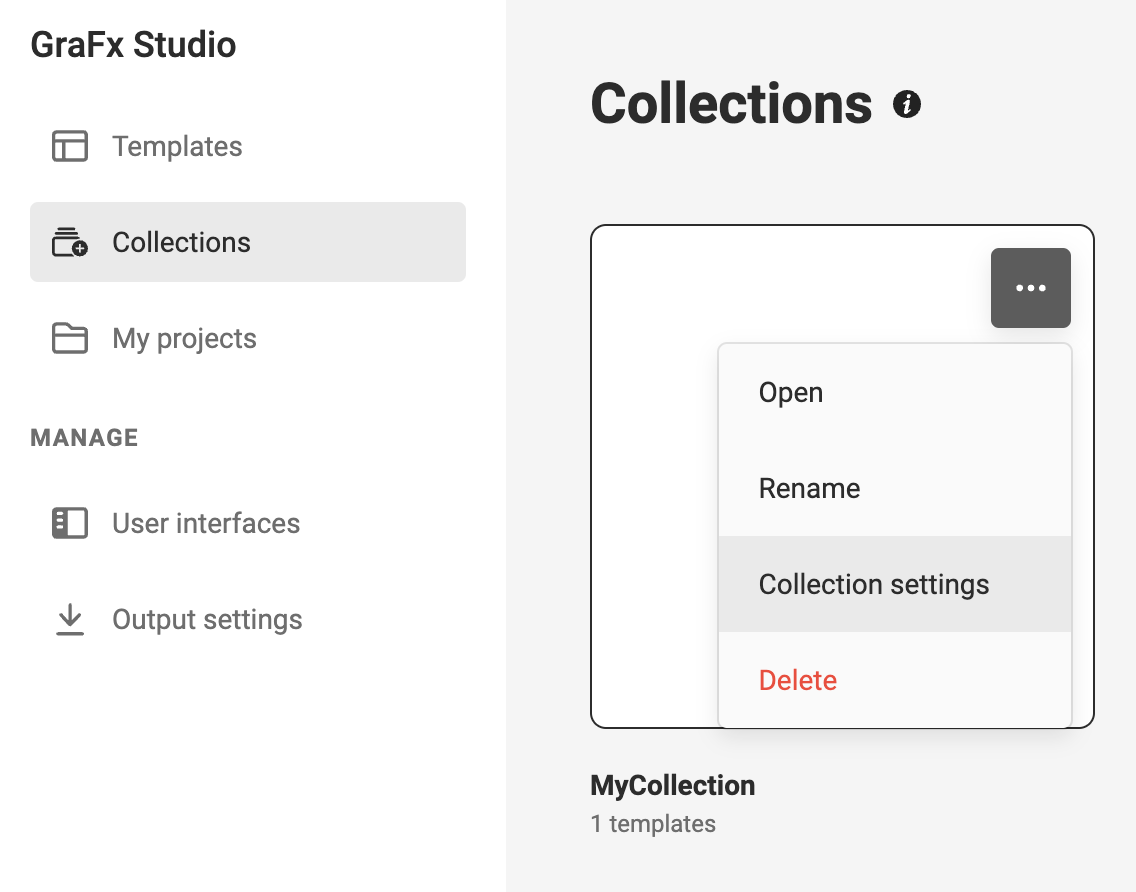
Set the created User Interface
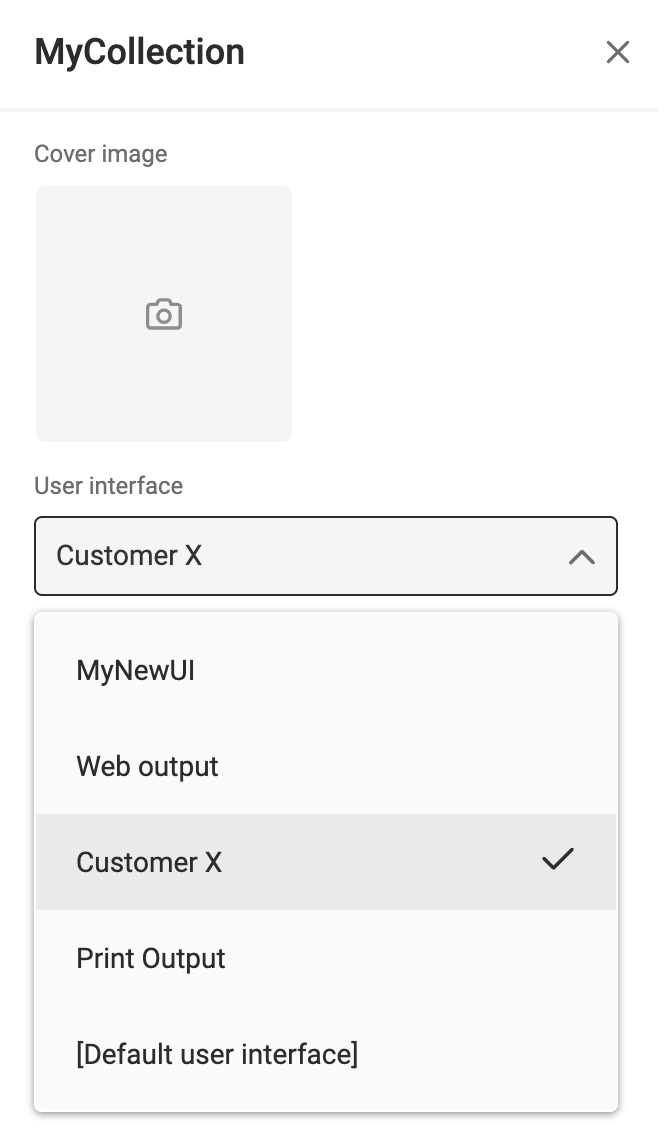
For each new project created based on this template in the collection, the user interface will be applied.
This means only the output settings will be available, for the specific layout Intent.