Collections
See also: Template process for the full story.
Create a collection
To create your first collection, click the "Create collection" button, and name the collection.
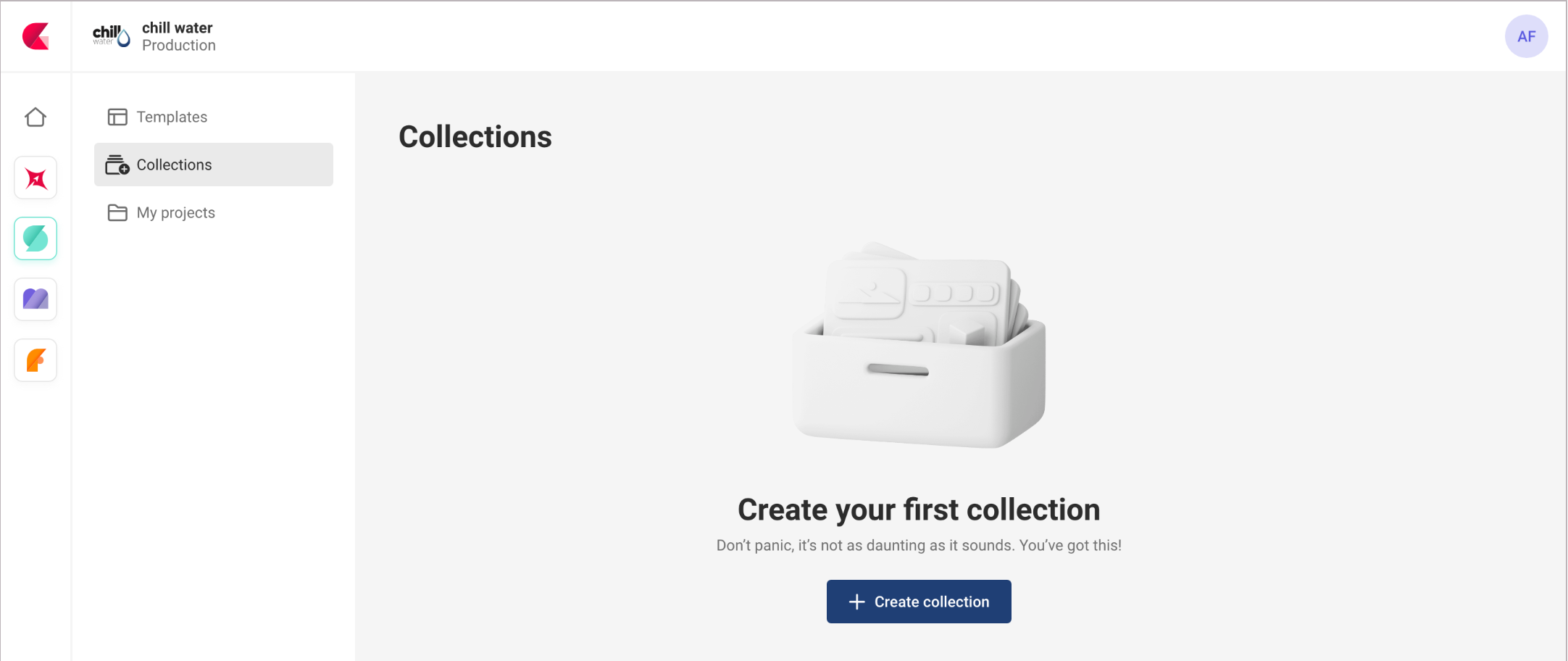
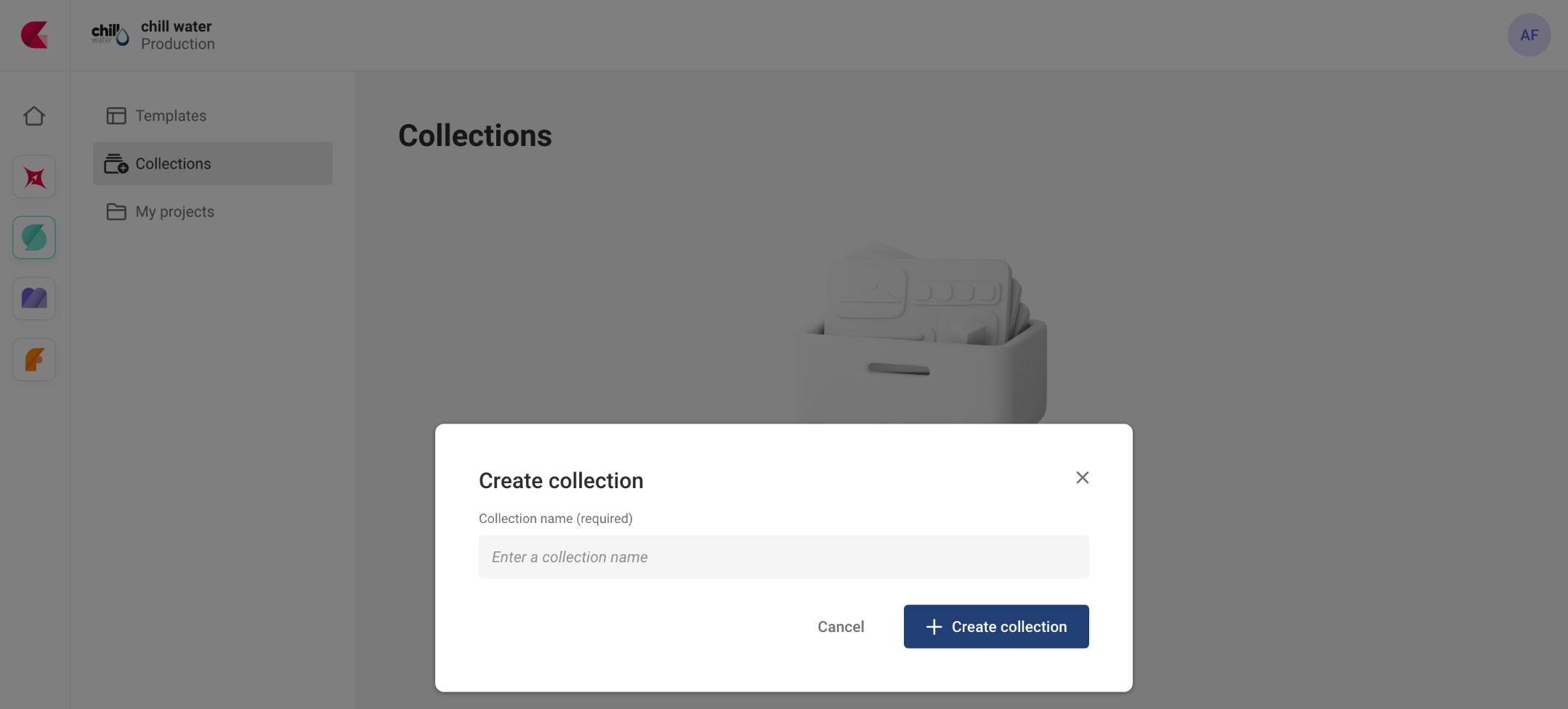
A collection will appear in the list of collections.
Add templates
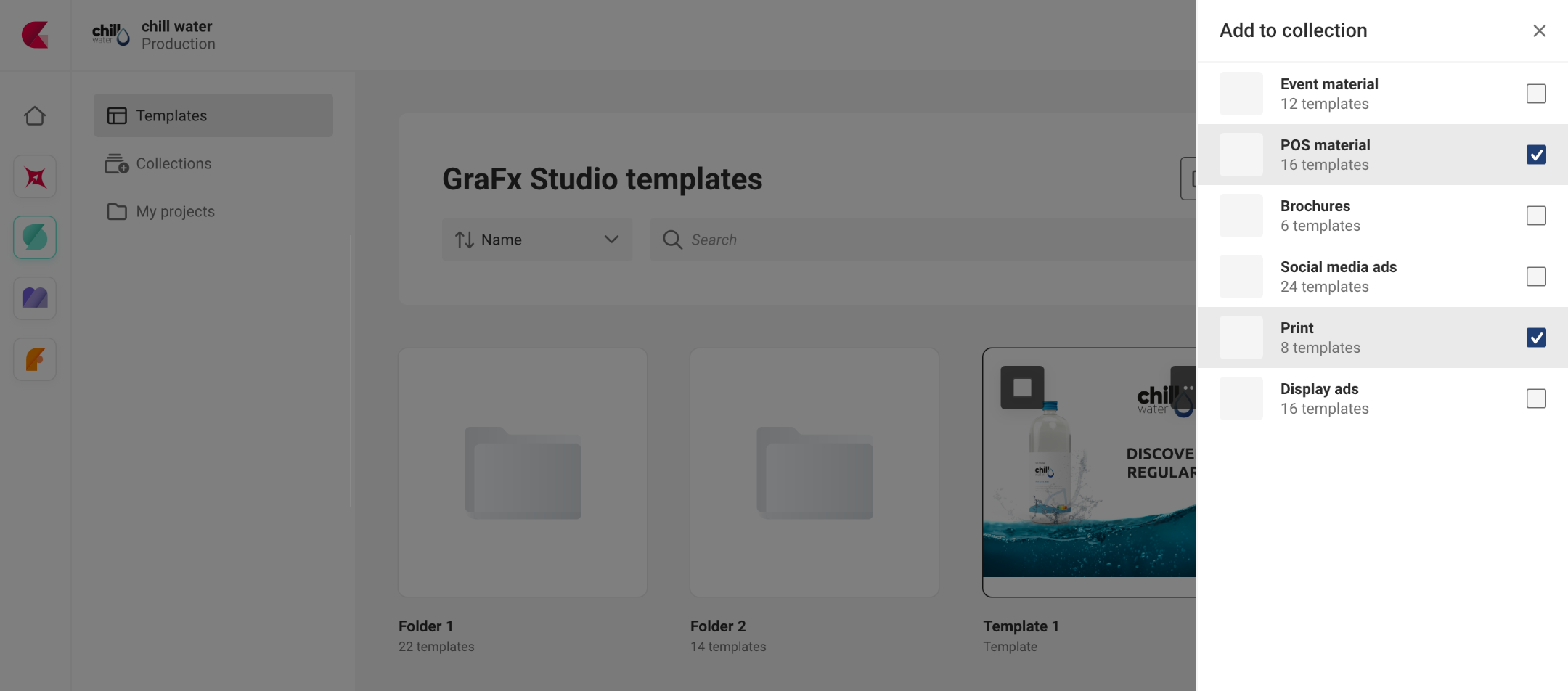
Start at the templates, and choose to add to the collection from the contextual menu.
A list of collections is presented. You can select 1 or more collections, where the templates will be added.
References vs actual templates
In the context of managing templates in a collection, it's important to understand the distinction between actual templates and the reference to that template.
When you add a template to a collection, you are simply creating a list that keeps track of the available templates in that collection. The actual template files themselves are not physically moved or altered in any way. The collection serves as a convenient catalog of templates.
Similarly, when you delete a template from a collection, it does not affect the original template. The deletion only removes the reference to that template from the collection, but the original template remains untouched.
In short: adding templates to a collection, deleting them from a collection, or removing collections altogether are administrative actions that manage the organization and accessibility of templates without making any changes to the actual template files.