Layouts
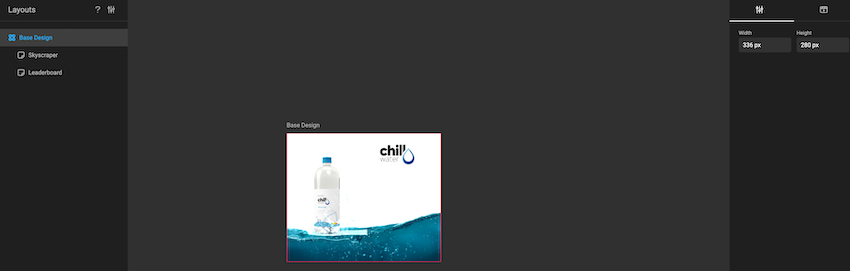
Layouts is a concept to reduce the time to produce variants, by creating several variants from the same document.
Think different
Instead of thinking about output in your design, think by grouping concepts.
A leaderboard or skyscraper ad are conceptually very similar. The only difference is the dimensions or proportions. Even a square ad could be derived from the leaderboard design. If the content is similar, then it's probably a good candidate for a layout.
Even the animation of elements can be different. In a leaderboard you could animate an item from the far left, and in the skyscraper from the bottom. These parameters can be set differently per layout.
The basic setup
This design could be an abstract version, or a first version of the add.
The properties of the design can be found on the right, in the properties panel.
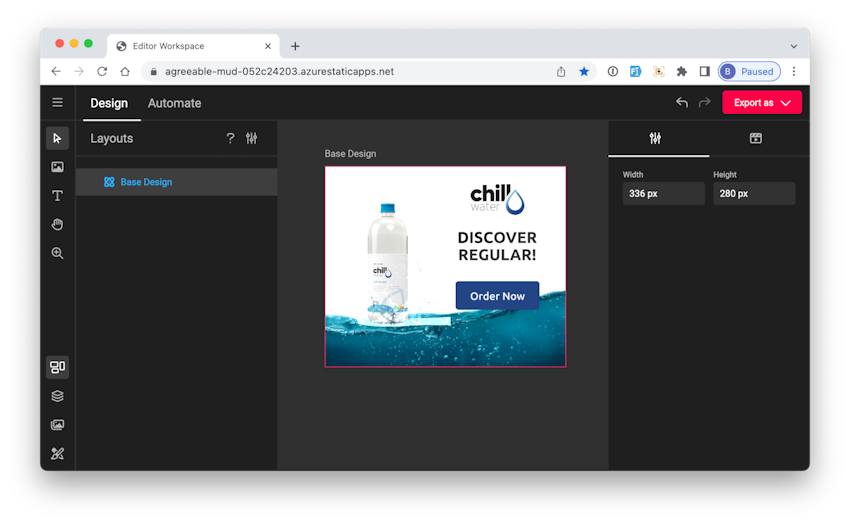
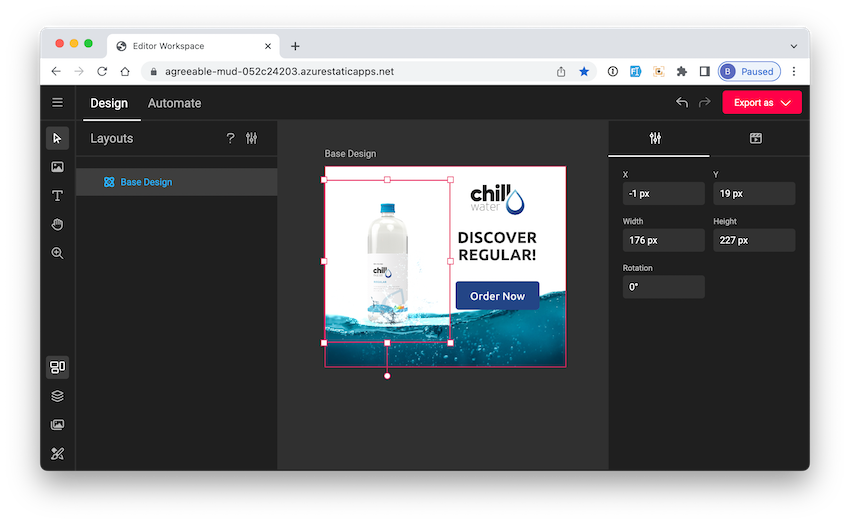
The properties of the elements on the page are shown when you select the element.
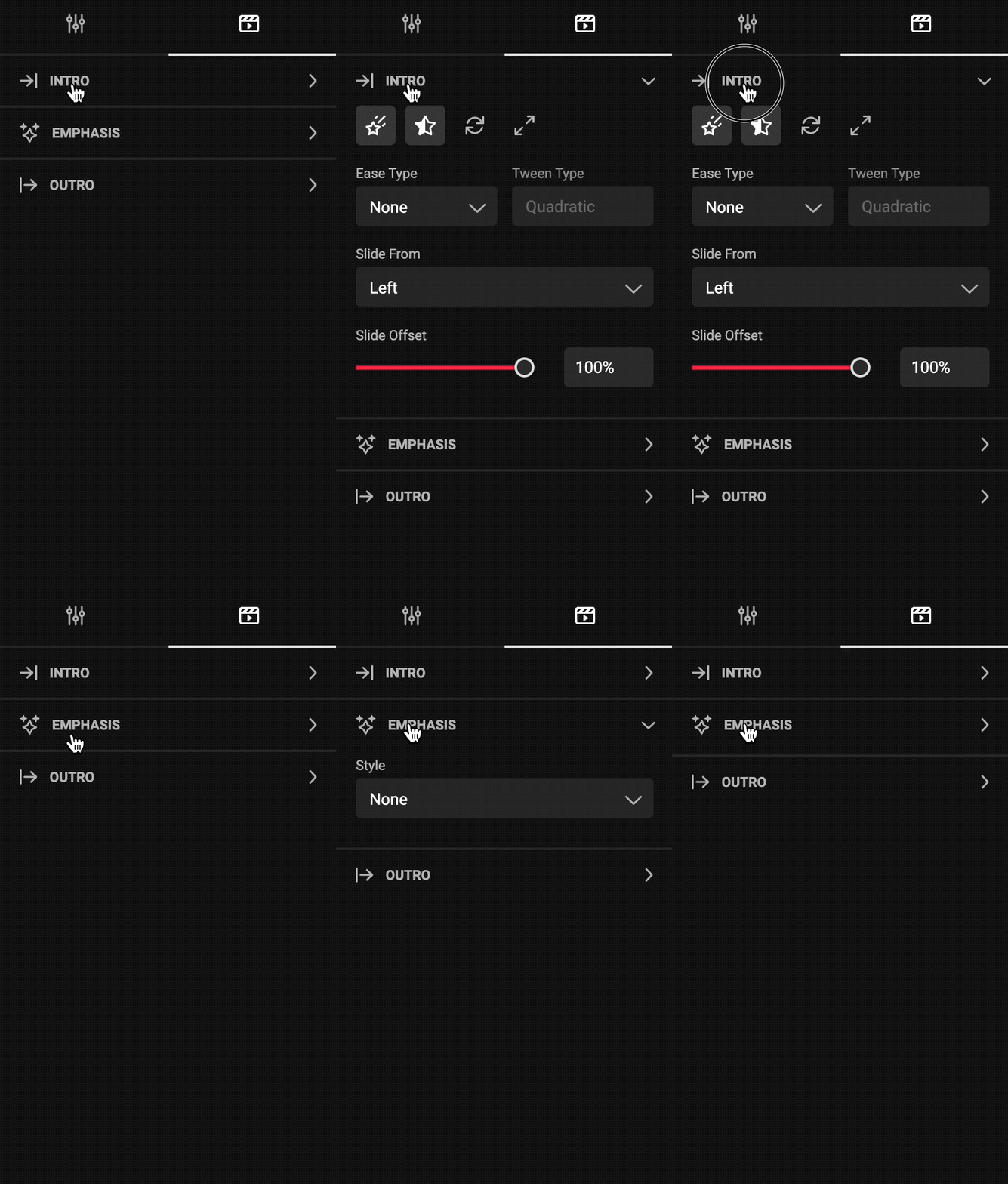
The properties of the animation of the elements show when you select the animaction icon in the properties panel.
Click on intro, emphasis and outro to expand the respective properties.
Inheritance
Master vs. Sub-layout
In the properties panel you see values "Inheriting from [Layout]".
This means that values for this property have been taken from the master of this layout.
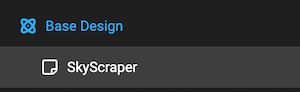
The master of this layout is the one above the current layout, in the Layout menu.
In this example Base Design is the master for Skyscraper, and Skyscraper is the current layout.
When switching layouts, the document will zoom to fit.
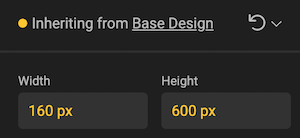
When a value is colored (and the bullet next to inherited is colored), it means the current value for this layout is different than the master's value.
If it's white, it's the value taken from the master.
Reset inherited values
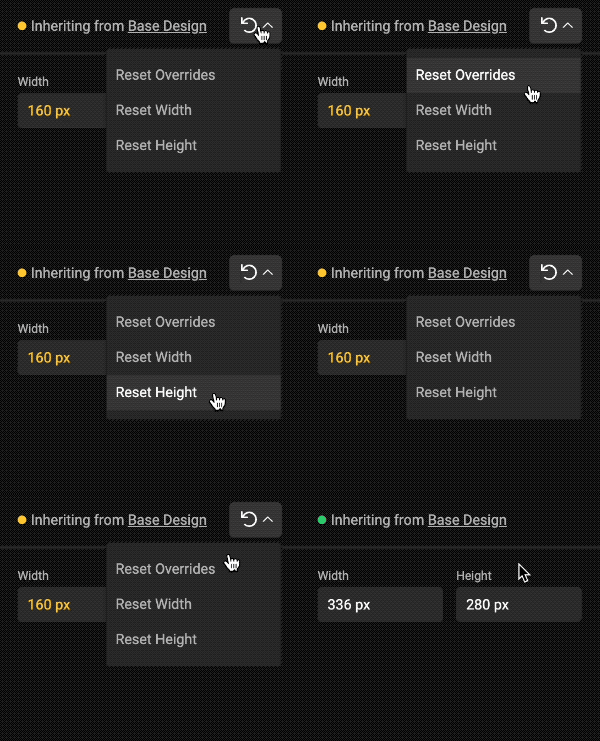
Reset all values, or only individual values by the left-turning arrow. A dropdown will provide you with the options to reset to the master's values.
Private data
Besides its visual properties, a layout can carry Private Data: key-value pairs that are invisible in GraFx Studio and to the end user, but readable by a custom integration. It is how an integration can tell what a format is meant for — a channel, a placement, an identifier in your own system — without that showing up anywhere in the interface.
See Private data on layouts for how to set it.