Variable Visibility Conditions
A variable is always visible in Design mode. However, in Run mode or the Studio UI (end-user interface), variables can be hidden from the end user.
In some cases, you may want to show or hide a variable dynamically based on the document state or the values of other variables. This helps create a cleaner user experience by ensuring users only see relevant information.
This is where Visibility Conditions come into play.
In the User Interface tab of a variable, you can define its visibility settings.
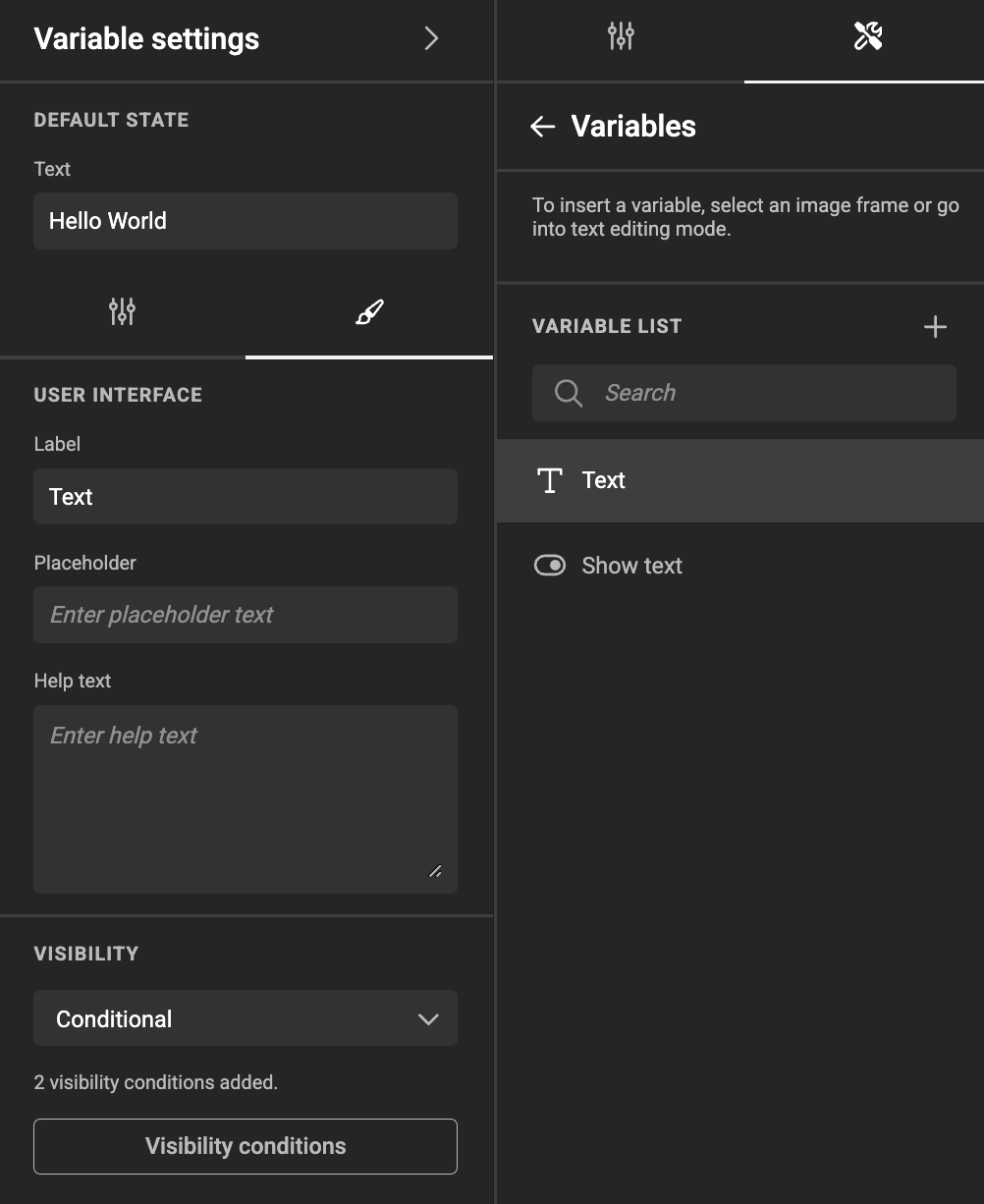
Three options are available:
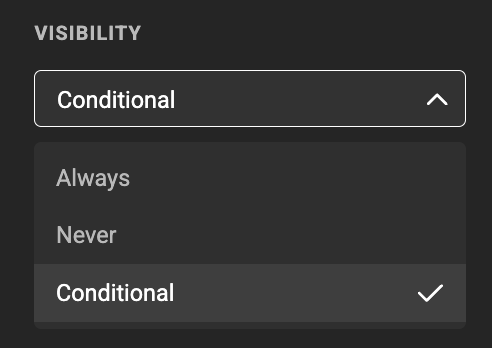
- Always (default)
- Never
- Conditional
Conditional Visibility
If you select Conditional, you can define the conditions under which the variable will be shown in the end-user interface.
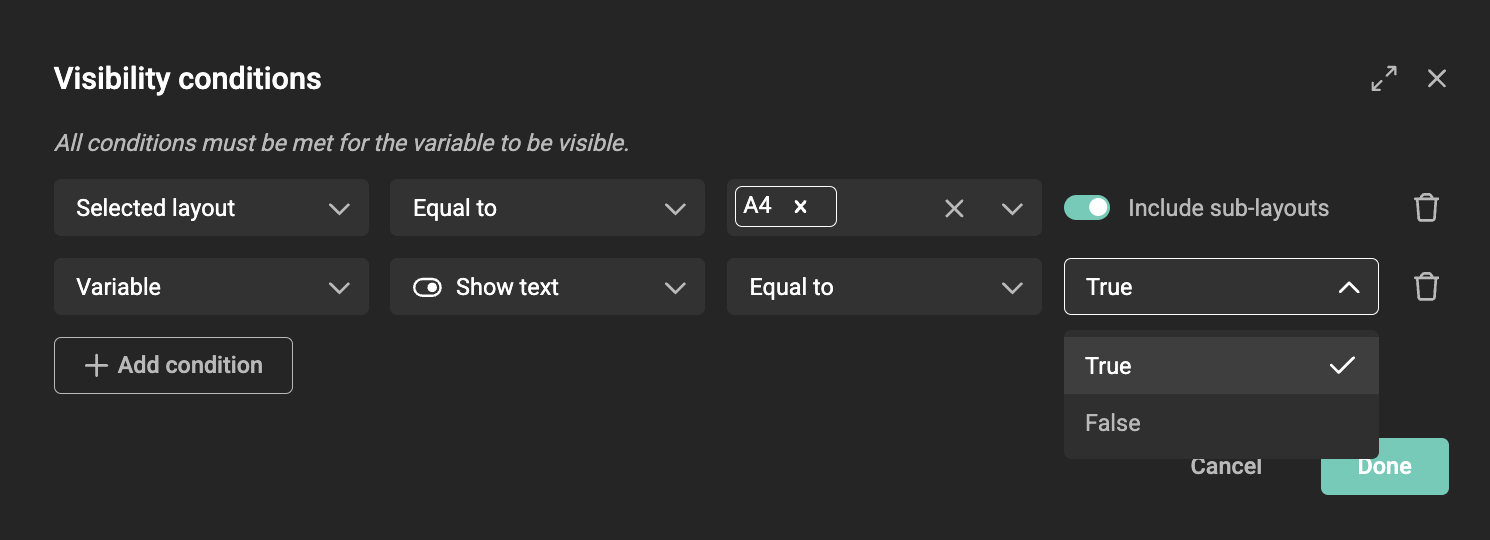
You can add one or more conditions. All conditions must be met for the variable to be displayed.
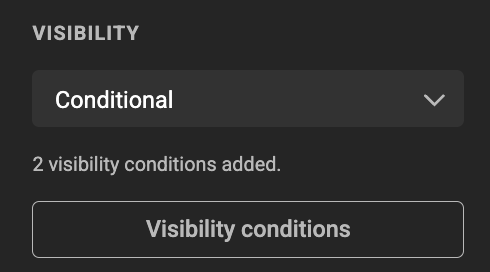
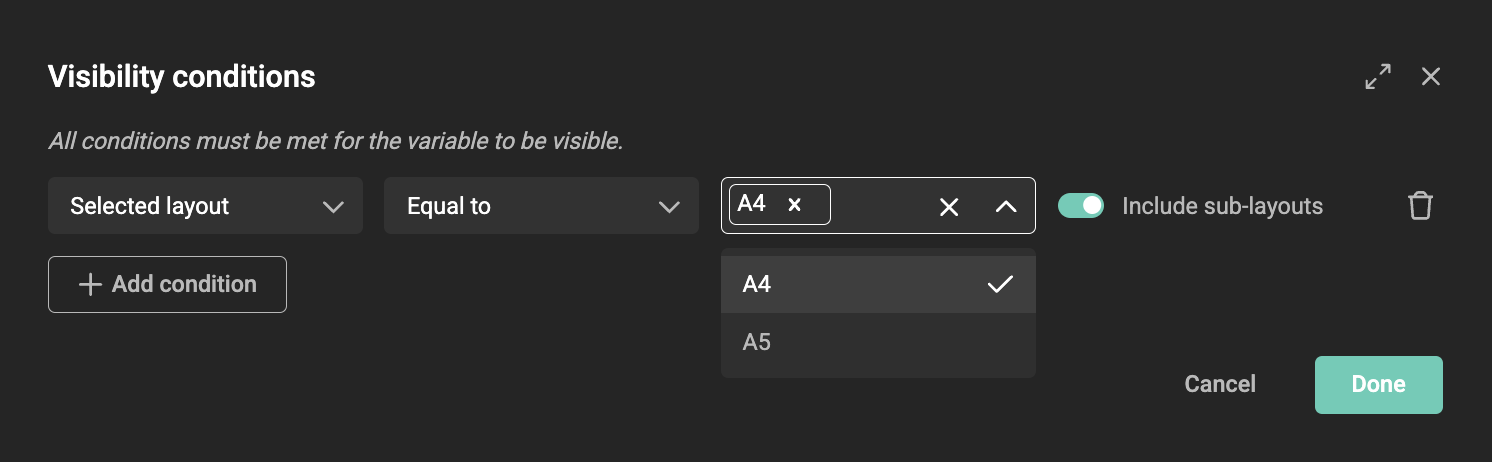
Click Visibility Conditions.
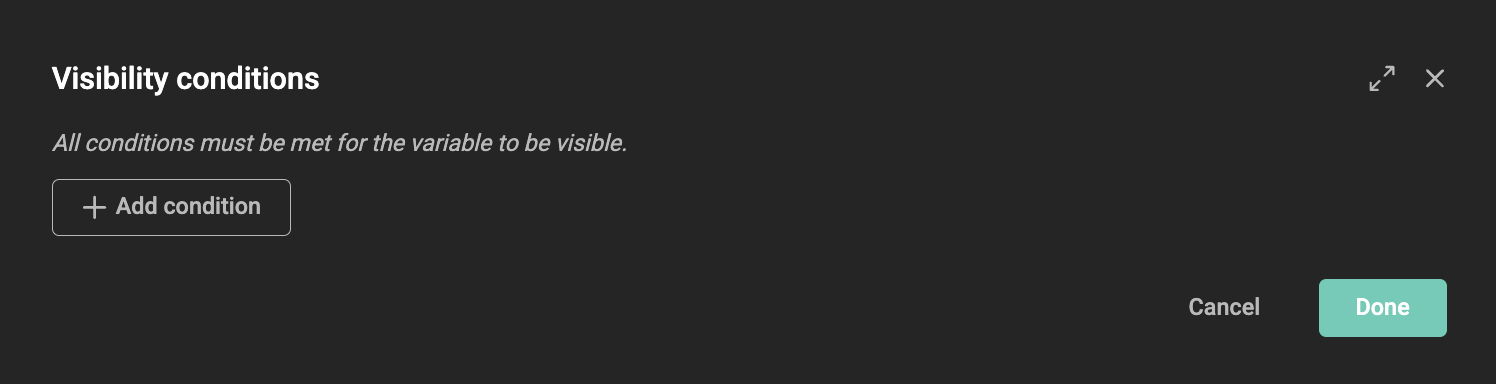
Click + Add Condition and define the criteria that must be met for the variable to be visible.
Deprecated in Actions
Deprecated Action
Visibility can also be controlled via Actions (with or without GraFx Genie).
However, visibility conditions are not compatible with Actions.
If you use SetVisible in an Action, it will ❌ override and remove ❌ the visibility conditions.
Before making the document available to end users, ensure that:
- You do not use
SetVisiblein Actions if you want to maintain visibility conditions. - You only use Actions or Visibility Conditions, but not both.
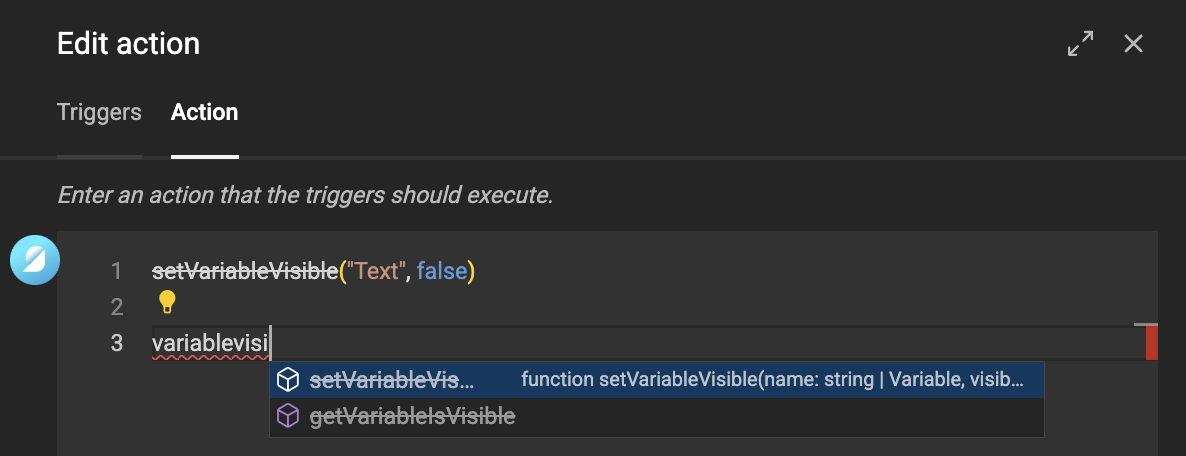
The Action Editor will display SetVisible as strikethrough to indicate that it is deprecated. Hovering over the function will also display a deprecated warning.