Anchoring
Anchoring lets you attach frames to the page or to other frames in your Smart Template, creating a dynamic layout that adapts to different sizes.
Imagine placing a logo 10% from the top and 15% from the left of your design—anchoring makes this easy to maintain across varying layouts.
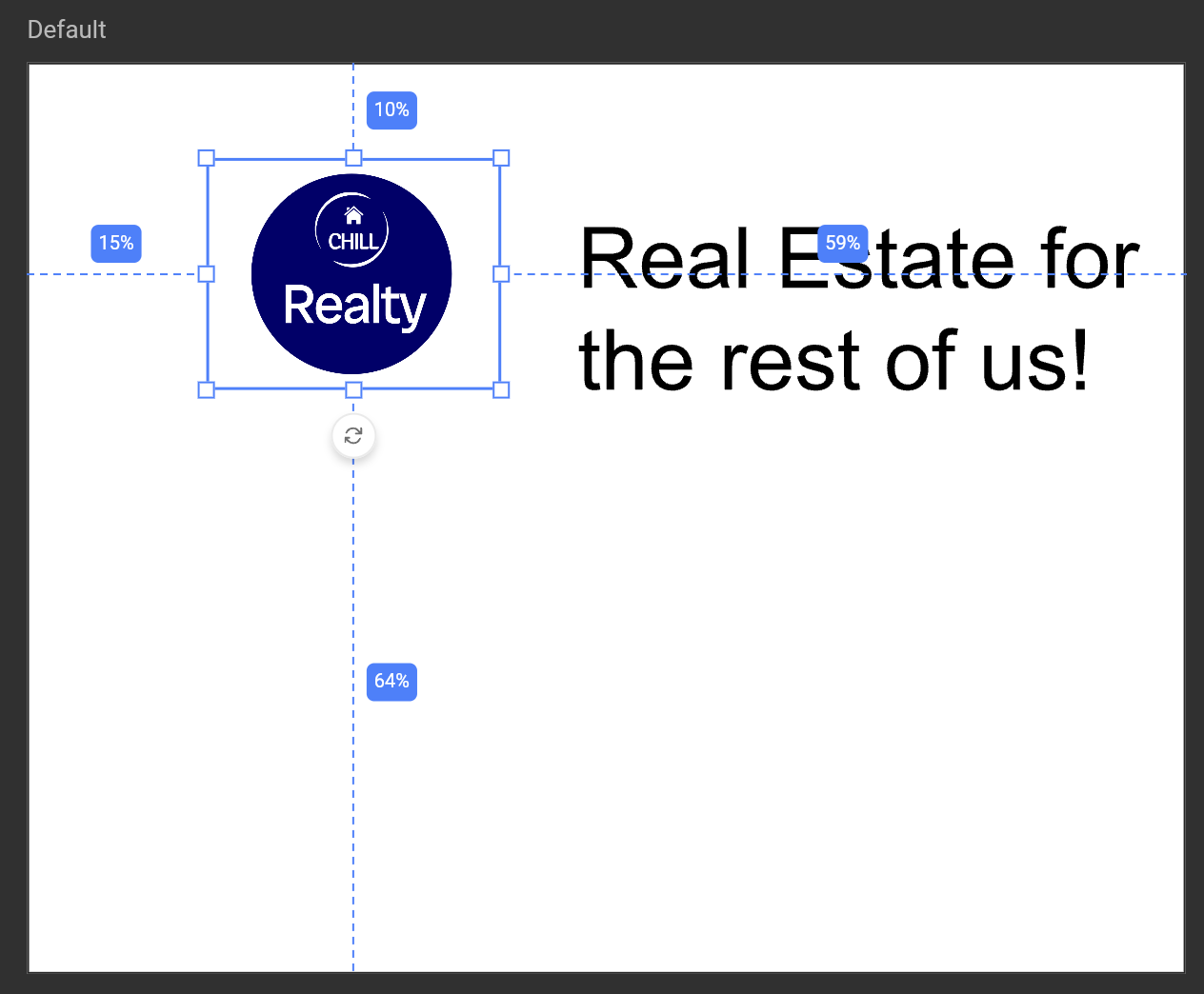
Benefits of Anchoring
Why position a frame relative to the page or another frame? Anchoring is essential in GraFx Studio, where automation is key to generating multiple design variants efficiently. Anchoring allows elements to reposition automatically when layouts change, significantly speeding up variant creation and maintaining consistent design.
Anchor to Page
Anchoring a frame to the page is the most straightforward anchoring concept.
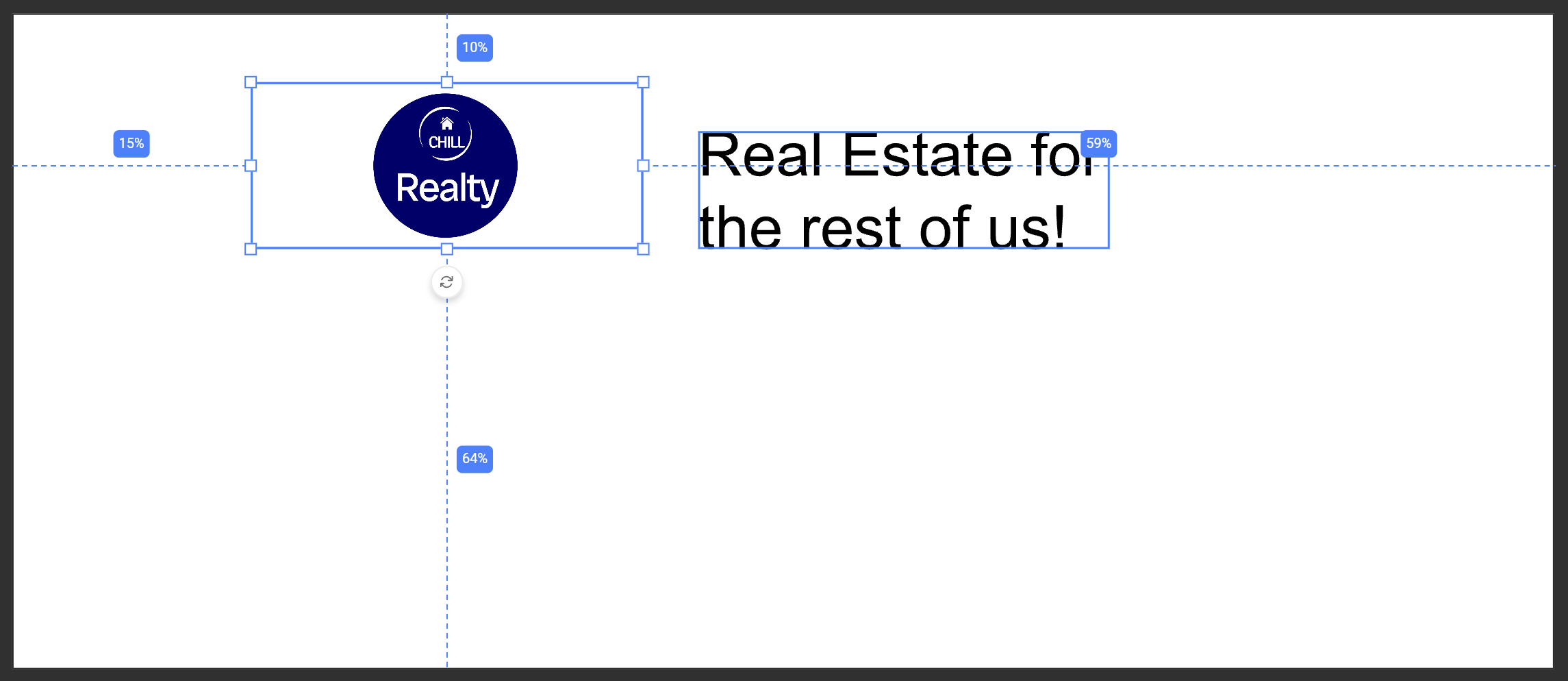
This method anchors a frame to a specific side of the page, usually in a relative position. When you place a frame on the page, anchoring records its position relative to the page, so it remains consistent even if the page size changes.
Anchor to Frame
Anchoring a frame to another frame allows you to set precise relationships between elements.
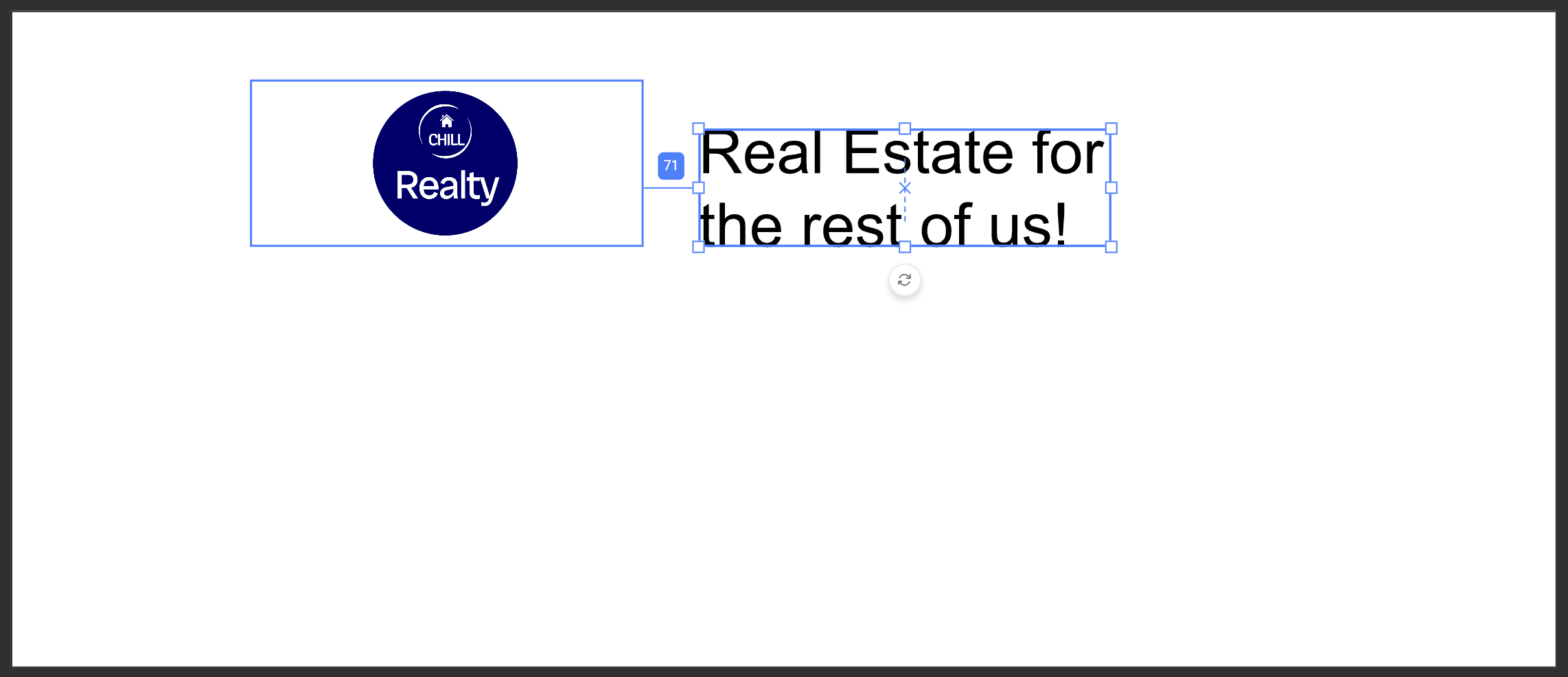
For example, if a text frame is anchored to a logo frame, the text will maintain the same offset from the logo, even if the page size changes or when the position or size of the logo frame changes.
Inheritance
Anchoring settings follow the Inheritance Model across sub-layouts, ensuring consistent positioning.
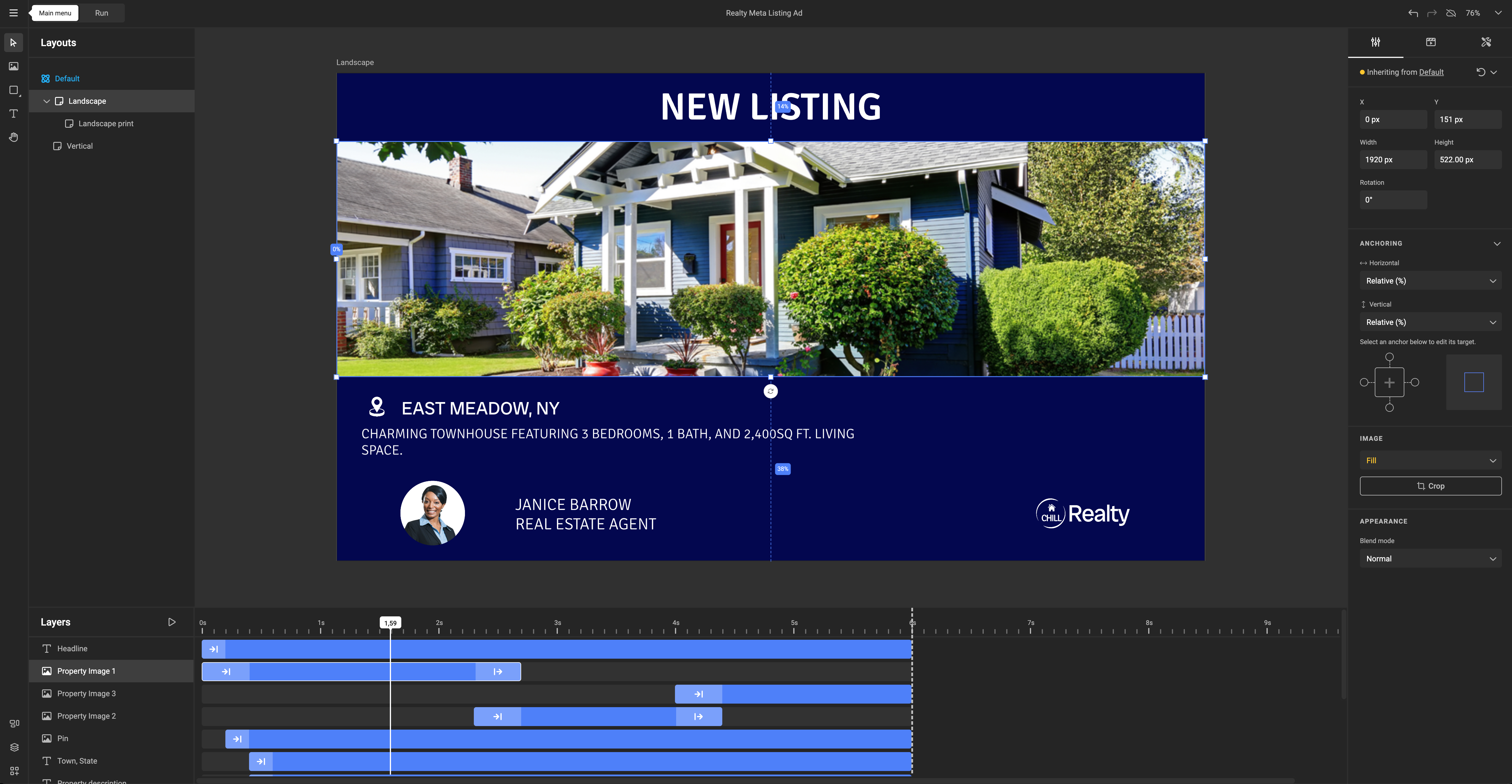
When creating sub-layouts, anchoring maintains relative positions across different page sizes. In the example below, a default layout uses a square format where all frames are positioned relative to the page.
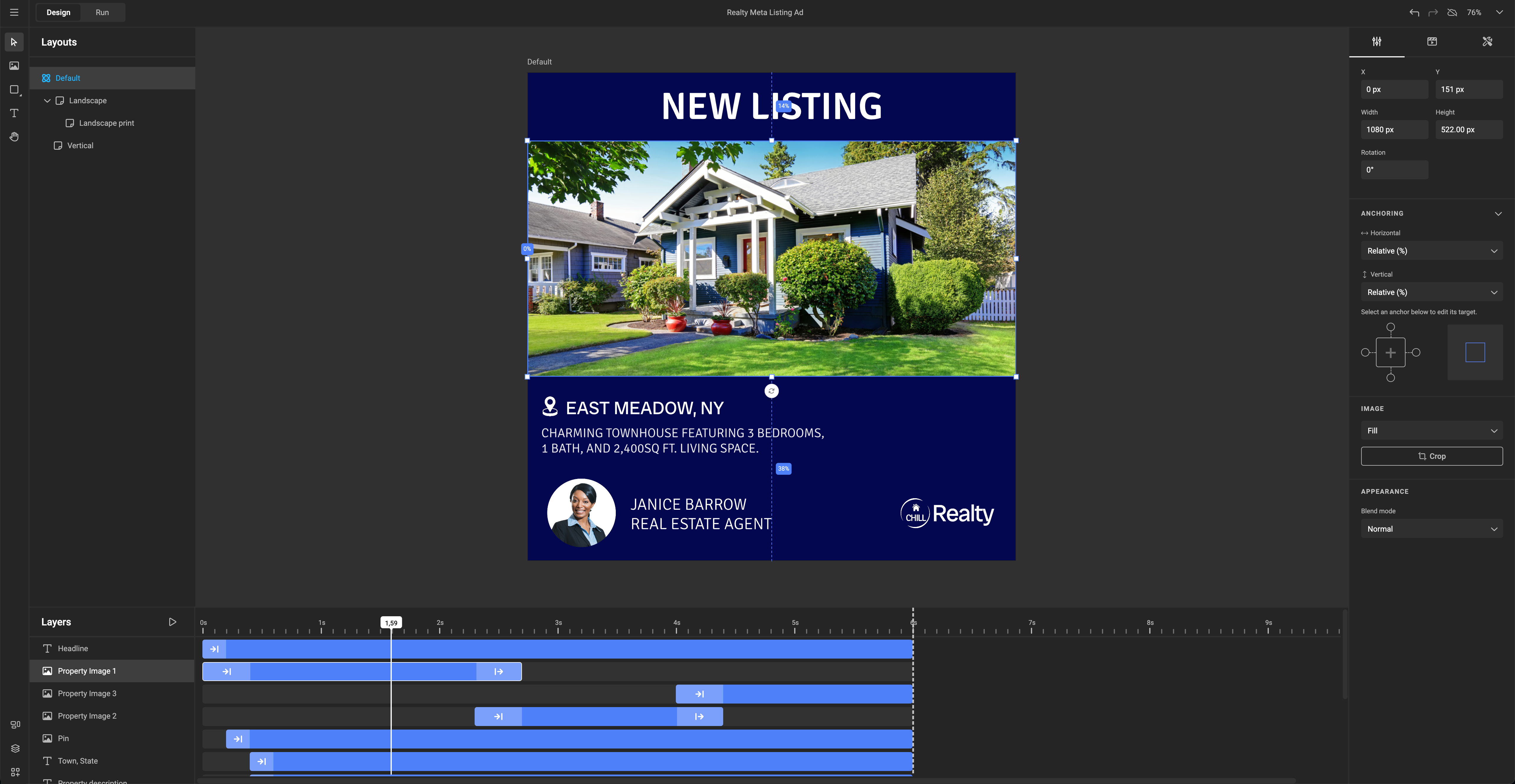
For a landscape sub-layout, anchoring automatically adapts frame positions to the new page size, preserving the original layout's relative spacing.
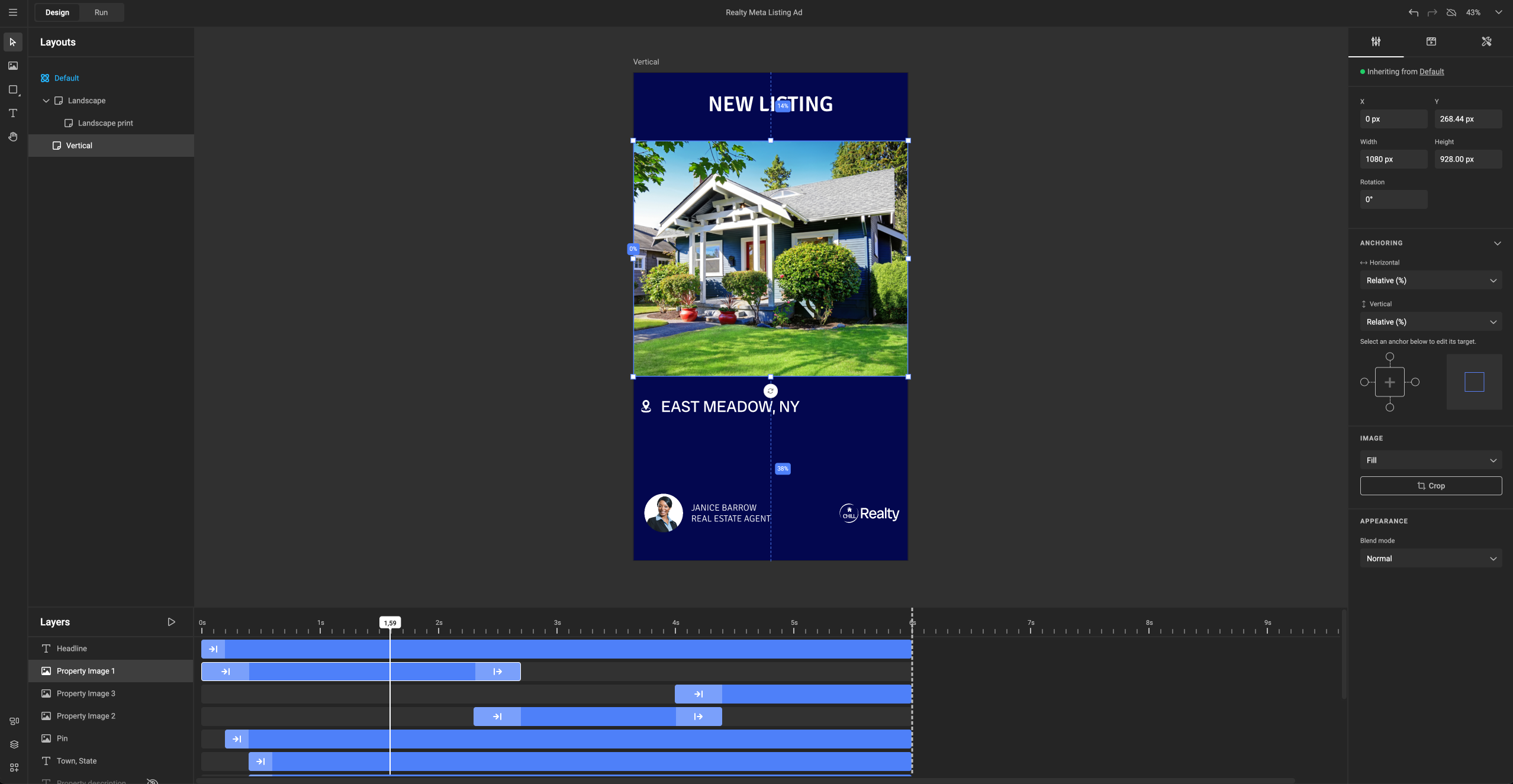
A vertical sub-layout applies the same principle—only the page size changes, while the frames maintain their relative positioning.
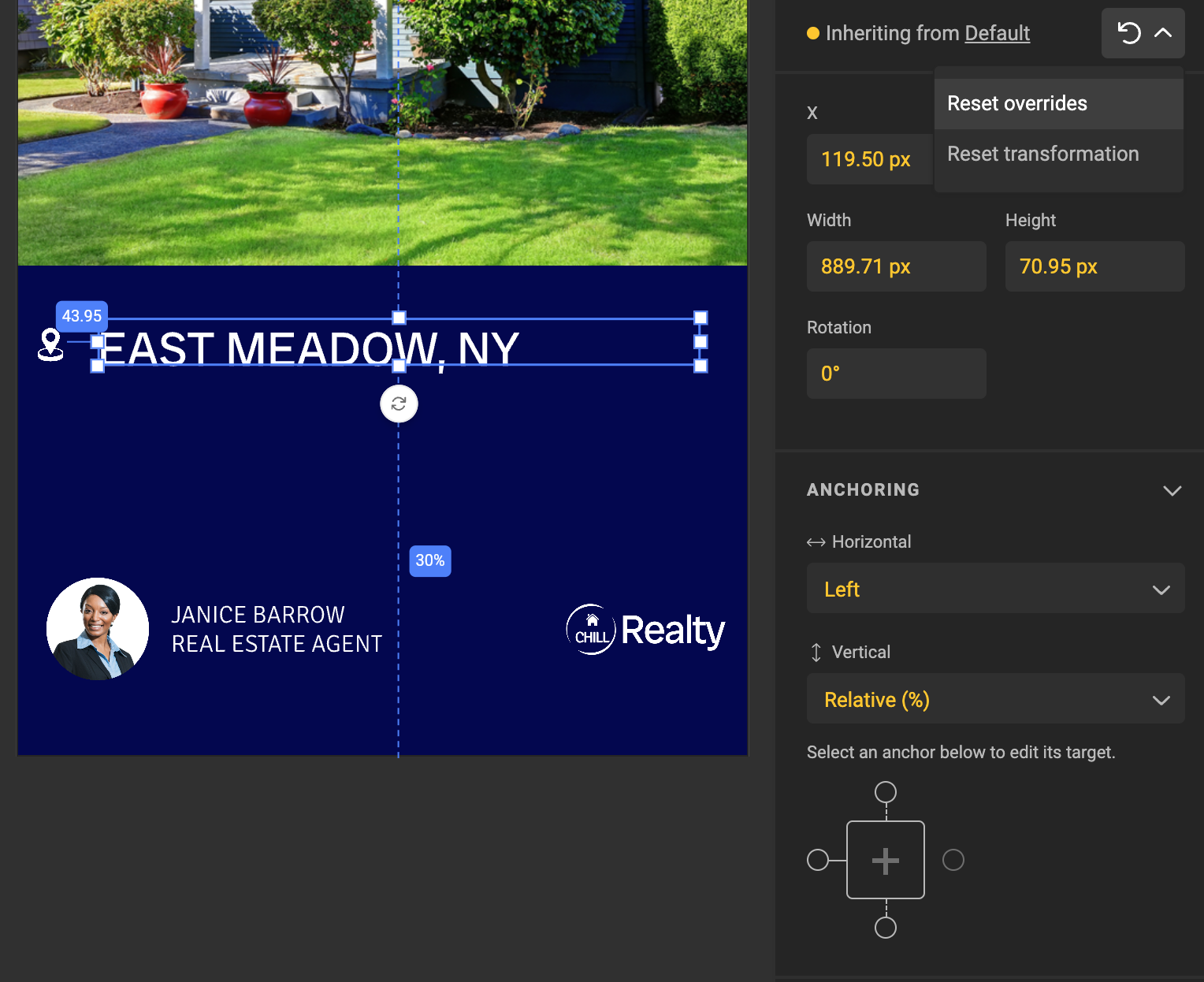
If you want to make specific adjustments, you can manually move a frame or change the anchoring type.
Doing so breaks inheritance with the parent layout, and the new values appear in yellow in the properties panel, indicating overrides.
When moving a frame, these settings will also override the inheritance model:
- X & Y
- Width & Height
- Rotation
- Horizontal & Vertical anchoring + all its settings
- Auto-grow + all its settings 1
What’s Next?
See the How To set Anchoring page in the Guides section
Anchoring is powerful on its own, but it becomes even more effective when combined with other Smart Template features:
- Actions
- Autogrow
- Copyfitting
- Inheritance
- Layouts
- Variables
-
Available soon! Mentioned here because it will also override inheritance when available. ↩