Multiple Pages
See also: Pages & Layout Intents
Feature Channel
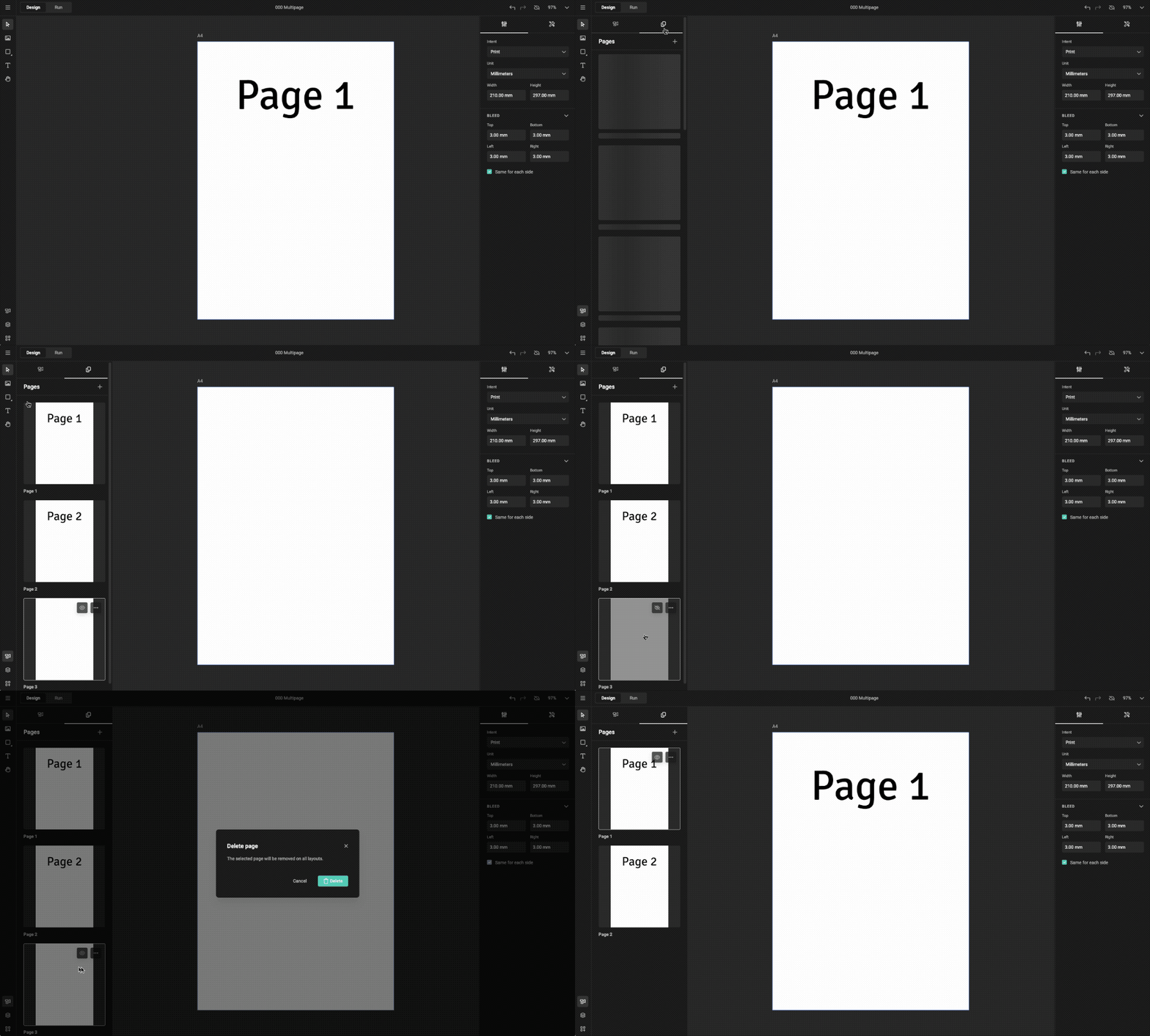
Add Pages
Choose Layouts > Pages > Add Page
Intent matters
Add Pages is only visible for layouts with print intent
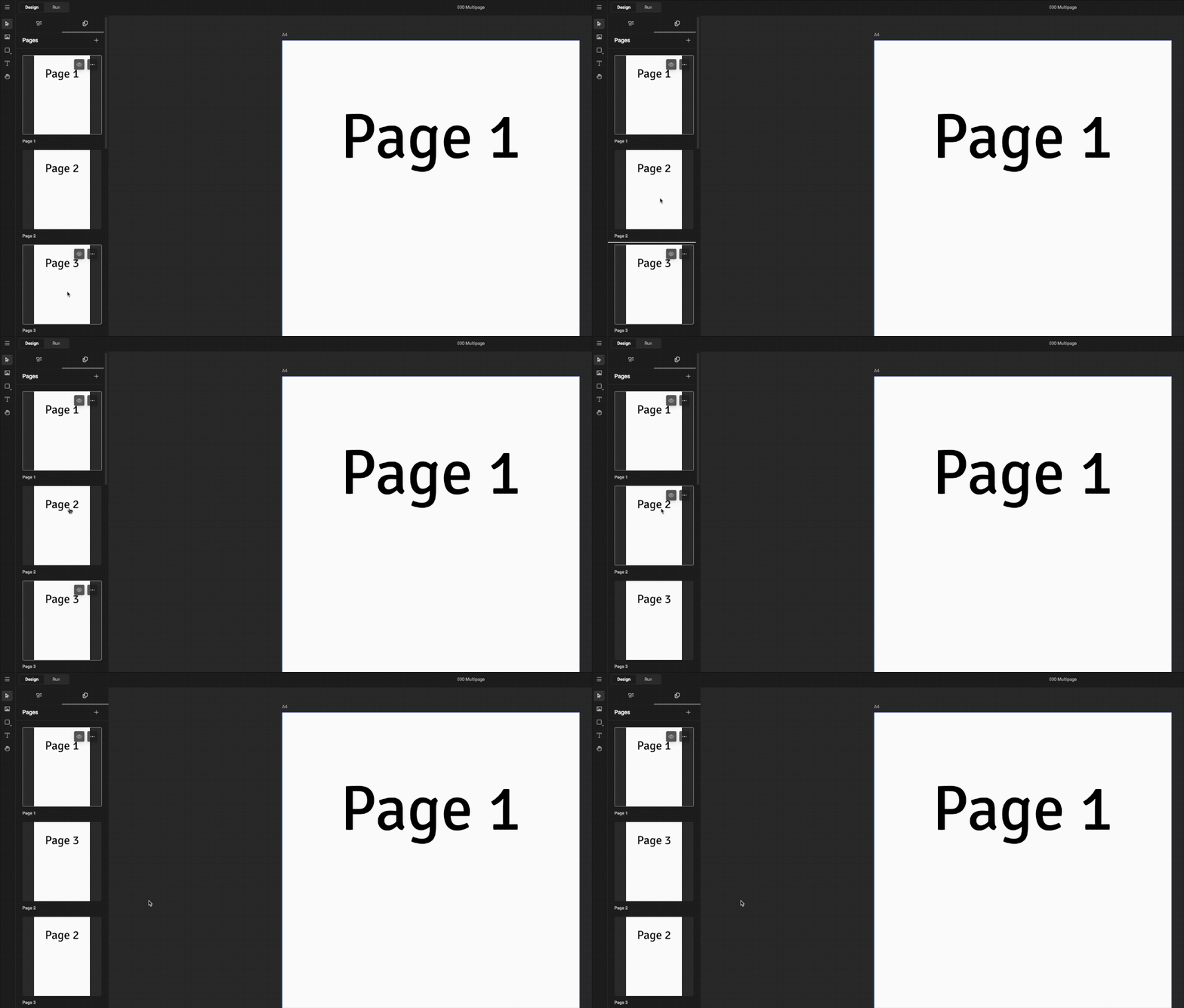
(Re-)Arrange Pages
Drag a page before or after another page.
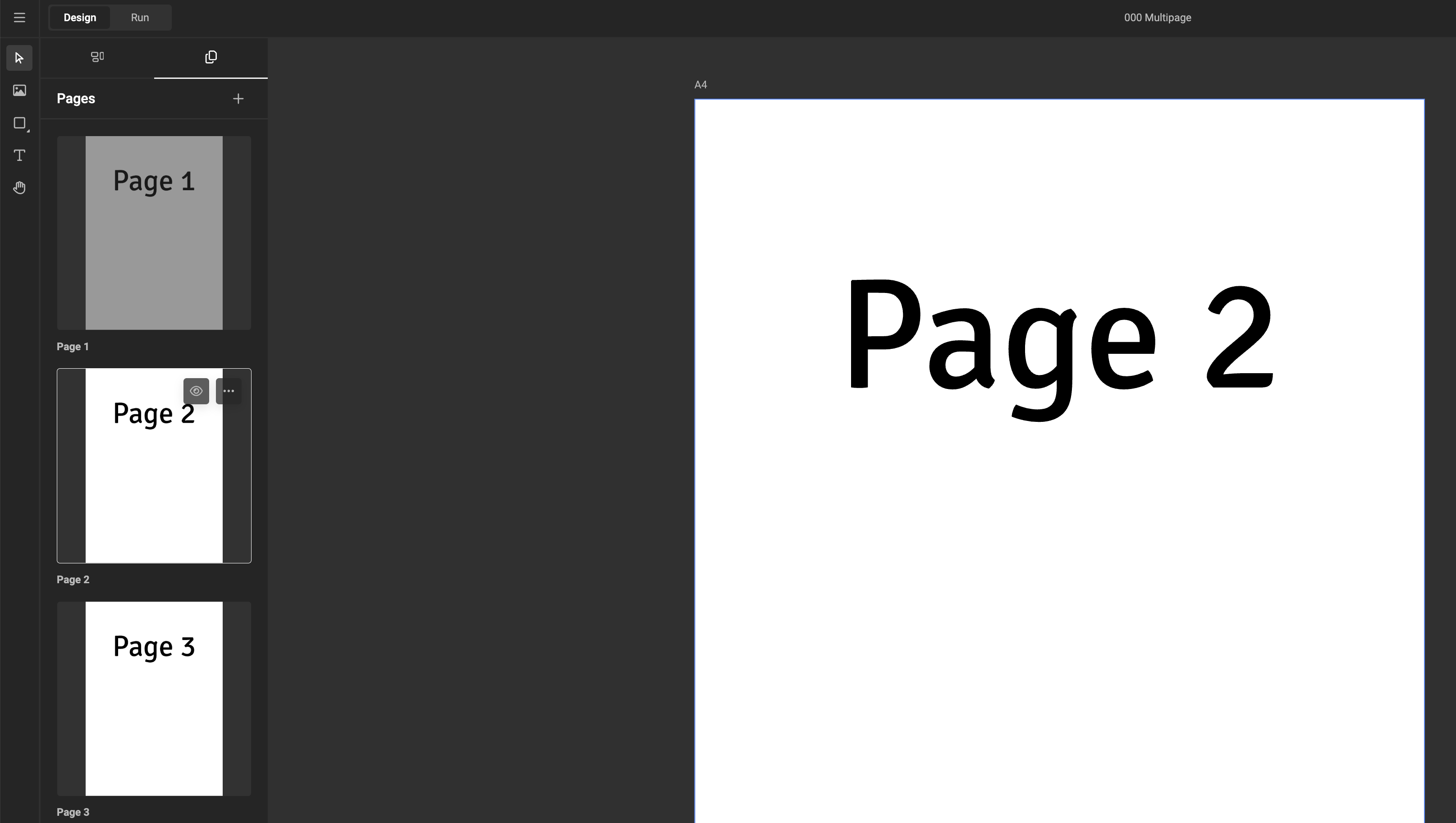
Hide Pages
Click the Eye icon on the page, or "..." > Hide Page
Good to Know!
- When only one page is visible, it cannot be hidden.
The Show/Hide option is disabled, and the Eye icon/toggle is hidden. - Hidden pages can still be selected and edited.
- Hidden pages do not output.
- Visibility applies to all layouts.
It is not possible to hide different pages in different layouts. - When a document is loaded, the first visible page is selected.
Studio UI Considerations
- Hidden pages are ignored.
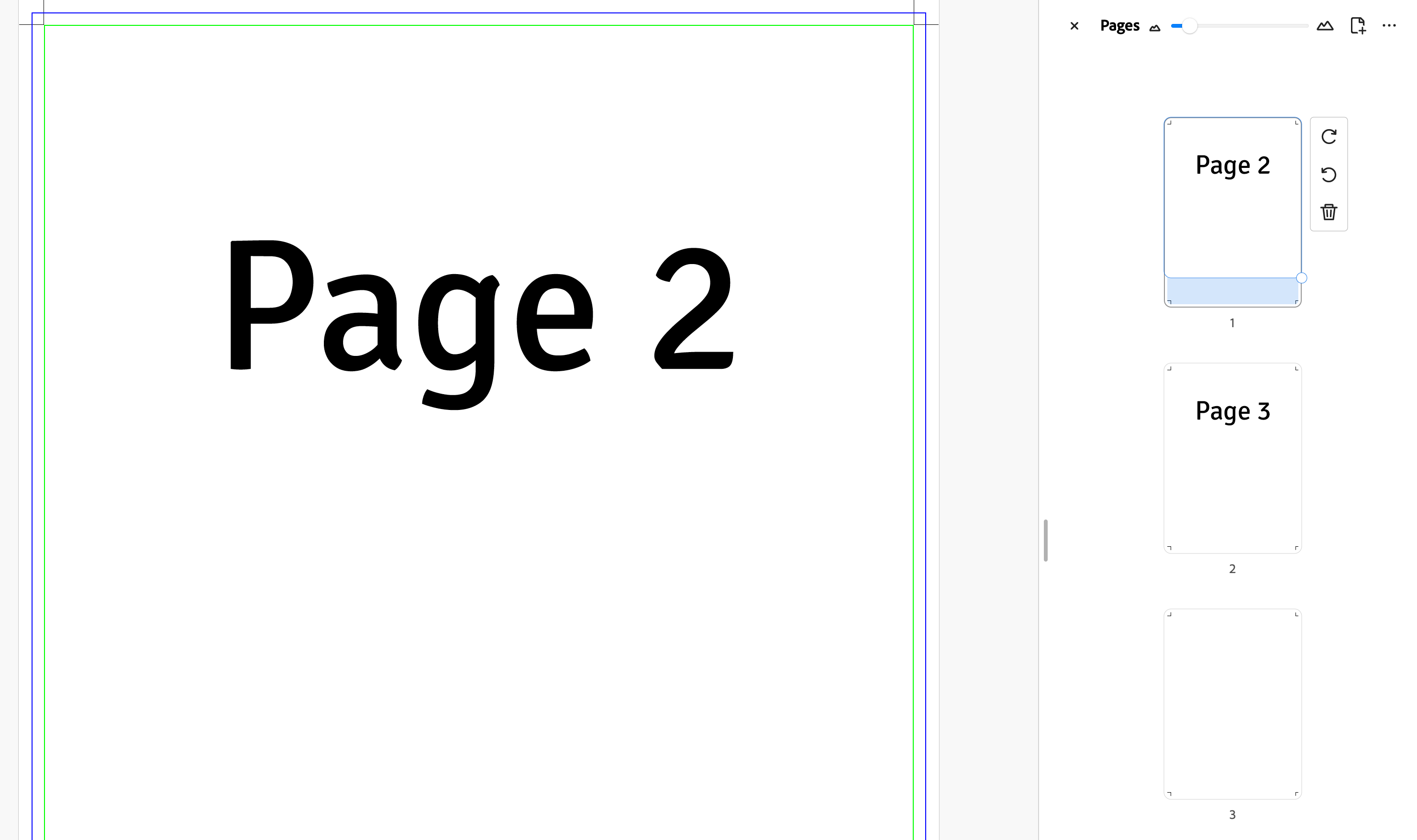
The page navigation panel only shows snapshots of visible pages.
When only one page is visible, the panel is hidden.
In the example below, page 1 is hidden, so it is not shown in the panel:
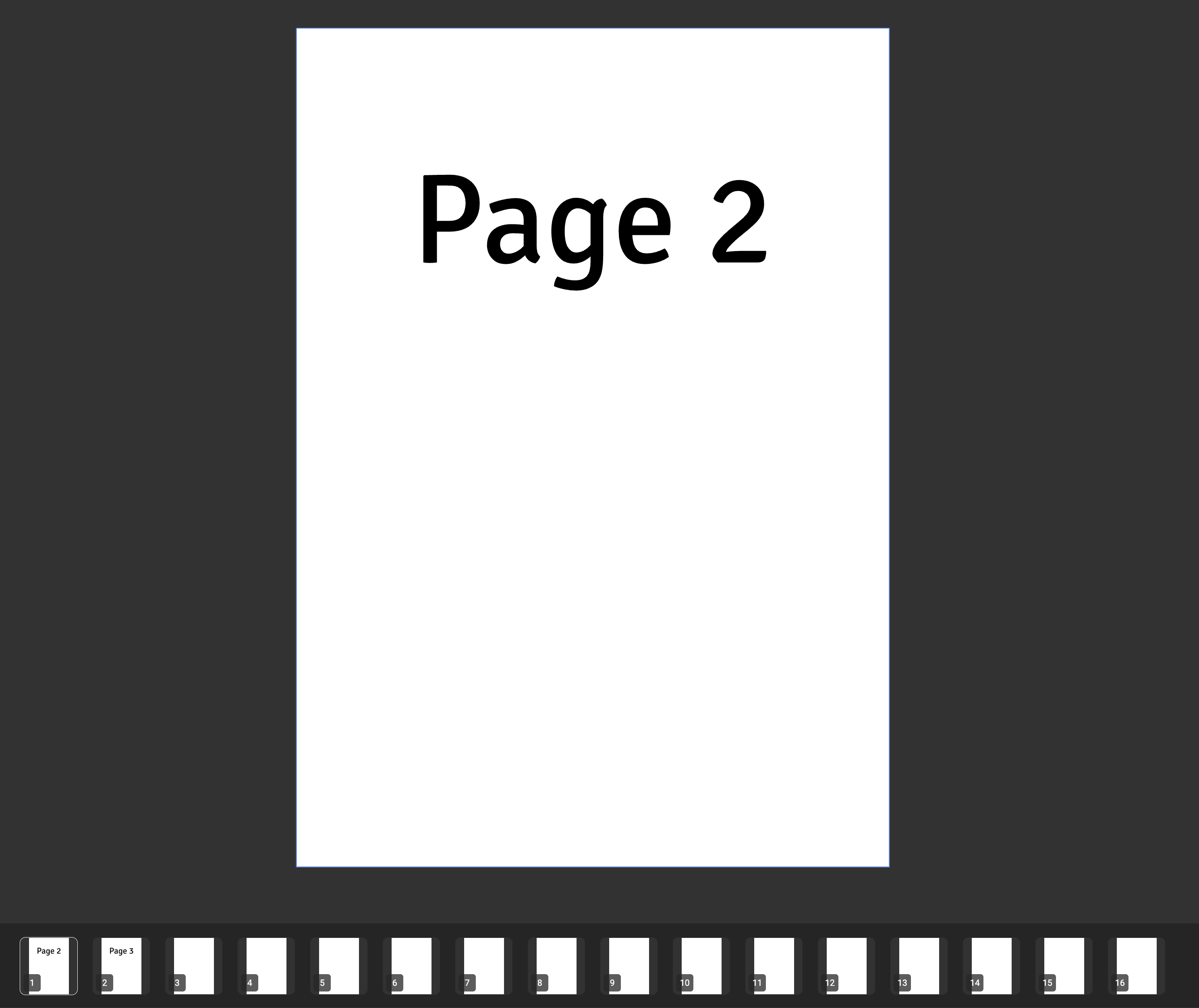
- Page numbers only reflect visible pages (the end-user doesn’t need to know about hidden pages).
- Upon loading, the first visible page is selected.
Digital
- Layouts with a digital intent use the first visible page instead of always using page 1.
If you hide page 1, it affects all digital layouts.
Duplicate Pages
Click "..." > Duplicate Page
The duplicate is inserted directly after the original page and contains all the same frames, content, and layout settings. Use this as a starting point for a new variation without having to rebuild the page from scratch.
Delete Pages
Click "..." > Delete Page
Confirm the deletion (or cancel).
Delete Last Page
When only one page is visible, it cannot be deleted.
The Delete option is disabled.