Converting Documents to GraFx Studio
In creative workflows, desktop design tools like Adobe® InDesign®, Adobe® Photoshop®, or Adobe® Illustrator® are often used to create high-quality, custom designs
While these tools excel at creating static, one-off designs, they aren't built to efficiently handle the automation of design variants
This is where GraFx Studio comes in
GraFx Studio allows you to convert your existing designs from desktop tools into Smart Templates
These templates form the foundation for automating the creation of multichannel content—whether it's print, digital static, or animated digital output
The conversion process ensures that the creative work you’ve already done doesn’t go to waste but becomes a starting point for automation
A note on fonts
Variable fonts display correctly in Adobe® Photoshop® and InDesign®, and your document will convert to a Studio document — but GraFx Fonts does not support variable fonts, so they cannot be uploaded.
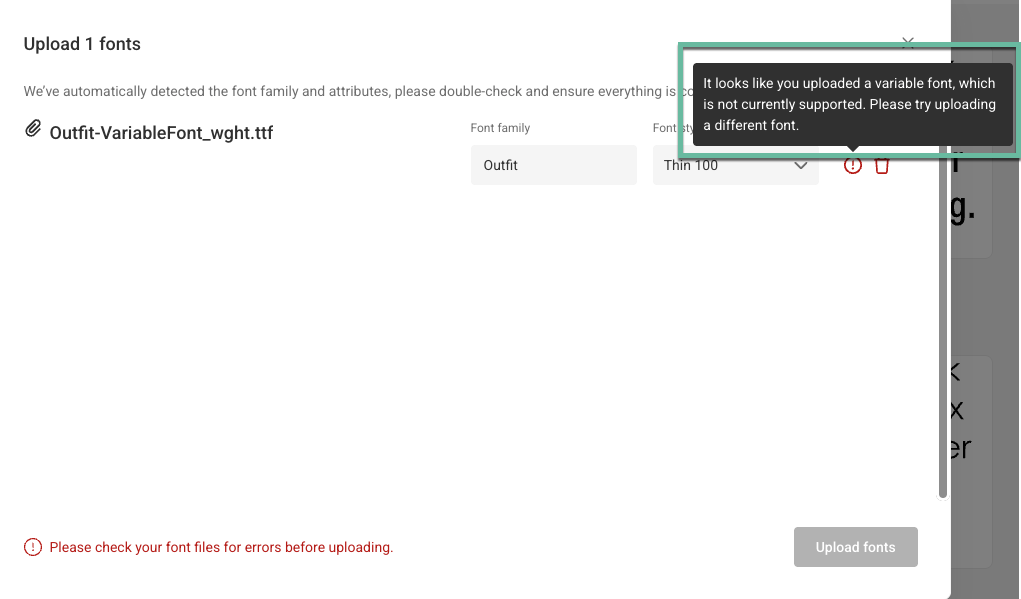
To resolve this, upload a TrueType or OpenType version of each font weight your design uses. For example, if your document uses Bold and Regular, upload those two weights as separate static font files.
See Supported font types for the full list of supported font formats.
The conversion process
Below is the abstract process of conversion. For specific conversions see:
- How to convert an Adobe® InDesign® document
- How to convert an Adobe® Photoshop® document
- How to convert a Figma design (experimental)
Export from desktop tools
Using a GraFx Studio Exporter plugin, you can export your document into a CHILI GraFx .zip format that contains all the necessary assets, document structure, and settings
Currently, GraFx Studio Exporter plugins are available for:
- Adobe® InDesign® (multiple pages, alternate layouts)
- Adobe® Photoshop® (multiple artboards)
- Figma (a single frame, experimental)
Import into GraFx Studio
This .zip file can be imported into GraFx Studio, where the document is converted into a Smart Template
Add business logic
In GraFx Studio, you can enhance the template by adding business logic, variables, and automation rules
This enables the template to dynamically generate variations, adapting to different content, channels, and user inputs
Automate variant creation
Once the business logic is set, GraFx Studio can quickly produce multiple variants of your design—saving time and ensuring consistency across all outputs
Offer self-service to end users

Lights-out automation using the API