Skip to content

Overview

CHILI GraFx Environment API: Source files preserved in print output

CHILI GraFx icon

🛠️ Fixes

JPG and PNG source files are kept for print output

When GraFx Studio generates a PDF, the output engine requests each placed image at full resolution for print. For JPG and PNG assets, the Environment API now returns the original source file, so the image's original color space and quality carry through to the final PDF — a CMYK JPEG stays CMYK all the way to print. This matches the behavior described in the media connector documentation.

More info

Read more in the Developer Center

CHILI GraFx Environment API: Multi-layout template previews

CHILI GraFx icon

✨ New & Improved

Previews for a specific layout and page

All layouts of a multi-layout template previewed side by side

A GraFx Studio template can contain multiple layouts — variants of the same template at different sizes or intents — and each layout can have multiple pages. Until now, the template preview endpoint always returned the preview of the default layout and page only. You can now request a preview for any specific (layout, page) combination of a multi-layout template, which unlocks per-layout and per-page preview thumbnails in downstream applications such as GraFx Experience.

What this enables

Integrators and ISVs can use this to build experiences around a design system delivered as a single multi-layout template — one template that holds all the variants of a campaign, asset, or brand artifact (different sizes, channels, or page sequences). Instead of showing end users a single thumbnail and leaving them to guess at the rest, a portal can now render a thumbnail for every variant the design system contains, so the end user can preview and visually compare each layout and page before picking the one they want to personalize or export.

The API change

Two endpoints accept two new optional query parameters — layoutId and pageId:

GET /api/v1/environment/{environment}/templates/{templateId}/preview
GET /api/v1/environment/{environment}/templates/{templateId}/preview/{previewType}

Behavior:

  • Both parameters are optional and fully backwards-compatible — when both are omitted, the endpoint returns the default-layout / default-page preview, exactly as before.
  • When either is provided, the preview is rendered (or served from cache) for that specific (layout, page) combination.
  • When either is provided but the resolved rendering engine version is below 2.24.0, the endpoint returns 400 Bad Request with a message indicating the minimum supported engine version.

More info

Read more in the Developer Center

GraFx Studio Adobe® InDesign® plugin: Clipping masks

GraFx Studio icon v1.4.0

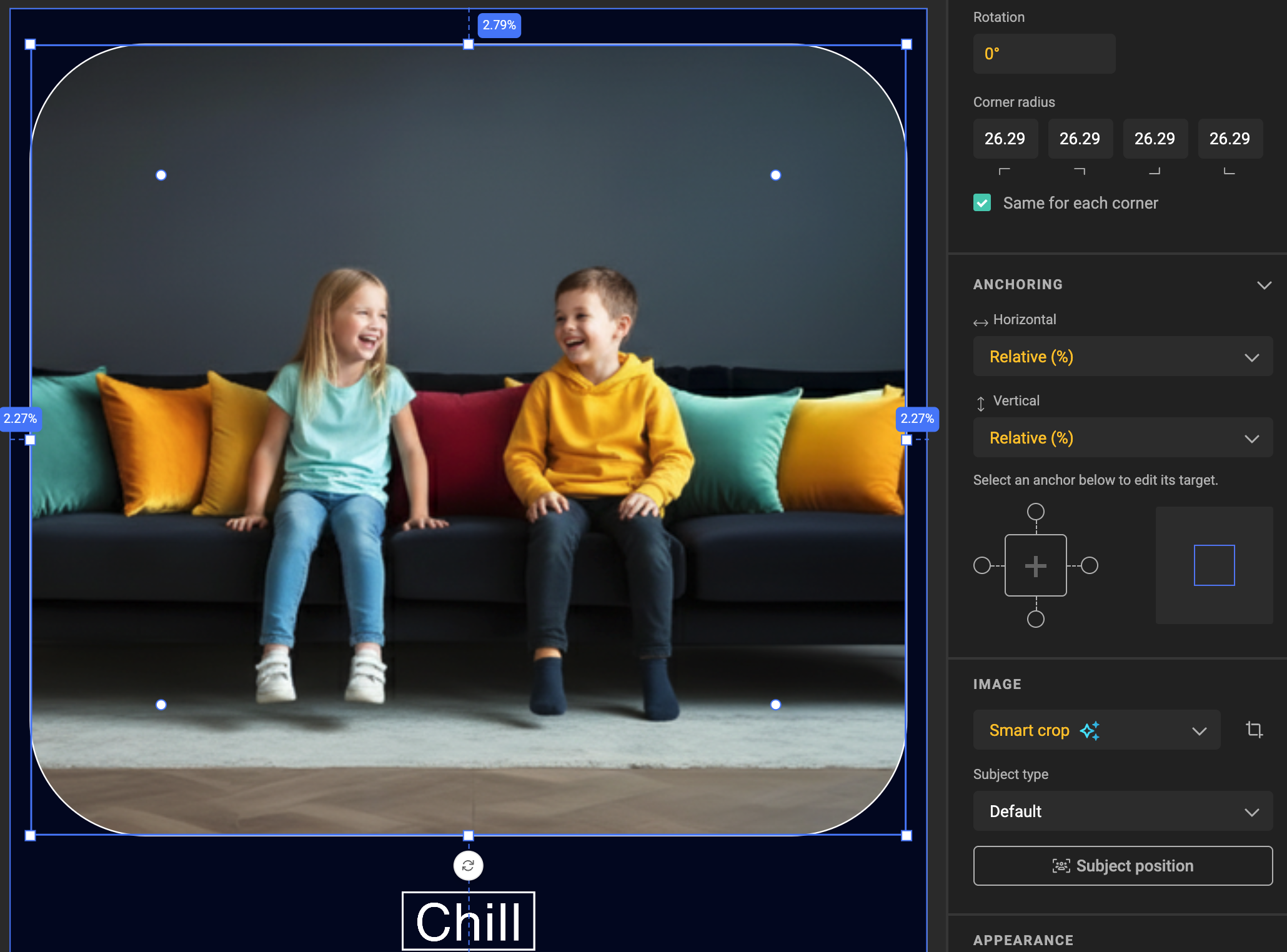
A clipping mask is a shape that crops an image frame so only the part inside the shape shows through — a common design technique in InDesign®. GraFx Studio recently added native support for clipping masks on image frames, and this release of the GraFx Studio Exporter for Adobe® InDesign® brings the export side up to par: clipping masks set up in InDesign® are now preserved when you export to GraFx Studio.

Clipping mask with rounded corners

✨ New & Improved

Clipping masks on image frames

The exporter now translates InDesign® clipping setups into Studio-native clipping masks:

  • Built-in shapes — image frames clipped with a rectangle or ellipse are exported as Studio clipping shapes, including corner-radius and stroke properties.
  • Custom paths — image frames clipped with a custom path are converted to a path-based clipping mask in Studio, with the path's stroke preserved.
  • Nested shapes containing images — when an image frame is pasted inside a shape, the immediate parent shape is exported as the clipping path and the image's own clipping is applied on top. If that parent is itself nested inside further shapes, those additional parent frames are ignored and not exported.

Strokes applied to clipped image frames are exported alongside the mask, and the preflight panel flags clipping setups that can't yet be exported.

How clipping masks are detected

The exporter looks for a shape that contains an image. That combination is treated as a clipping mask. A shape on its own — with no image inside — is exported to GraFx Studio as a standalone shape asset, keeping its geometry but not acting as a mask.

Known limitation

Complex paths — for example, multiple unconnected paths or a path that contains another path — are not yet fully supported and will be flagged in preflight.

More info

See the GraFx Studio Exporter for Adobe® InDesign® documentation for installation, usage, and the full feature support table.

GraFx Studio: Backgrounds on Character Styles and kerning

GraFx Studio icon v1.43

✨ New & Improved

Background color on character styles

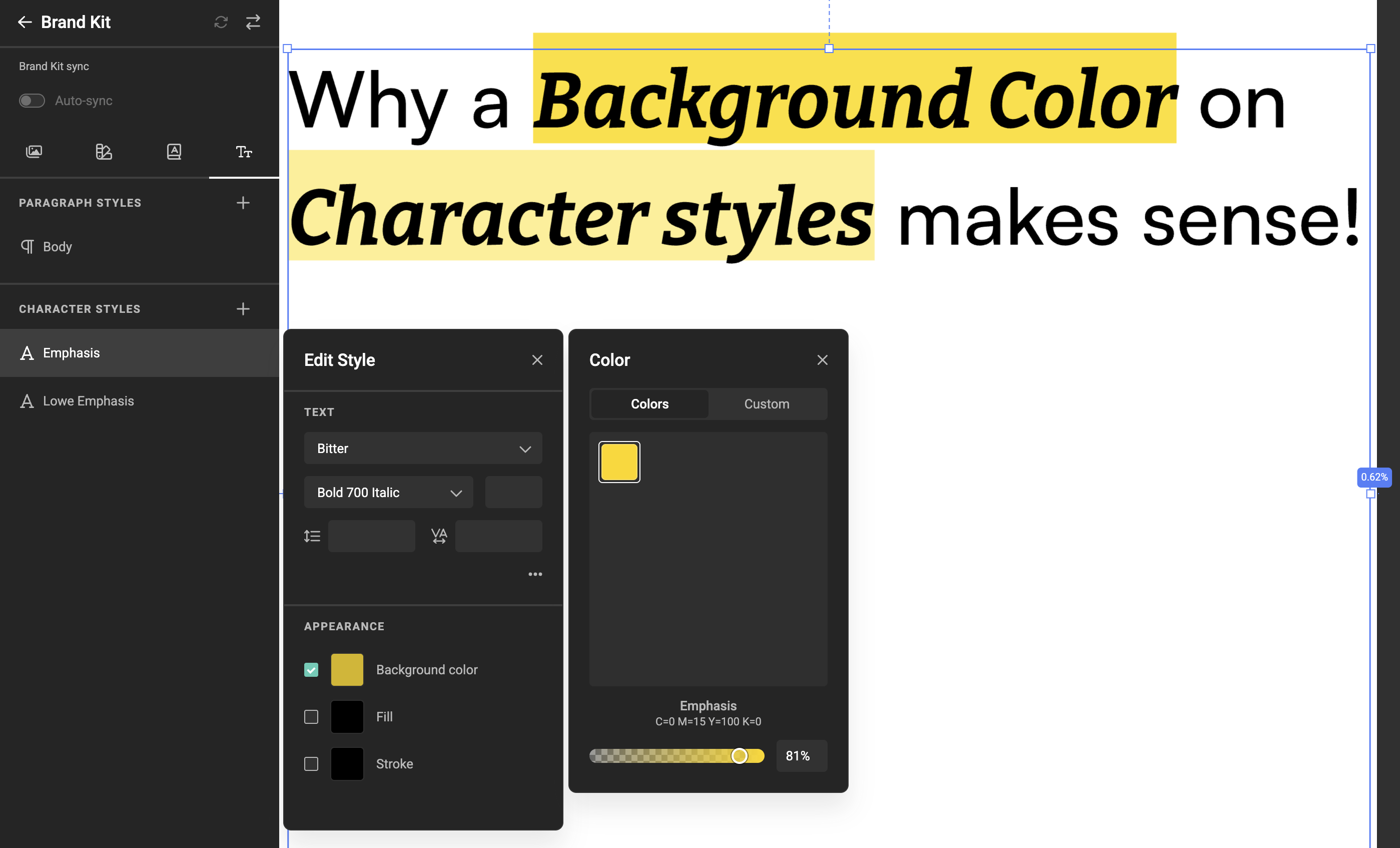
Background color on Character Styles

Character styles now support a background color — the colored highlight that sits behind a word or phrase, like a marker effect for headlines, badges, or labels. Pick any color from your Brand Kit (gradients included), apply the character style to your text, and the highlight follows along. When the text resizes to fit its frame, the highlight resizes with it, so it always stays neatly aligned.

Learn more: How to work with character styles.

Better letter spacing in text

Studio now applies the kerning pairs built into your fonts during text layout. Most professional fonts include small spacing adjustments between specific letter combinations — pairs like "AV", "JA", or "Te" — defined by the type designer to keep the rhythm of a line visually even. Studio picks these up automatically, so text rendering aligns closely with what you'd see in InDesign or Illustrator — with no extra setup on your side.

More options for image clipping masks

The clipping mask feature introduced in v1.42 lets you crop an image into a rectangle, ellipse, or polygon. This release adds a fourth option: a Custom shape — so an image can be clipped into any silhouette you bring in, including shapes from an InDesign export. More creative range for layouts that call for an unusual cut-out.

Learn more: Clipping mask on image frames.

Custom icons when creating frames

When you draw a new frame, you can now show a custom icon as the placeholder inside it — tailored to the design you're working on. A small touch that makes template setup feel more intentional and on-brand.

Clearer feedback when text exceeds its limit

When someone enters text longer than a text variable allows, Studio now shows a clear, contextual message explaining what's wrong and how to resolve it. Especially helpful in Studio UI, where end users are filling in templates on their own and benefit from immediate, plain-language guidance.

🛠️ Fixes

  • Text inside Components renders crisply — text inside a Component now displays at the same sharpness as text anywhere else on the canvas.
  • Animations in Components stay consistent — animations on frames inside a Component now play the same way in both the preview and the final output.
  • Image variable settings preserved across mapping edits — settings on an image variable (browse options, hardcoded values) are now kept when you adjust its metadata mapping, so there's no need to re-enter them after each change.
  • Aspect ratio checks restored in preflight — preflight once again reports frames whose content breaks their aspect ratio constraints, putting that check back in the preflight panel.
  • Large image variable uploads complete reliably — uploading very large images (around 70–100 MB, such as high-resolution TIFFs) to an image variable now completes successfully; preview generation has the time it needs to finish.

GraFx Studio: Clipping masks and character limits

GraFx Studio icon v1.42

✨ New & Improved

Clipping masks for image frames

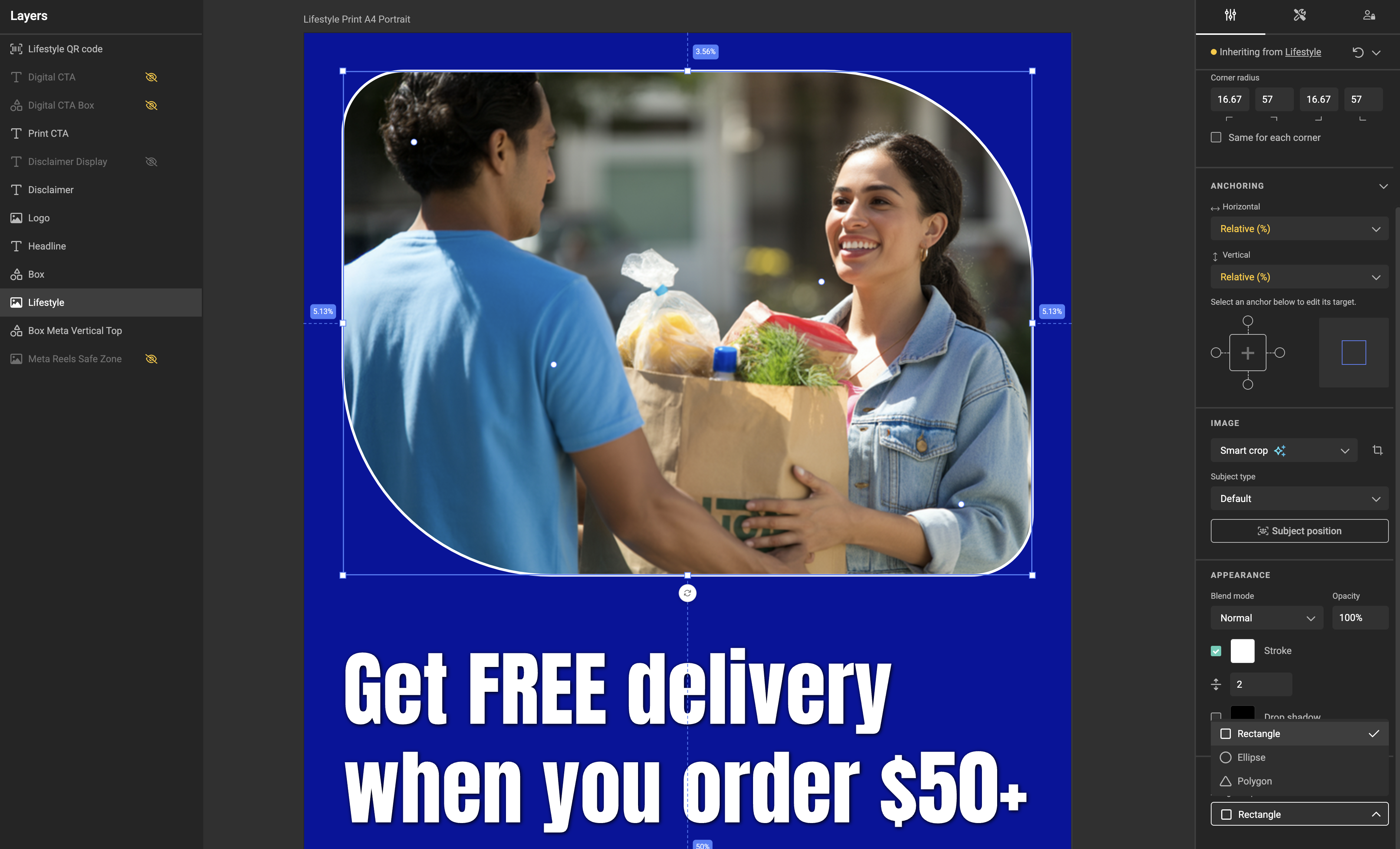
Clipping masks

Image frames can now be masked with a rectangle, ellipse, or polygon — with corner radius and an optional stroke. Use the new Clipping mask section in the property panel to assign the shape, and the Appearance section to configure the stroke. Stroke and drop shadow follow the clipped path exactly.

Learn more: Clipping mask on image frames.

Character limits for text variables

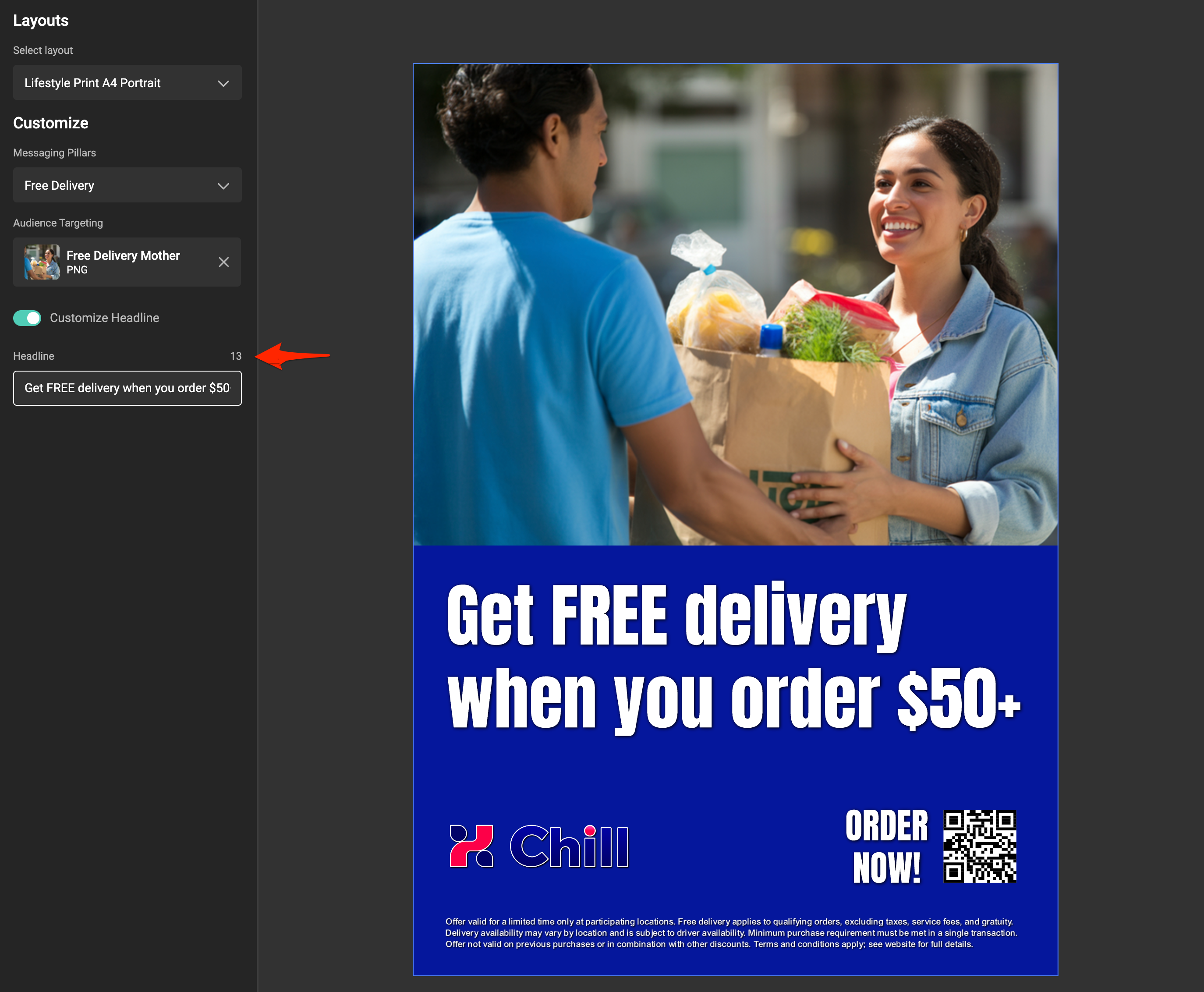
Character Limit

Single-line and multi-line text variables now enforce a maximum length in both the Template Designer (Studio) and the end-user UI (Studio UI). The input shows a remaining-characters counter, blocks typing past the limit, and truncates pasted text to fit.

Learn more: Single-line and Multi-line text variables.

🛠️ Fixes

  • Output status on hidden-page failures — animated layouts that excluded a failing page used to report Internal error. Failures are now reported as Failed with a meaningful message.
  • Component position after switching layouts — Flutter-based outputs could render components at the wrong size after switching between layouts of different dimensions. Components now stay in sync with the active layout.

Connector CLI v1.12.0

GraFx Studio icon

A new version of the Connector CLI — the command-line tool used to develop, configure, and manage CHILI GraFx Connectors — is available. It introduces a new command for removing connector authentication and brings several reliability improvements to connector setup and runtime behavior.

✨ New & Improved

Remove a Connector's authentication with delete-auth

Connectors authenticate against external systems using one of the supported authorization types — Static Header Key or one of the OAuth 2.0 variants — configured via the set-auth command. Until now, undoing that configuration meant deleting and re-creating the Connector.

The new delete-auth command removes a Connector's authorization configuration cleanly, so you can switch auth types or revert to no authentication without recreating anything.

connector-cli delete-auth

Learn more: Change/Remove Configured Authentication

đź”§ Improvements

Clearer validation when configuring authentication

When you run set-auth, the CLI now correctly validates that all fields required by your chosen authorization type are present in the authorization data file. Missing or incomplete fields are flagged up front with a clear error, instead of surfacing later as a confusing failure when the Connector first tries to authenticate.

Connector responses no longer cached unexpectedly

Connector responses now include an explicit Cache-Control: no-cache header, ensuring that data fetched through a Connector always reflects the current state of the source system — particularly relevant for Connectors that return frequently-changing data such as asset listings, metadata, or search results.

More consistent response content types

Connector responses now align consistently with their declared content type, making downstream parsing and integration more predictable for anyone building against the Connector framework.

More info

Read more in the Developer Center

GraFx Studio and Platform: Subject types, Brand Kit sync, and improvements

GraFx Studio icon CHILI GraFx icon v1.41

✨ New & Improved

Subject types for Smart Crop

You can now assign a subject type to an asset — a classification (for example: person, product, or logo) that tells GraFx Studio what kind of subject the image contains. When Smart Crop is active, the subject type influences how the crop is applied, for more predictable results across image categories. The subject type is also visible in the media details view alongside the asset's other metadata.

Learn more: Smart Crop subject types (concept) · Select a Subject type on a frame · Set a Subject Area per subject type

Subject type management in the Platform

Subject types are now managed centrally in CHILI GraFx. A dedicated Subject types page lets environment admins define and maintain the list available across their environment, and the assigned subject type is shown on the media details view in the platform.

Learn more: Manage Subject Types

Brand Kit sync

Brand Kits in GraFx Studio can now stay in sync with their source Brand Kit. In the Brand Kit panel, an auto-sync toggle keeps templates aligned automatically when you open a template or the panel, and a manual sync button lets you pull the latest Brand Kit changes on demand — no re-import needed.

Learn more: Keep a Brand Kit in sync

đź”§ Improvements

Clearer feedback on autogrow interactions

Two new info messages make the Template Designer more transparent when autogrow is active:

  • Enabling constrain proportions on an autogrow frame now shows an info message explaining that frame handles aren't available on layouts where autogrow is active.
  • Rotation on an autogrow frame shows a similar info message explaining that rotation isn't available on those layouts.

Learn more: Auto-grow on text frames

🛠️ Fixes

  • PDF overprint — embedding PDF assets that contain overprint statements no longer strips the overprint from the final PDF output. See Embedded PDF assets.
  • Image variable metadata mappings — metadata mappings on image variables can now be updated after being set for the first time.

New Data Connector: CSV

GraFx Studio icon

A new data connector is available in GraFx Studio — the CSV Data Connector. It lets you use any publicly accessible CSV file as a data source for your templates, with no authentication required.

✨ New & Improved

CSV Data Connector

Connect a CSV file to your template by pasting its public URL into the connector configuration. GraFx Studio reads the column headers and maps them to template variables automatically.

Supported out of the box: comma and semicolon delimiters, quoted fields, Excel UTF-8 exports, and automatic type inference per column — text, number, date, and boolean.

Records are browsable in Run Mode and the Studio UI.

Hosting requirement

The CSV file must be served with a Content-Type: application/json response header. This is a runtime constraint of the connector framework — the file content itself is unaffected. Any static host where you can set response headers (S3, Azure Blob, CDN) will work.

More info

CSV Data Connector

New Connector: Bynder

GraFx Studio icon

✨ New & Improved

Bynder media connector now available

The Bynder connector is now available in the Connector Hub. Once installed, your GraFx Studio templates can browse and use assets directly from your Bynder DAM — no manual uploads required.

The connector supports OAuth 2.0 authentication, metadata mapping, and filtering by collection or folder view. Assets are accessible both when placing images on the canvas and through image variables.

Bynder Connector documentation

Adobe InDesign and Photoshop Plugin Update v1.3.0

GraFx Studio icon

Version 1.3.0 adds text column support, bullet and numbered lists, and improved handling of nested frames and locked layers — with fidelity fixes across both plugins.

✨ New & Improved

Adobe InDesign Plugin

  • Text columns — text frames with multiple columns now export with their column structure intact.
  • Bullet and numbered lists — list content is now exported. Indentation may differ slightly and exact numbered markers may not be preserved.
  • Nested text frames — text frames nested inside other text frames are handled; a preflight warning lets you convert to PDF or ignore.
  • Nested frames in shapes — frames inside shapes are detected and included in the preflight report, with the same Convert to PDF or Ignore options.
  • Locked layers — locked layers are now exported as PDF instead of being skipped.
  • Enhanced preflight messages — warnings are more specific and easier to act on.

Adobe Photoshop Plugin

  • Text columns — text layers with column layouts are now supported during export.
  • Bullet and numbered lists — list content is exported, with the same indentation and marker caveats as InDesign.
  • Enhanced preflight warnings — more detail on unsupported effects. Note: some effect names differ from Photoshop's UI (e.g. Satin appears as chromeFX).

🛠️ Fixes

InDesign: frame opacity for shapes; shapes with modified paths; position of rotated triangles; linked (threaded) text frames; crop of locked image layers; image crop in custom shapes.

Photoshop: export of shapes without a strokeStyle object; rounding of numeric properties during conversion.

More info