Connect the extension to CHILI GraFx
This guide explains how to connect the CHILI GraFx extension to your CHILI GraFx environment using an integration.
Before you start
- You need tenant admin access to the GraFx Experience admin console, with the CHILI GraFx extension enabled.
- You need access to Integrations in CHILI GraFx to create or retrieve credentials.
Step 1: Create an integration in CHILI GraFx
In CHILI GraFx, go to Integrations and create a new integration for GraFx Experience. This generates a Client ID and Client Secret.
See the Integrations concept for details on creating integrations and setting the correct permissions.
Note down the Client ID and Client Secret — you will need them in the next step.
Step 2: Enter the credentials on the GraFx Authentication page
In the admin console, open Installed Extensions and click Authentication (key icon) on the GraFx row. This opens the GraFx Authentication page.
The page holds the connection details for your CHILI GraFx environment. Required fields are marked with a red asterisk.
| Field | What to enter |
|---|---|
| Enable GraFx Studio integration | Turns the connection on or off |
| Environment ID | The identifier of your CHILI GraFx environment |
| Environment API base URL | The base URL of your environment's Environment API |
| Auth URL | The endpoint used to request access tokens |
| Client ID | The Client ID of the integration from Step 1 |
| Client Secret | The Client Secret of the integration from Step 1 (masked) |
The page also has optional fields for the Studio UI CDN URL, the Studio UI SDK URL, and the editor link.
Click Save Authentication. When you save, GraFx Experience checks the environment against your CHILI GraFx subscription. If the Environment ID is not valid, an error message is shown and the previous values are kept.
Step 3: Verify the connection
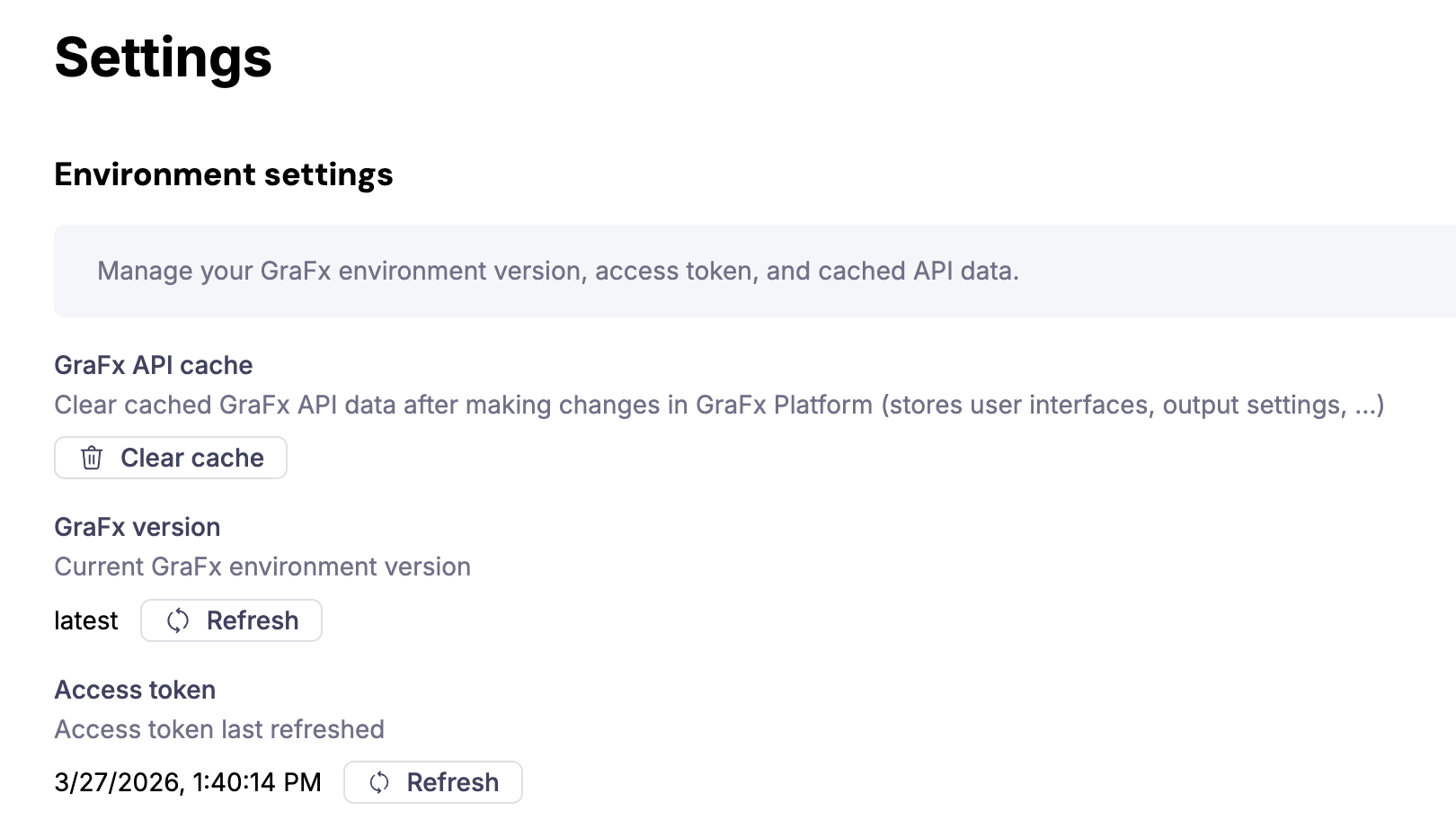
Open the extension's Settings → Environment settings.
- Under GraFx version, click Refresh to load the version your environment runs on.
- Under GraFx API cache, click Clear cache to load the latest user interfaces and output settings from CHILI GraFx.
If the connection is successful, the GraFx Studio user interfaces and output settings from your environment are available when you configure templates in the extension.
Refreshing after changes in CHILI GraFx
The extension does not automatically pick up changes made in CHILI GraFx. Use Environment settings to apply them:
- Integration permissions changed — click Refresh under Access token to re-authenticate with the updated permissions.
- User interfaces or output settings changed — click Clear cache under GraFx API cache.
Subscription sync
GraFx Experience reads your CHILI GraFx subscription each time you save the GraFx authentication, and keeps it in sync every hour after that. Changes to your subscription in CHILI GraFx reach GraFx Experience within about an hour.