Output to HTML
HTML output is Experimental
To give you early access to the latest and greatest, we will release some features as "Experimental".
This feature and related endpoints (for the API) are not yet final: syntax might change, response could be different, etc. Don't base your production code on experimental features. See Feature maturity.
Create an output setting
How to create an export setting?
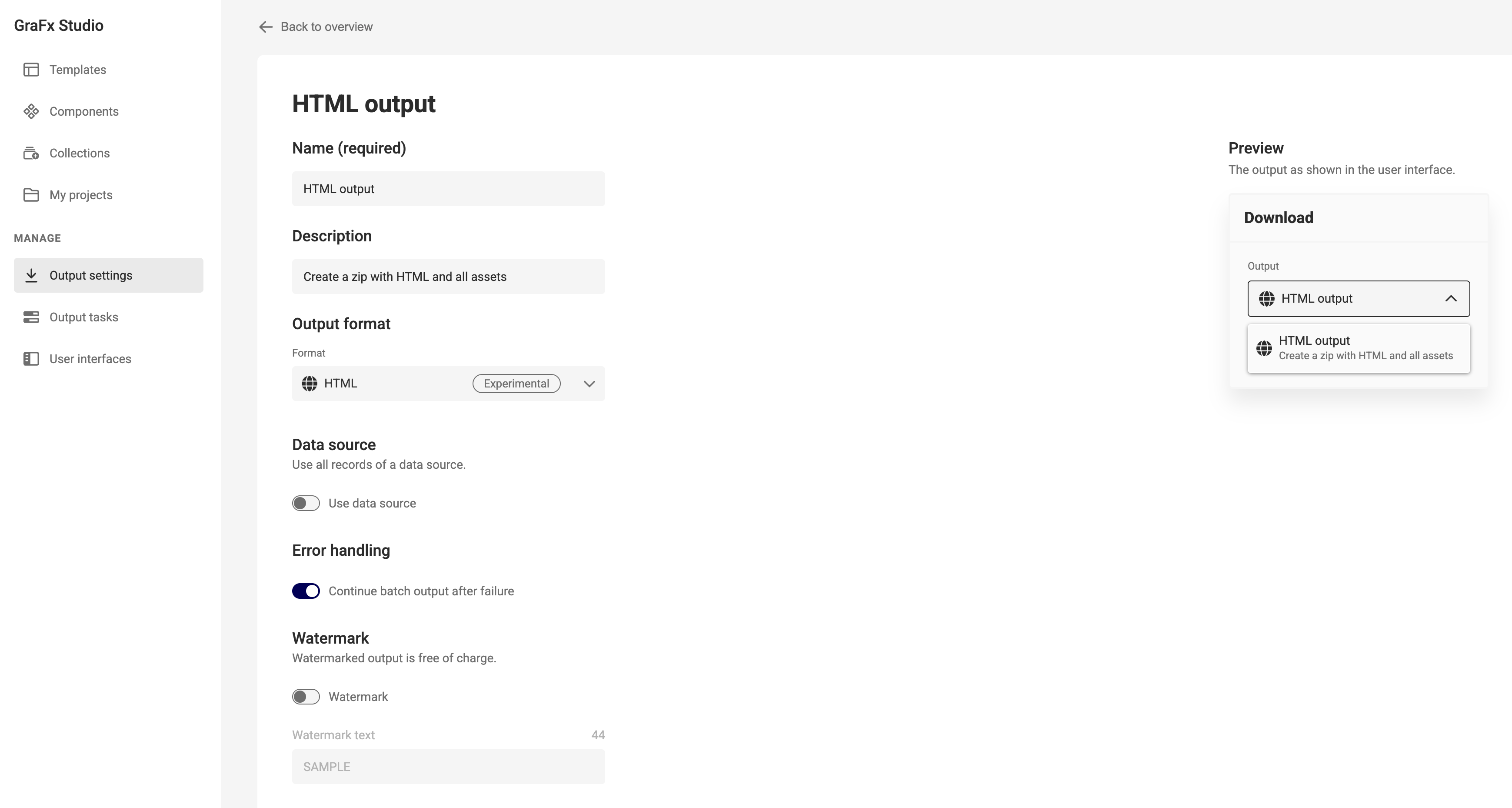
In GraFx Studio
Select the right Layout
In run mode select the right layout.

Choose Export (to HTML)
Click "Export as" and choose your output setting in the dropdown.
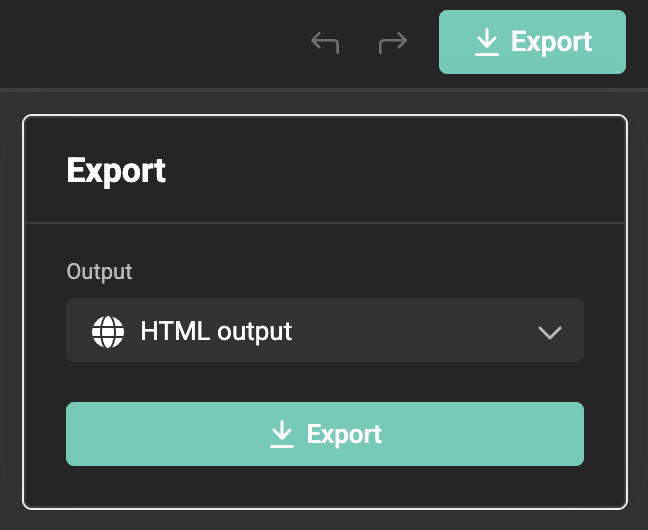
When the export is ready, your browser will download the zip file into your downloads folder.
In Studio UI
Very similar in Studio UI.
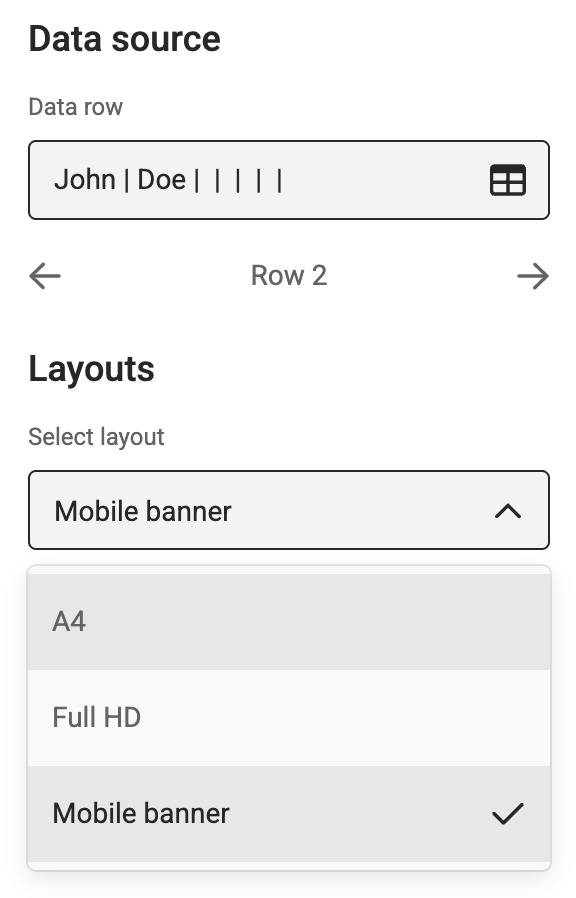
Select the right Layout
Choose Download (to HTML)
Click "Download" and choose your output setting in the dropdown.
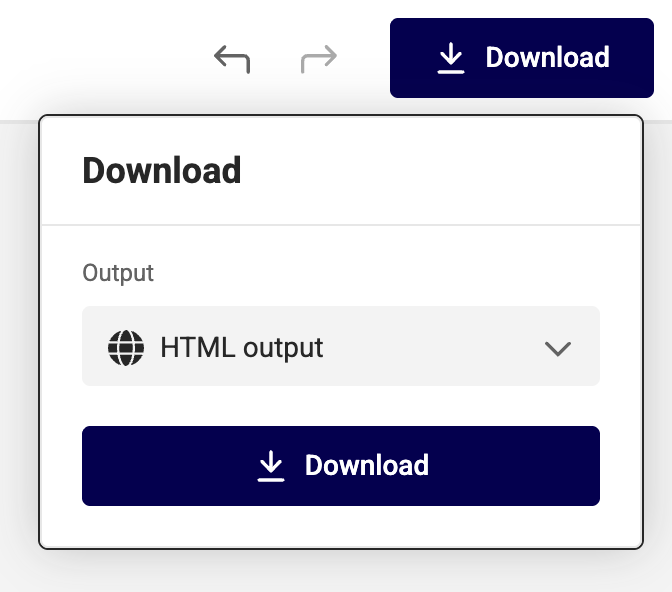
If you don't see the correct output settings, check the User interface, and if it's assigned to the Collection before you create a project.
More on the workflow on how to make templates available in My projects with the right output settings.
Components and images in HTML output
- Component frames are rendered in HTML output, including their resize mode (Scale, Resize, or Scale and resize) and background color.
- Image frames are clipped to the shape of the frame. When the frame has a stroke, the stroke is drawn on top of the clipped image.
- Every asset in the exported zip file gets a unique file name, for example
logo.pngandlogo_2.png.