Media Connector for Bynder
Built-in
Built by CHILI publish
Third Party
Solution vendor website
See Bynder's website
Installation
Getting Started with GraFx Studio — full course
The installation is done by enabling the Bynder connector on the environment.
See Installation Through Connector Hub
Bynder Configuration
Consult your Bynder documentation or Bynder System Admin to obtain the correct values for the fields.
CHILI GraFx Connector Configuration
From the overview of Environments, click on "Settings" on the right to your environment, where you want to install or configure the Connector.

Then click the installed Connector to access the configuration.
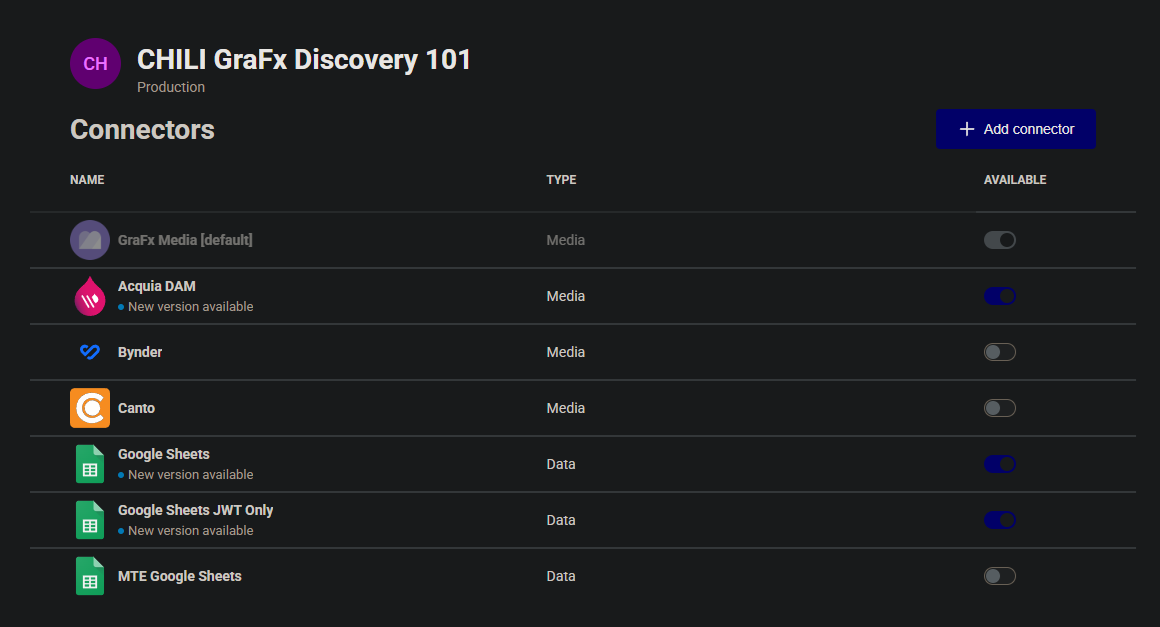
Configuration
Your instance of the Connector needs to know which Bynder instance it should communicate with and how to authenticate.
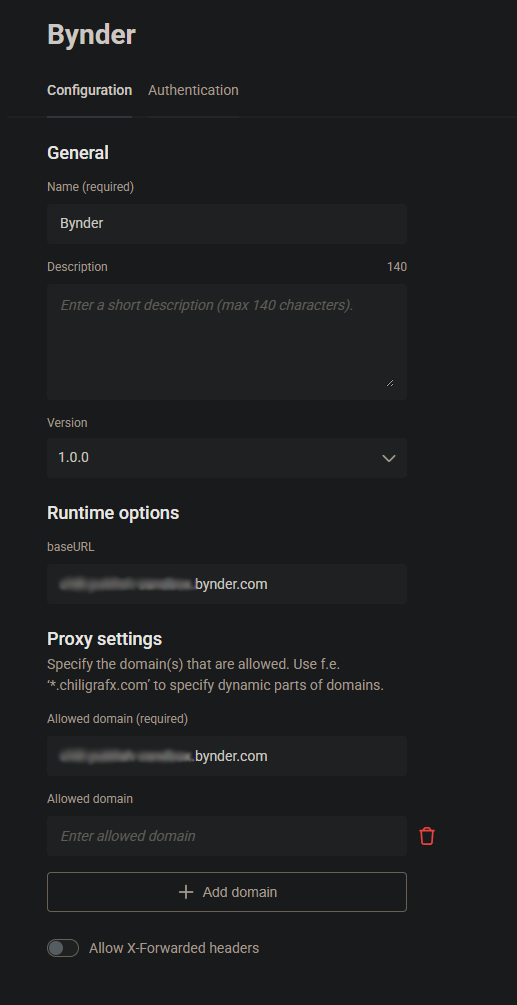
baseURL
Your Bynder System Administrator will provide you with this information.
For example
Proxy settings
CHILI GraFx needs to know what domains are allowed to process
For example
Authentication
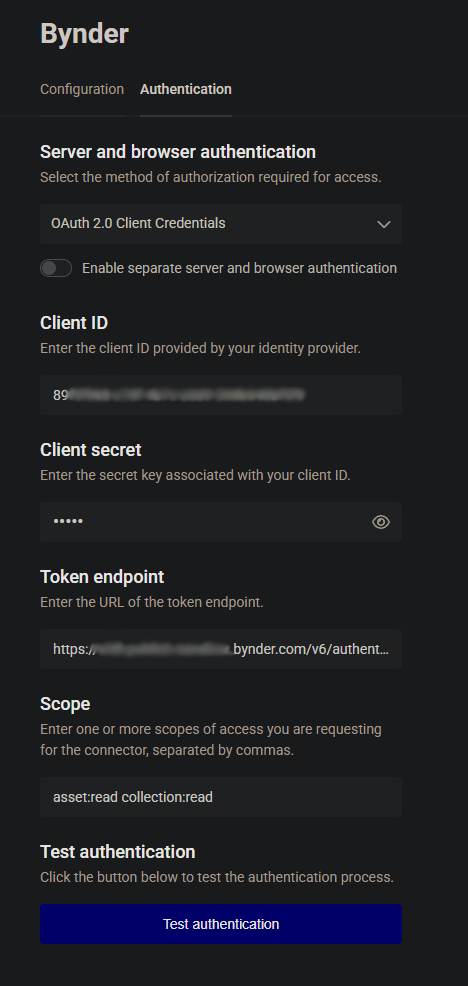
Select your type of authentication:
Server and Browser: OAuth 2.0 Client Credentials
- Client ID and Client Secret: These are customer-specific credentials provided by the Bynder Admin.
-
Token Endpoint:
-
Scope: Consult your Bynder Admin to determine the appropriate scope. asset:read and collection:read are minimum requirements.
Consult your Bynder System Admin for assistance in configuring these fields.
Using Assets from Your Bynder Dam
Getting Started with GraFx Studio — full course
Place Assets in Your Template
- Select the Bynder Connector.
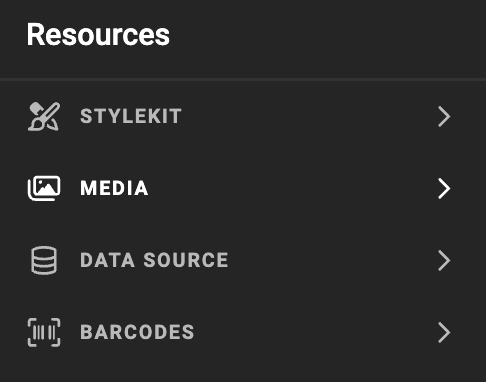
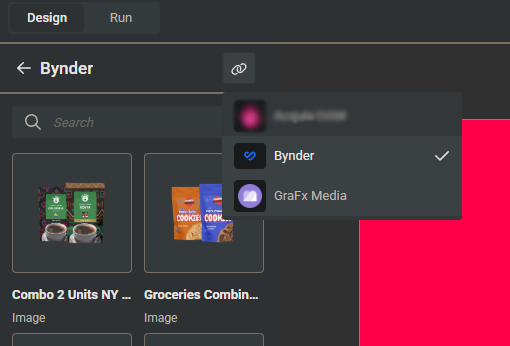
Image Variables
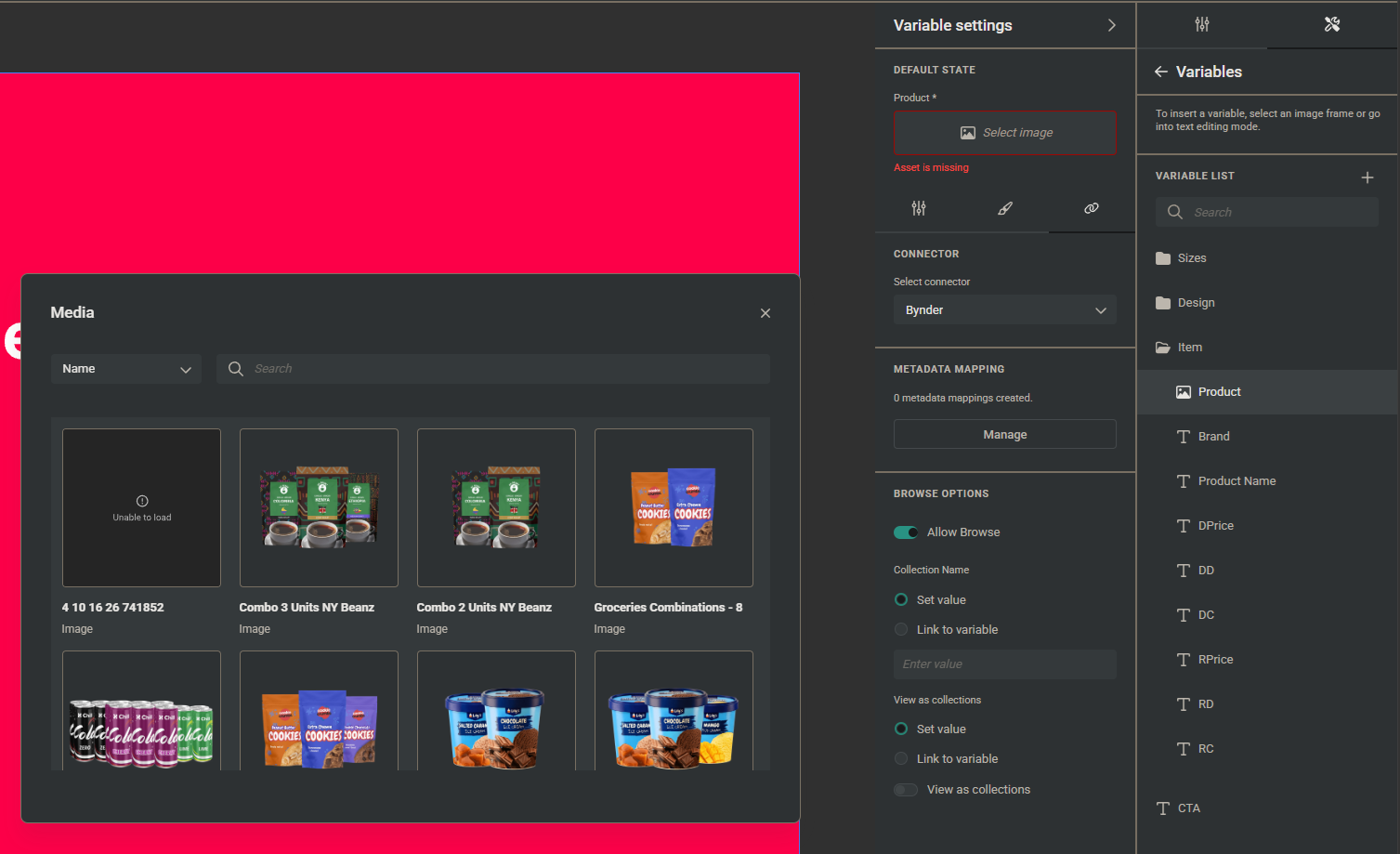
When using image variables, you will see the same grid of assets when selecting an image, except if you have set configuration options (see below).
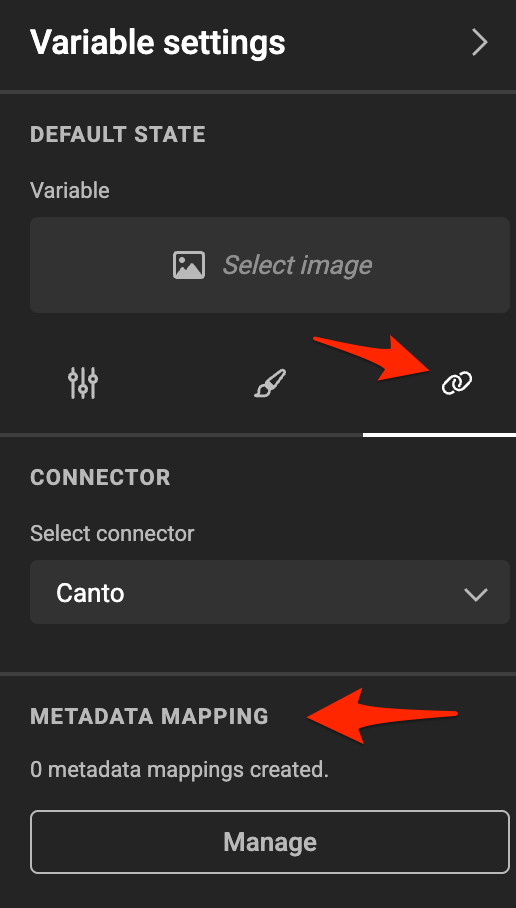
Metadata mapping
See Concept of metadata mapping for more details
Configuration Options
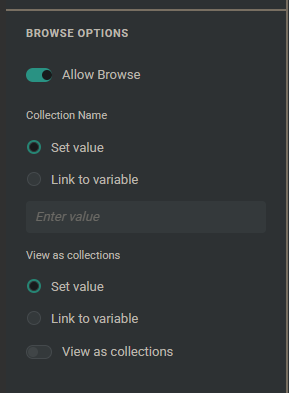
To filter the assets suggested to template users, you can use several methods.
Collection Name
When entered, only the assets housed in that collection will be shown.
View as collections
Enable collections or folder view for browsing. This voids the collection name configuration.