Manage Subject Types
A subject type is a category — such as person, product, or logo — that tells GraFx Genie Smart Crop what kind of subject an image contains. Each subject type can store its own Subject Area and Point of Interest on an asset, so the same image can be cropped differently depending on the intent.
Subject types are managed per environment by an environment admin. Template designers and end users pick from the list defined here.
Open the Subject types page
In the CHILI GraFx platform, make sure the correct environment is selected, then open Settings. In the Settings sidebar, select Subject types (shown beneath General, Integrations, and Connectors).
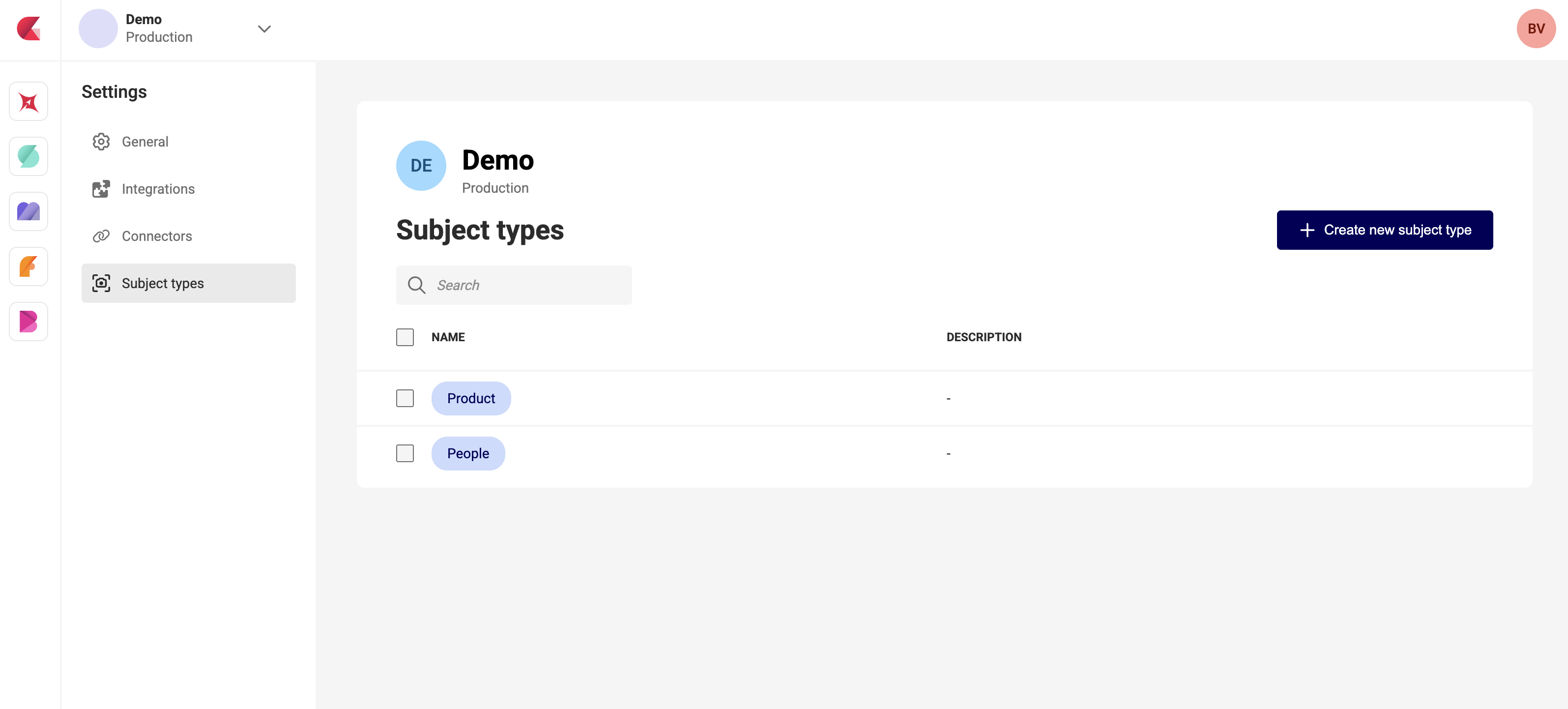
The page shows a search field and the list of subject types currently defined for the environment, with a Name and Description column.
Create a subject type
- Click + Create new subject type.
- Enter a Name — this is the label shown in the Subject type dropdown in GraFx Studio and on the media detail view.
- Optionally enter a Description for internal reference (not shown to end users).
- Confirm to save.
The new subject type appears in the list and is immediately available across the environment.
Keep names simple and stable
Names are used as identifiers in asset metadata and in templates. Renaming a subject type later may cause frames that reference it to fall back to Default — choose clear, stable names from the start.
Edit a subject type
Select a subject type from the list and update its name or description. Confirm the change to apply it across the environment.
Delete a subject type
Select one or more subject types with the row checkboxes, or open the actions menu on a single row, then choose Delete and confirm.
When a subject type is deleted:
- Per-type Subject Areas and POIs stored on assets under that type are no longer referenced.
- Image frames that were set to the deleted subject type fall back to Default.
- The Default Subject Area and POI on assets are never affected by subject type changes.
Find a subject type
Use the Search field above the list to filter by name. Useful in environments with a long list of types.
The Default subject type
Every asset has a built-in Default Subject Area and Point of Interest, detected automatically on upload in GraFx Media. Default is always available and cannot be removed — it is the fallback used whenever no subject type is selected on an image frame. It does not appear in the list on this page.
Where subject types are used
- GraFx Media / media connector overlay — on the media detail view, a Subject type dropdown lets you set and view a separate Subject Area and POI per type. See Set Subject Area for Smart Crop.
- GraFx Studio — on an image frame with Smart Crop active, a Subject type dropdown selects which type drives the crop. See Select a Subject type.