Skip to content

Brand Kits

The Resources button selected at the bottom of the sidebar

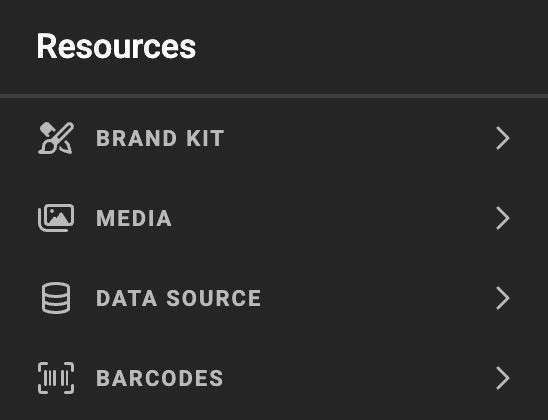
The Resources panel, with Brand Kit, Media, Data Source and Barcodes

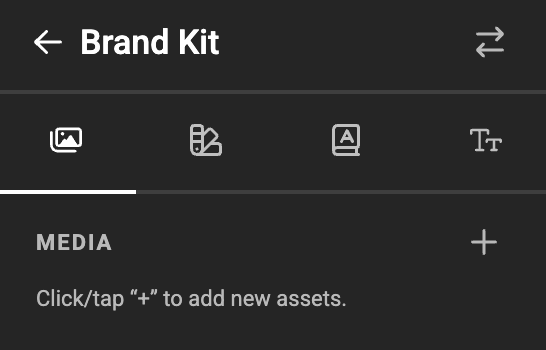
The Media tab of an empty Brand Kit, prompting you to add assets

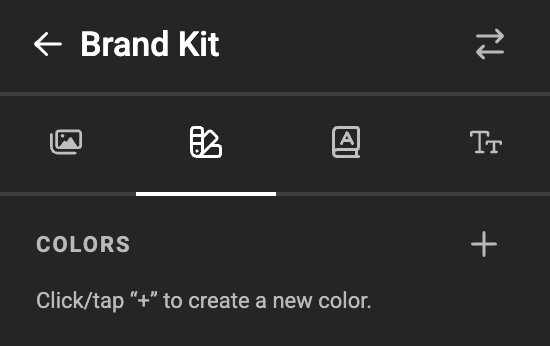
The Colors tab of an empty Brand Kit, prompting you to create a color

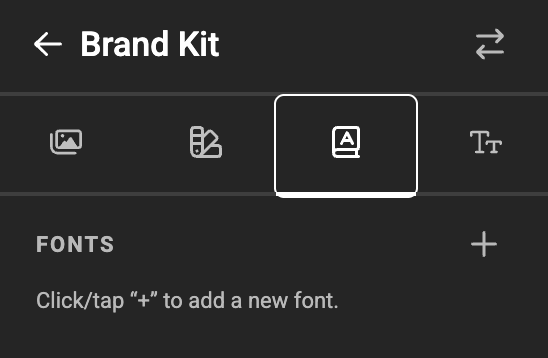
The Fonts tab of an empty Brand Kit, prompting you to add a font

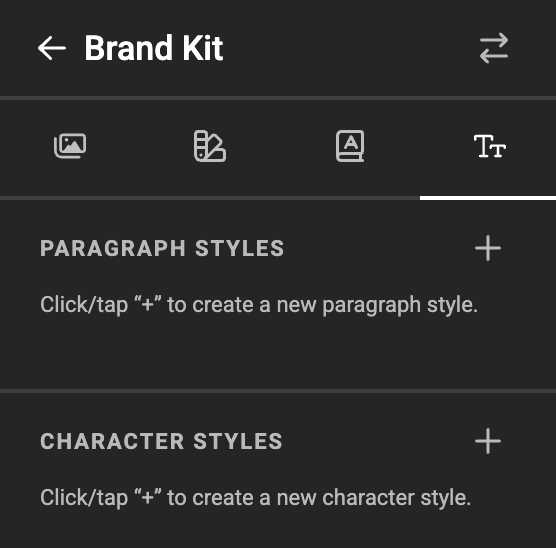
The text tab of an empty Brand Kit, with the Paragraph styles and Character styles sections

Media

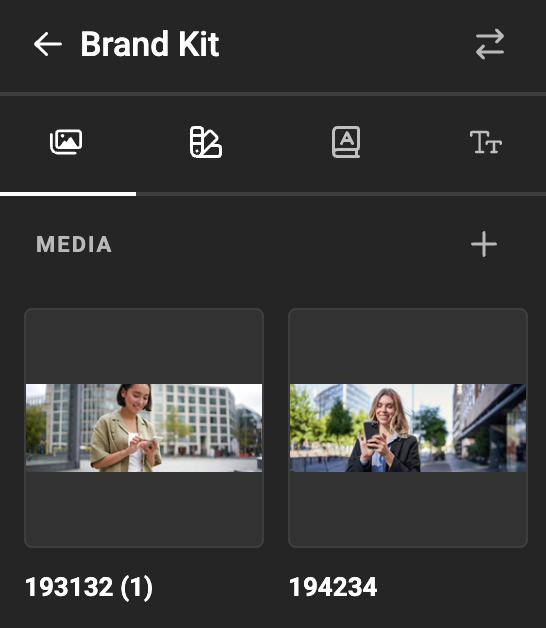
The Media section of a Brand Kit with two images added

Add media to your Brand Kit

Text: Paragraph Styles
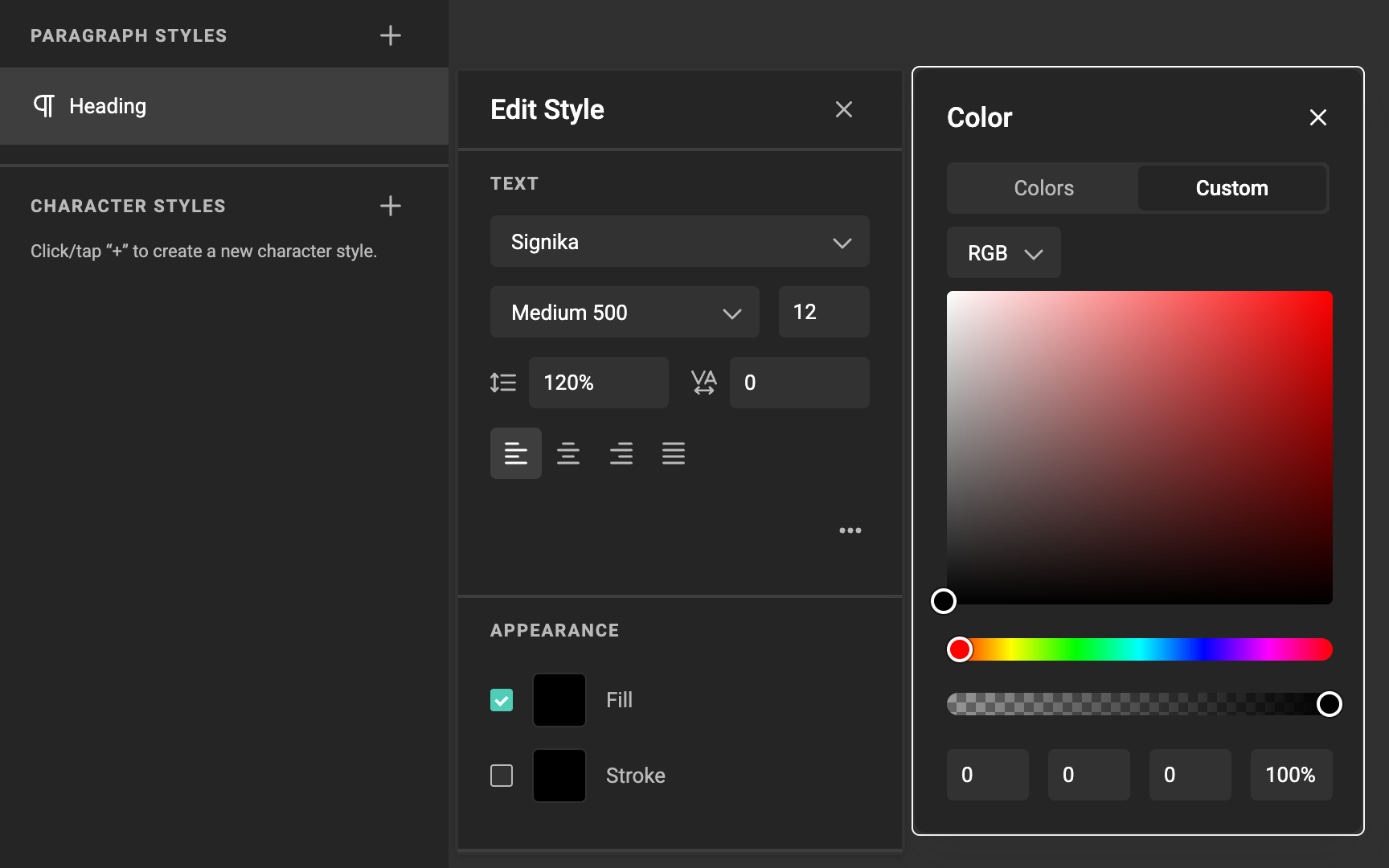
A paragraph style named Heading open in the Edit style dialog, with its font, size, alignment and fill

The pencil button allows editing the properties.

The fill color can be a custom color, or a predefined color.
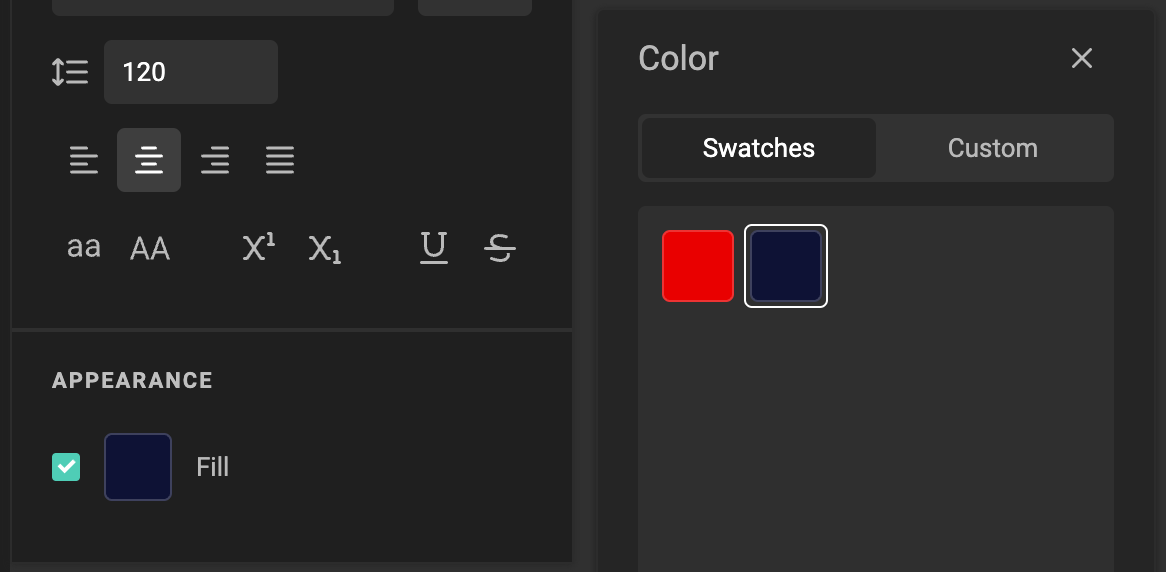
The Color dialog on the Swatches tab, with a Brand Kit color chosen as the fill

Text: Character Styles

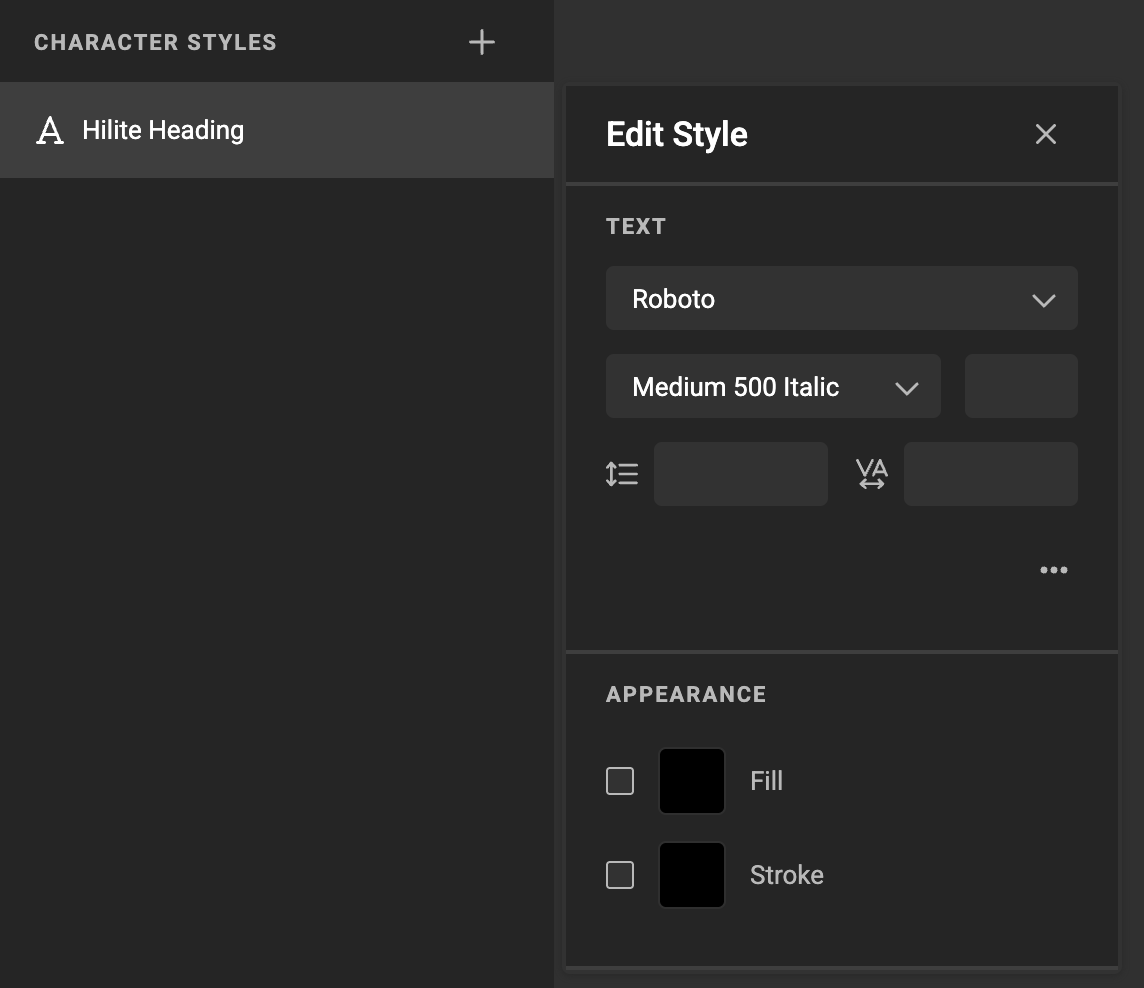
A character style named Hilite Heading open in the Edit style dialog

Color

A "color" is a predefined color saved inside a Brand Kit. You can reuse the color in paragraph- en character styles.
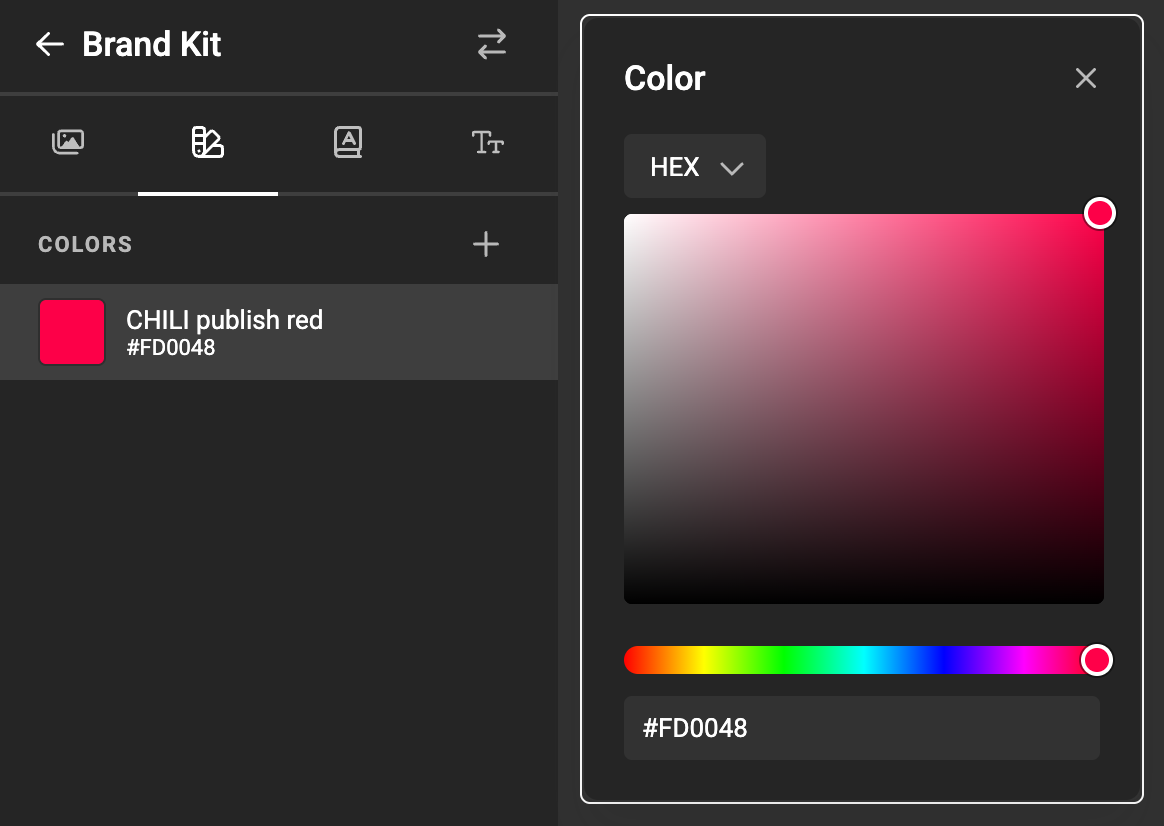
The saved color CHILI publish red, with its hex value open in the color picker

Define a color, give it a name and save the named color to be used later.
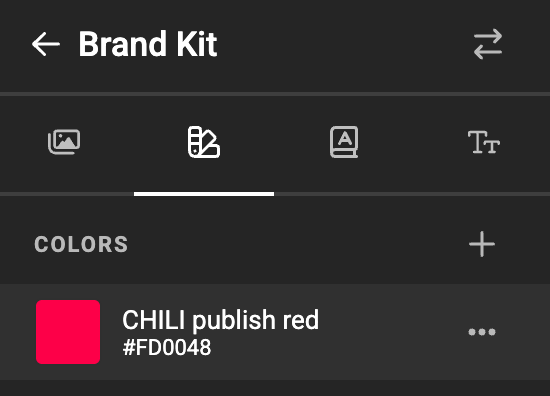
The Colors section of a Brand Kit listing the saved color CHILI publish red

Fonts

Select the font-book to view your fonts, and add them to the kit.
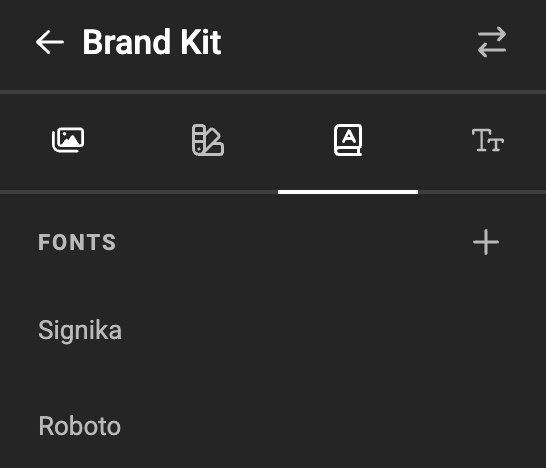
The Fonts section of a Brand Kit listing Signika and Roboto

Select the font family you want to add to your document.
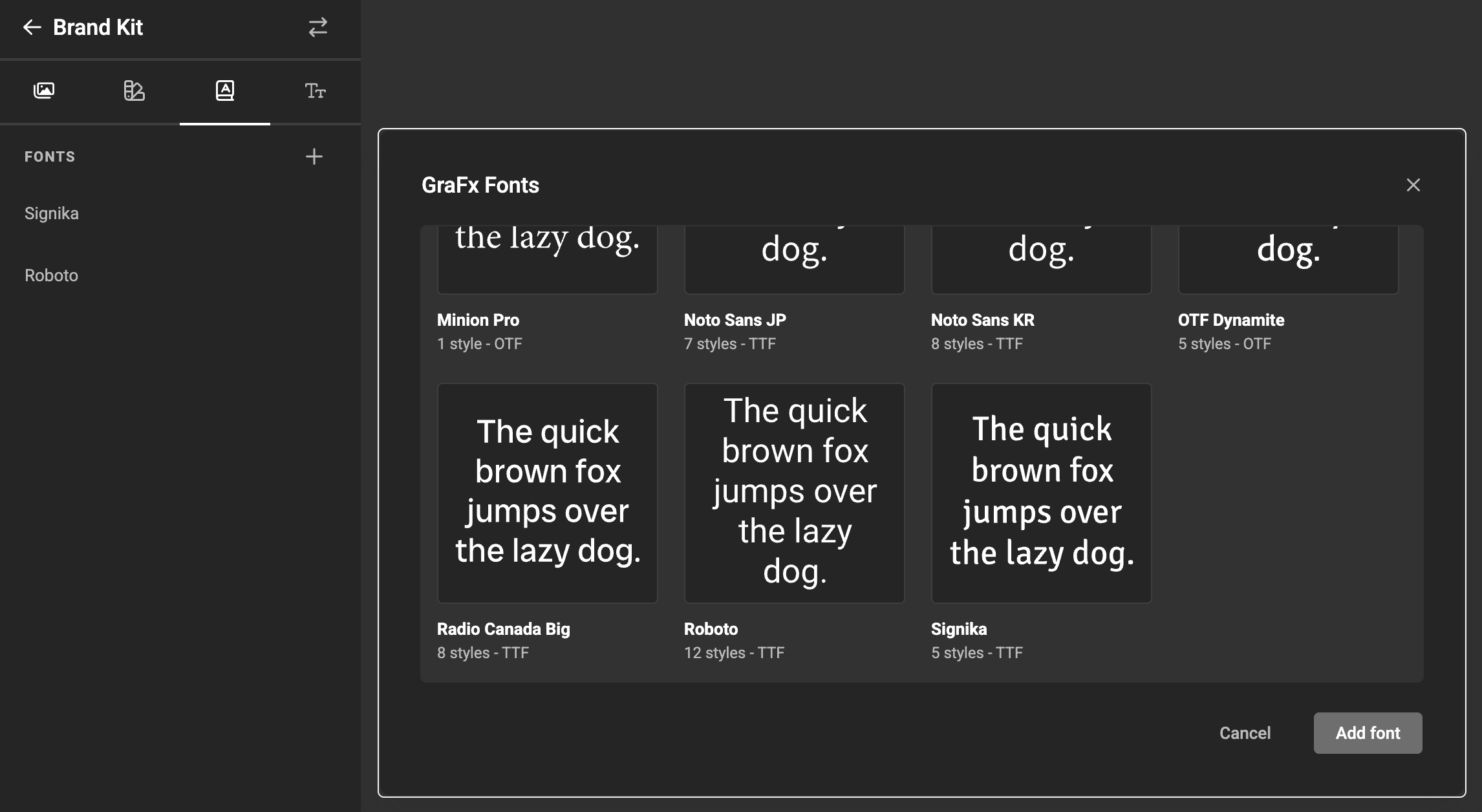
The GraFx Fonts picker, previewing each font family available to add

See GraFx Fonts