Single-line text Variables
Create a Single-line text Variable
Under the Automate icon, click Variables, and add a variable with the "+" sign.
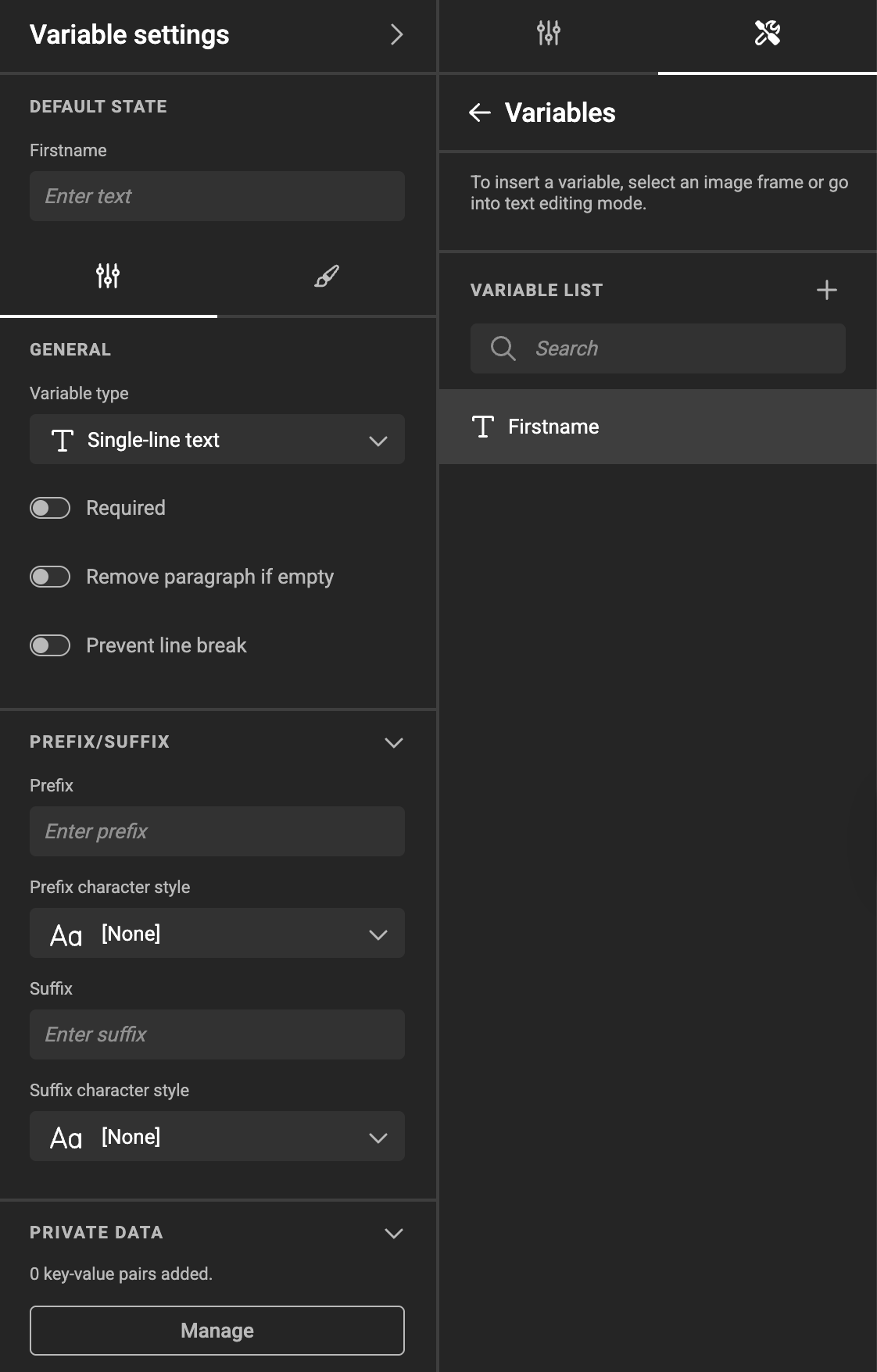
Choose "Single-line text" as the type.
Single-line text variables allow entering text in a single line.
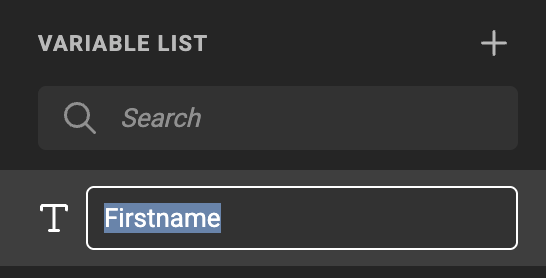
Set the Variable Name
Double-click the name, or choose "Rename" under the "..." menu.
Maximum Length
You can cap the number of characters a single-line text variable accepts. This is useful for keeping headlines, product names, or any layout-critical copy within bounds — both at design time and when end users fill in templates.
Set the limit in the variable's settings panel. When the limit is left empty, no cap is enforced.
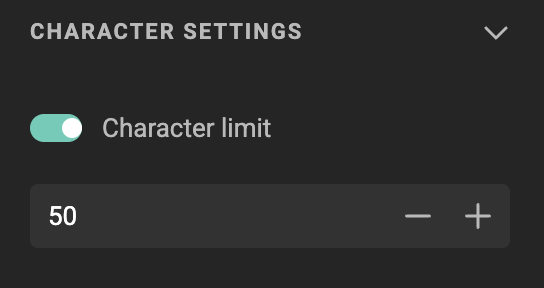
The limit is enforced everywhere the variable can be edited:
- Template Designer (Studio Workspace) and Studio UI both show a counter on the input indicating how many characters remain.
- Once the limit is reached, no further input is accepted.
- Pasting text longer than the limit truncates the pasted text to fit.


The same limit is applied when the value comes in from a data source, ensuring consistent enforcement across manual and automated workflows.
Set General Properties
- You can switch between single-line and multi-line text variable types at any time.
- When switching types, the value of the variable will be cleared.
- Prefix and suffix settings are also available for multi-line text variables.
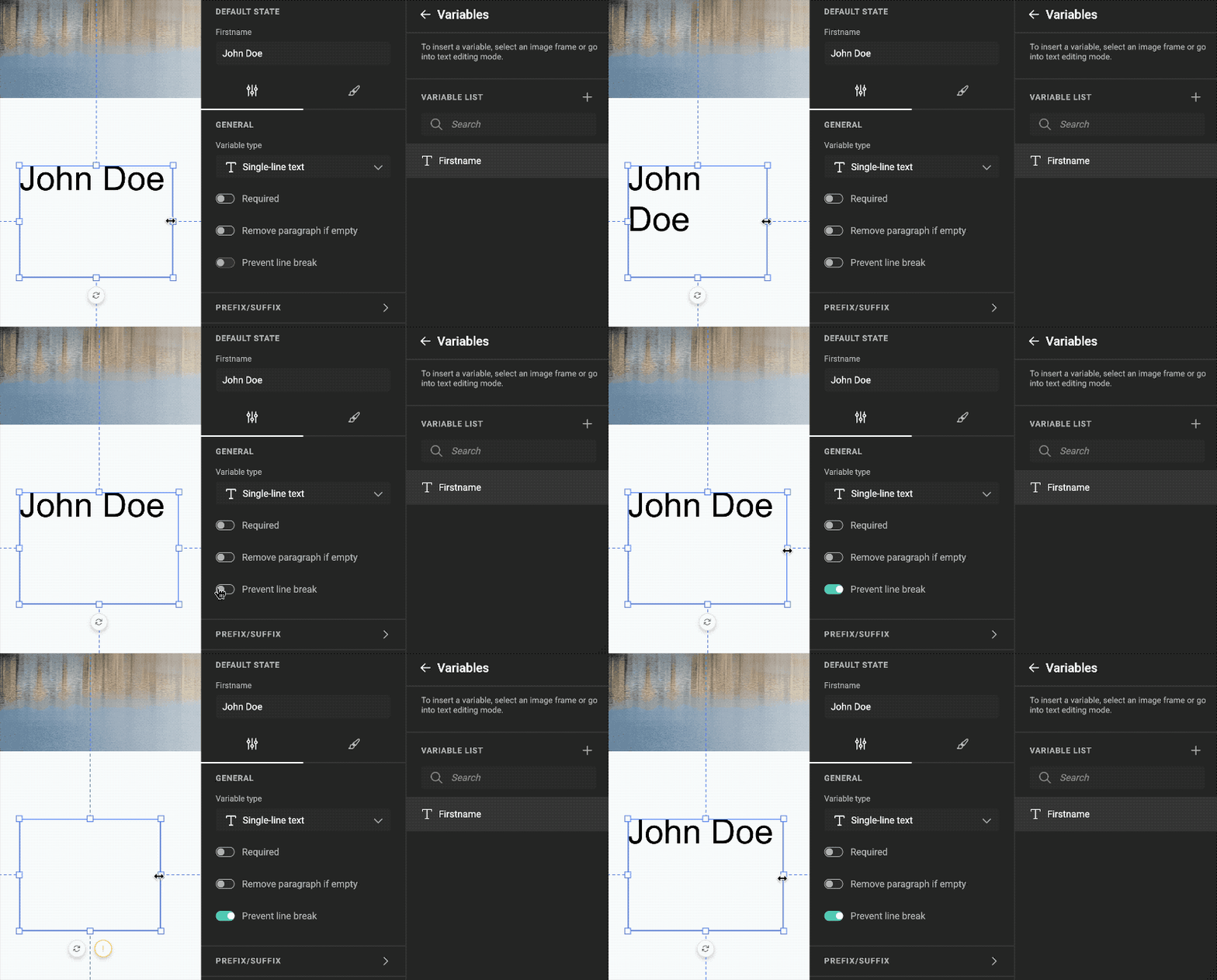
- "Prevent line break" will prevent text wrap in the text frame.
This means an overflow warning will show.
User Interface
See User Interface and Visibility Conditions