
Skip to content

Operational updates

Upcoming Change: Superscript and Subscript Rendering in GraFx Studio

CHILI GraFx icon

What is changing: Many fonts include their own instructions for how superscript and subscript characters should look — how large they are and how far above or below the baseline they sit. Until now, GraFx Studio ignored those instructions and applied a single fixed style to all fonts. From GraFx Studio 1.46.0, superscript and subscript text follows the settings built into each font.

What this means for your templates: Superscript and subscript text may render at a slightly different size or position than before. Normal (baseline) text is unaffected, and content, fonts, and layout are otherwise unchanged. Because most fonts define these settings, templates that use superscript or subscript will generally see some change. How noticeable it is depends on the font — from barely perceptible to clearly visible — so it's worth reviewing any template where the appearance of this text matters.

Visual changes possible

If your templates use superscript or subscript text, its size and vertical position may change after this update. How noticeable the change is depends on the font and the design, so we recommend reviewing templates where the appearance of this text matters before adopting the new version.

How to check if your templates are affected

The most reliable way to see the impact is to compare your own templates before and after the update:

  1. Identify the templates that use superscript or subscript formatting. This formatting is common in trademark and registered symbols, footnote markers, ordinal numbers (1st, 2nd), prices with raised cents ($1999), units of measurement (m2, cm3), and chemical formulas (H2O, CO2).
  2. Before updating, export each of the identified templates to PDF or image on your current version and keep the output as a reference.
  3. After updating to 1.46.0, export the same templates again.
  4. Compare the before and after output and confirm the superscript and subscript text still looks acceptable.

Where the appearance has changed in a way you are not happy with, adjust the template on the new version — for example, the font, the text size, or the surrounding layout — until the result meets your needs.

Rolling back a version

As long as a template has not been saved on the new version, you can roll back to an earlier version. See Manage environment version for the steps.

Testing on a live environment

If you are testing on a live environment, changing the version could mean that end-user projects are saved in the newest version. Check with your integration team, or contact our support team to discuss options.

Technical details

For those who want to know exactly what changed:

  • Source of the metrics: GraFx Studio now reads the superscript and subscript values from the font's OS/2 table — the horizontal and vertical size (ySuperscript/ySubscript X and Y size) and the vertical offset (Y offset) — and applies them when laying out the text.
  • Previous behaviour: Before 1.46.0, these values were ignored. Superscript and subscript were drawn at a single fixed scale and offset derived internally, regardless of the font.
  • Fallback: If a font leaves these OS/2 values unset (zero), GraFx Studio keeps the previous default behaviour for that font. In practice almost all fonts define them, so the fallback rarely applies.
  • Two things can shift: Both the size and the vertical position now come from the font. Size is no longer forced to be uniform, so superscript and subscript glyphs can be scaled slightly differently in width and height than before.
  • Possible reflow: Because the size of superscript and subscript characters can change, the width they occupy can change too. In tightly fitted text frames, this may nudge the surrounding text slightly.

If you have questions or need more guidance, please open a ticket at mysupport.chili-publish.com.

Upcoming Change: Centralized Login for GraFx Publisher BackOffice

rn_icon

To improve security and streamline the user experience across our platform, we are centralizing our login process. Effective November 2025, direct login access to the GraFx Publisher BackOffice will be discontinued. All users will instead authenticate through their CHILI GraFx account to access the BackOffice.

What does this mean for you?

Starting on November 16th, 2025, you will no longer log in to the GraFx Publisher BackOffice using a direct URL.
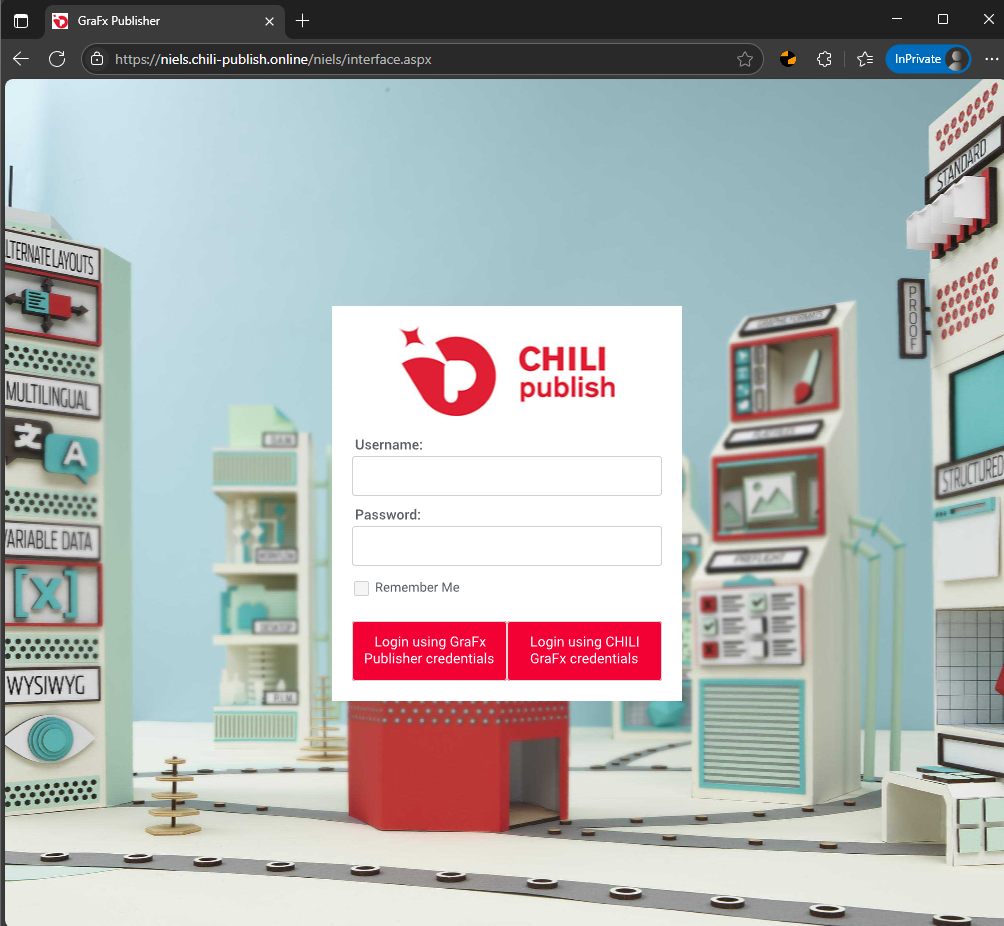
GraFx Publisher BackOffice

Instead, all users will access the BackOffice by logging into their CHILI GraFx account first.
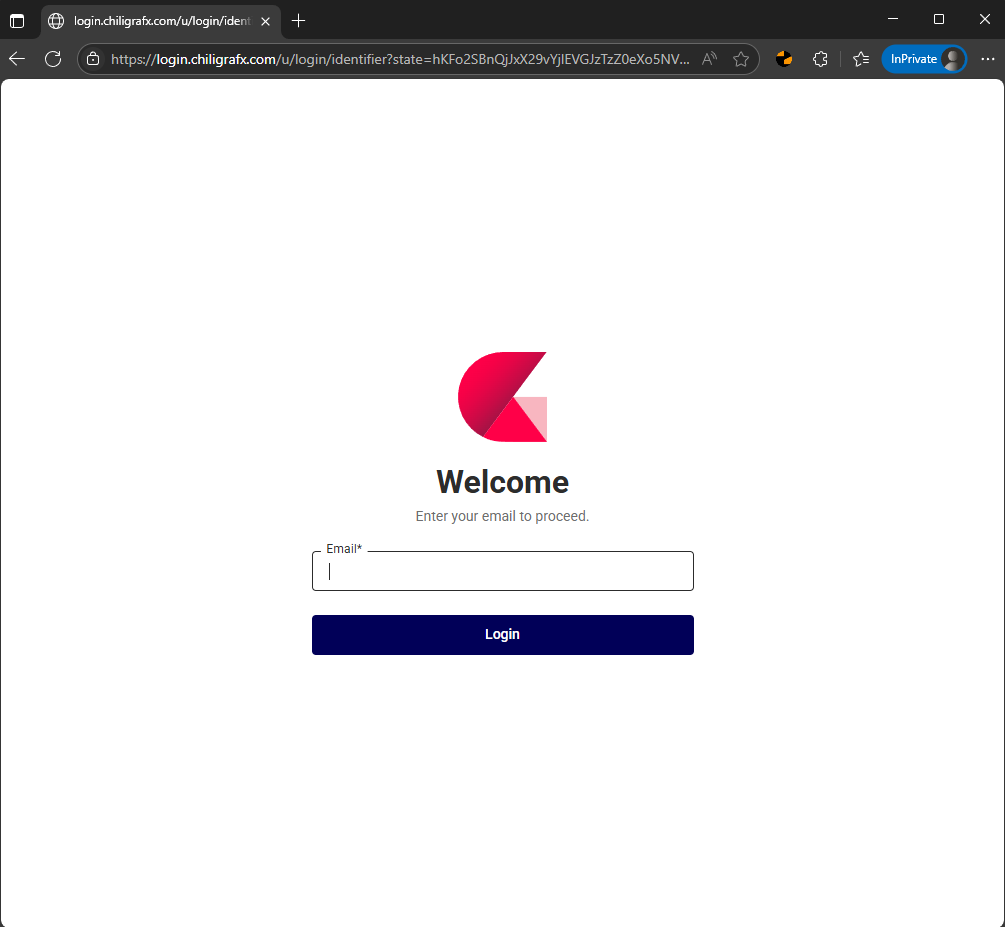
CHILI GraFx Platform

Key Points

Direct Access Discontinued: Direct access to the Publisher BackOffice will be discontinued causing a redirect to CHILI GraFx, which means you will no longer be able to log in directly via a URL like below:

https://[environmentName].chili-publish.online/[environmentName]/interface.aspx

New Authentication Method: Users must use a GraFx user for authentication to gain access to the Publisher BackOffice.

API Users: This change will not impact API users. This change will have no impact on current integration or applications making use of the API or data in Publisher, this only applies to users logging in directly to the Publisher BackOffice, which they will still be able to do via CHILI GraFx.

BackOffice: To highlight, the BackOffice isn’t disappearing, instead we are just making some changes to streamline the authentication process. But direct access to the BackOffice will no longer be possible for users and must be accessed via CHILI GraFx

Who is Affected?

✅ This change AFFECTS: Any user who currently logs in directly to the Publisher BackOffice interface to manage templates, assets, or settings.

❌ This change DOES NOT AFFECT: API users or any existing integrations. Your applications using the GraFx Publisher API will continue to function without any changes.

Action Required: What You Need to Do

To ensure a smooth transition, you must set up any users who need BackOffice access within CHILI GraFx.

Identify Users: Make a list of all team members who currently log in directly to the Publisher BackOffice.

Create Users in GraFx: For any user on your list who does not already have a CHILI GraFx account, you will need to create one. Users & Invitation - CHILI GraFx Guides

Assign Roles: Ensure the users have the appropriate roles and permissions within CHILI GraFx to access the Publisher tools they need. Roles - CHILI GraFx Guides

Inform Your Team: Communicate this new login process to your team to ensure they are prepared for the change.

Schedule

We are providing a two-month window to allow for a smooth transition.

October 16, 2025 – Changes will be applied to Sandbox environments.

This update will be rolled out to all sandbox environments. This period is dedicated for you to test the new login flow and ensure all your users are set up correctly without impacting your production work.

November 16, 2025 – Changes will be applied to Production environments.

The new login process will go live for all production environments. Direct BackOffice login will be disabled. All login must occur via CHILI GraFx.

Resources

For help with setting up users and roles in CHILI GraFx, please refer to our documentation:

Users & Invitation - CHILI GraFx Guides

Roles - CHILI GraFx Guides

Support

We understand that changes can sometimes be challenging, and you may have follow-up questions. Should you have any questions or need assistance, please do not hesitate to reach out to our support team.

Thank you for your cooperation and understanding.

Best regards, CHILI publish